Transmittal
After adding the model file to the document, the USER needs to perform the Transmittal process so that the Workflow can be created and started immediately.
Tranmittal Document
1. Choose the Document
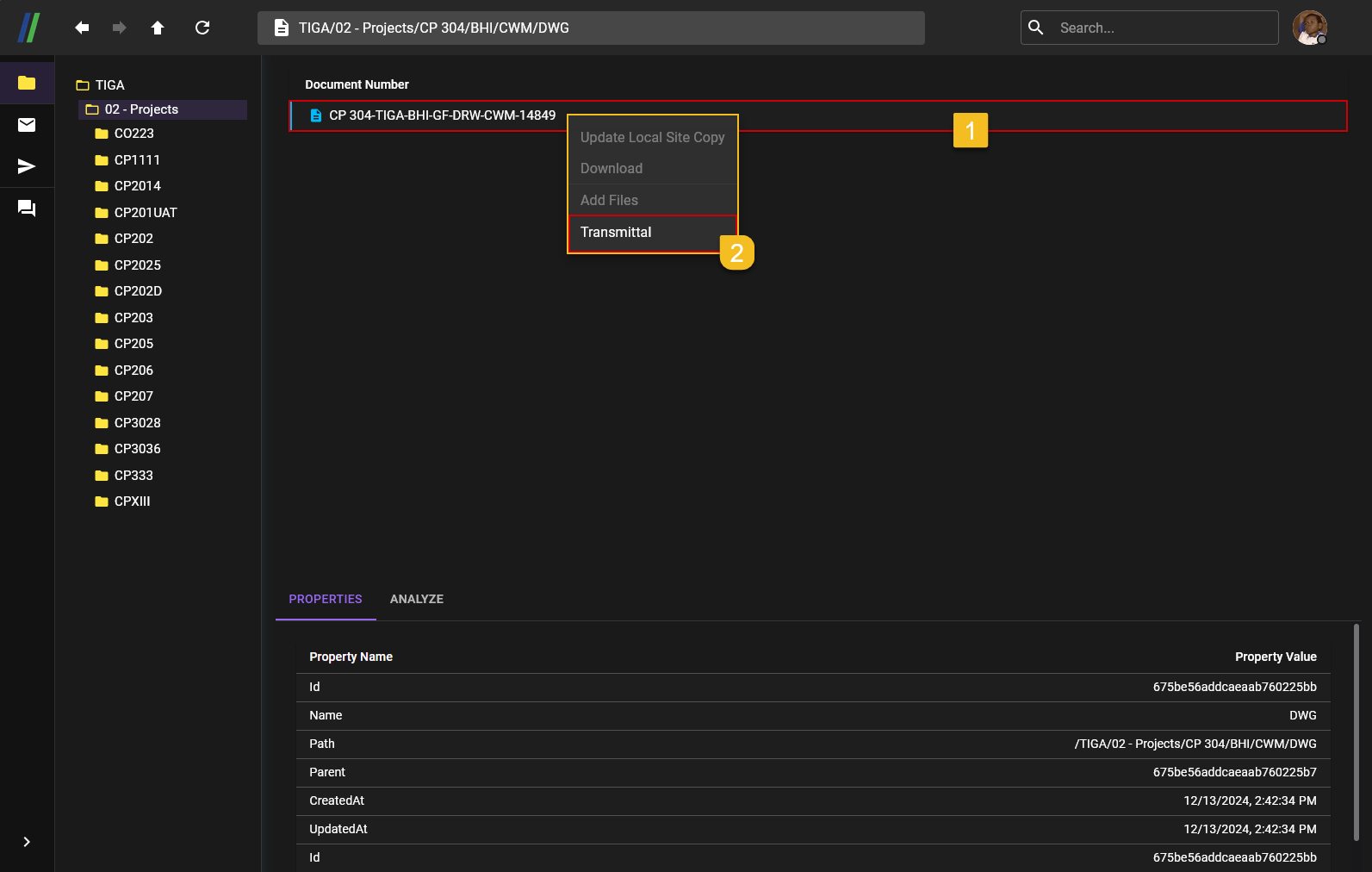 First thing first USER needs to enter the same document code that the USER use when adding the files/models to the document.
- The USER then
Right-Clickon the document to see theTransmittalmenu. - After the action menu are appear, the USER then
Left-Clickon theTransmittalmenu to start theTransmittalprocess.
2. Transmittal Setting Up
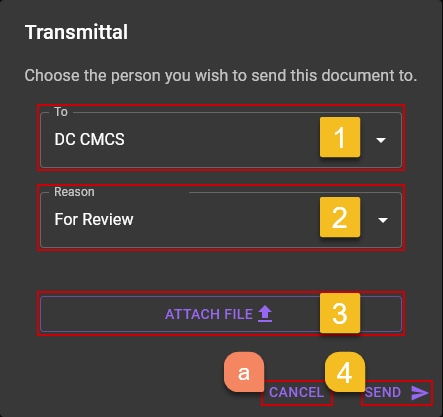
- Contractor determines to whom Contractor sent the document via the
Transmittal. - Contractor also need to pick the reason behind the sending document through the
Transmittalmethod using the dropdown with the reason that also available on the dropdown. - Contractor also can attach file to sent simultaneously with the document through the
Transmittalmethod. - After checking all the input inside the
Transmittalform, and make sure all are correct; Contractor can send theTransmittalusing theSENDbutton located on thebotom-right cornerof the form.
Extra:
a. If the Contractor for some reason feel the need to cancel the process, Contractor can simply click the
CANCELbutton.
3. Transmittal Successfully Sent
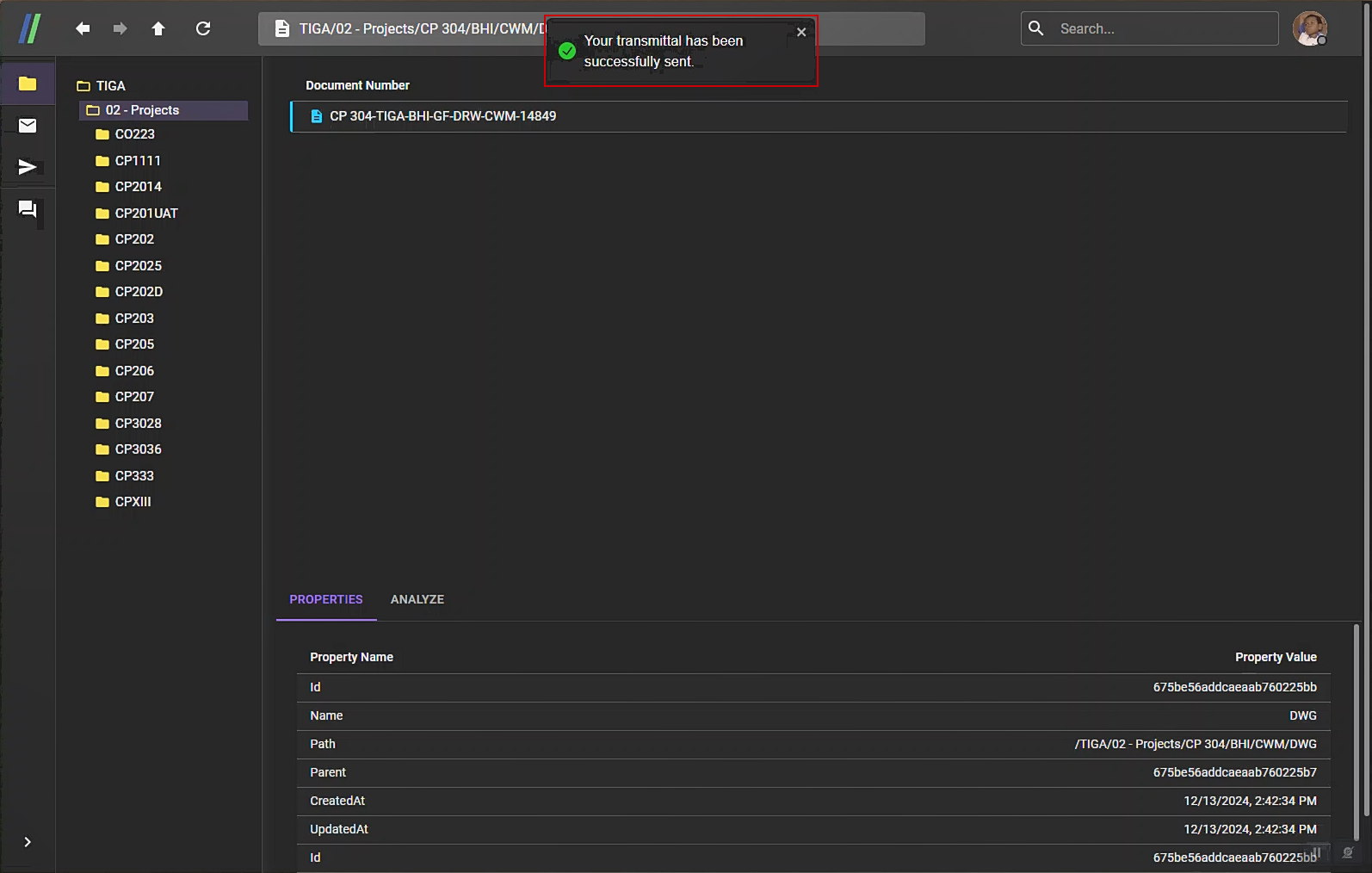 After successfully sending the document to DC Consultant on BIMA Construction via the
 Transmittal, Contractor would got notification saying Your tranmittal has been successfully sent.