Doing the Task
1. Open the Task List Page
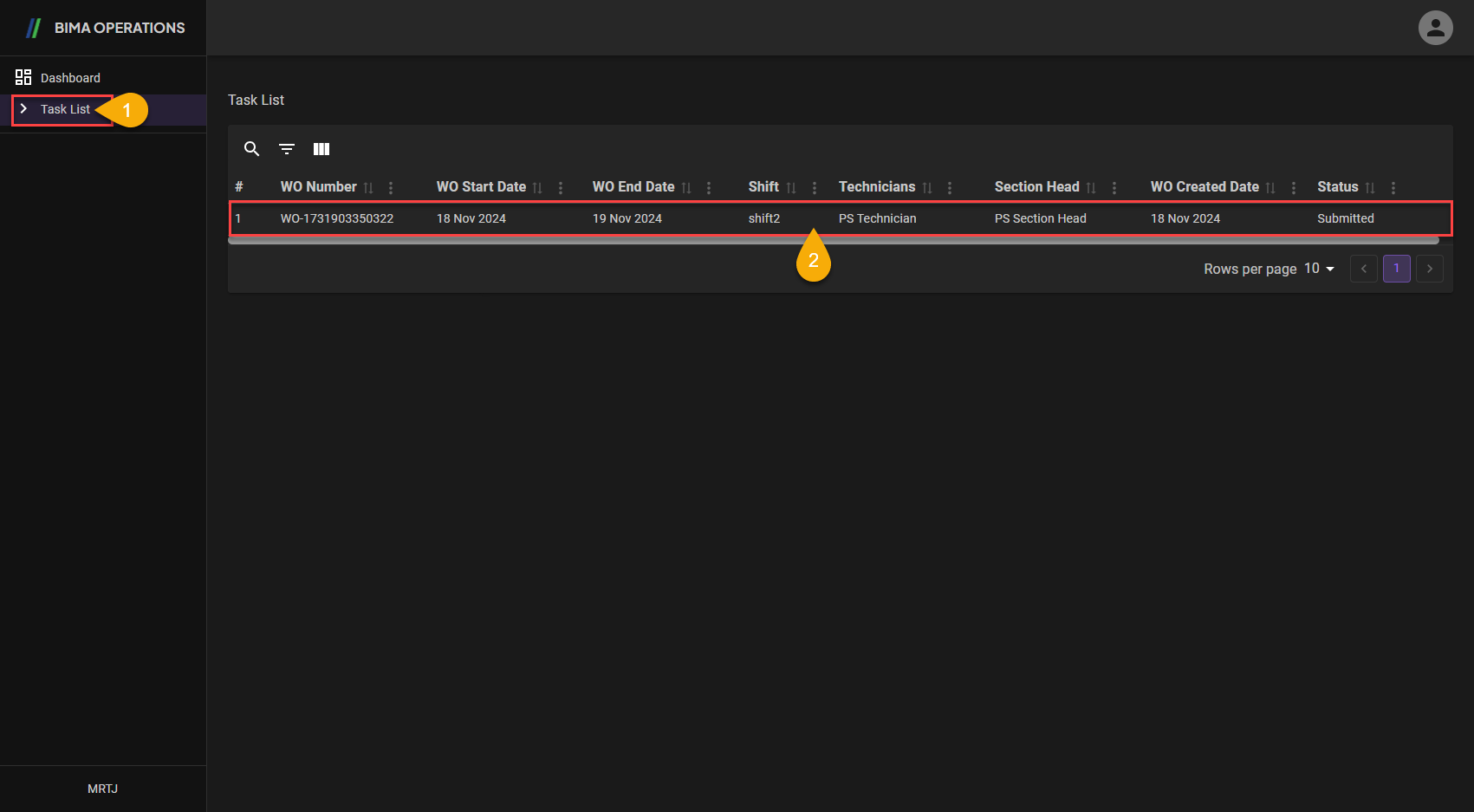
- Technician clicks on the
Task Listbutton to open the listTask Listpage. - After opening the
Task Listpage, Technician can click the inner area of the red box shown above, to be shown the task detail.
2. Take the Task
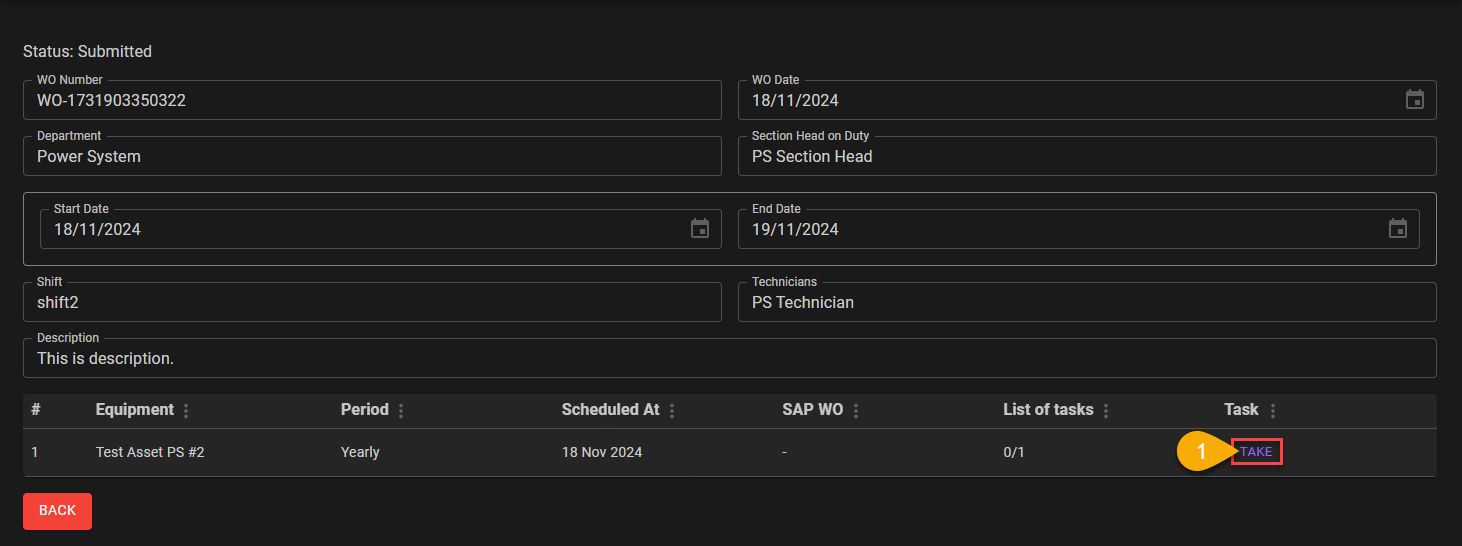
- After opening the task detail, Technician can click on
TAKEbutton to accept the task given either by Planner or Section Head.
3. Prepare Tools and Materials
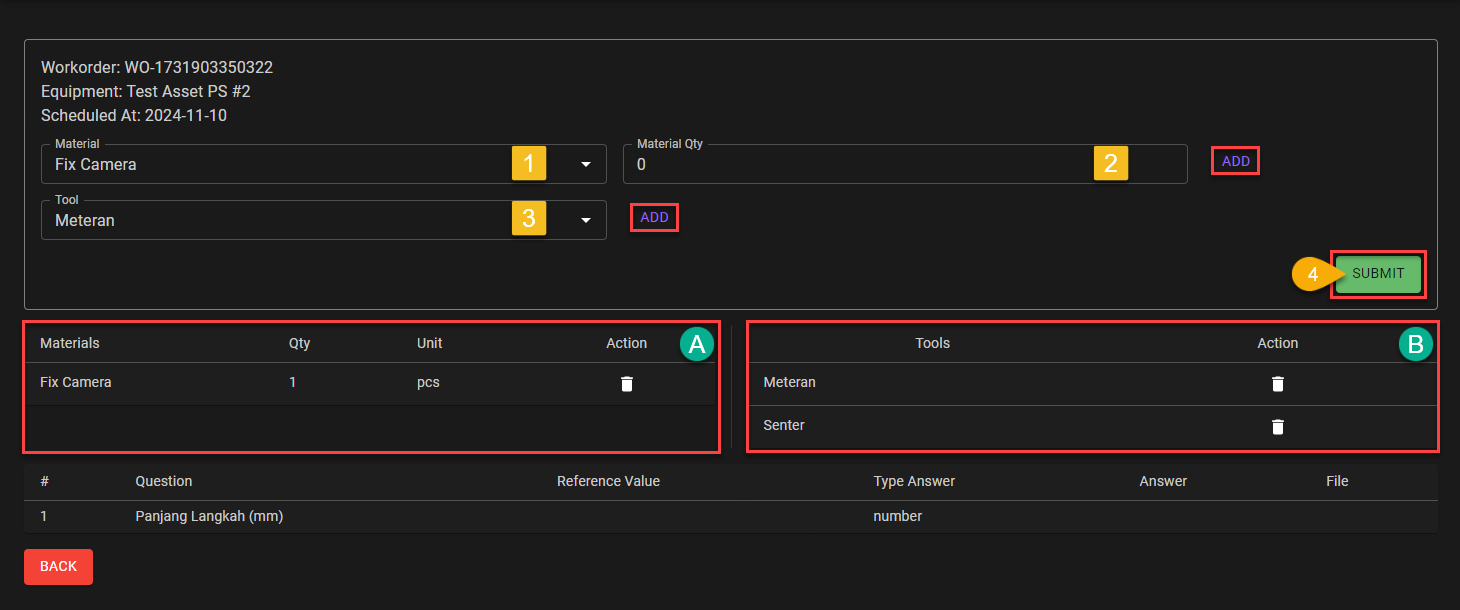
- Technician can take some material from the item list on the dropdown list.
- Tehcnician can input the amount of materials needed to complete the task. Make sure after choosing the materials and input the amount of materials Technician click on the
Addbutton to add the materials to the materials list shown on sectionA. - Technician can take some tools to from the item list on the dropdown list. Also make sure to click on the
Addbutton to add the tools to the tools list shown on sectionB. - After preparing the Tools and Materials for the task Technician can click on the
SUBMITbutton to start on doing the Task.
4. Doing the Task - part 1
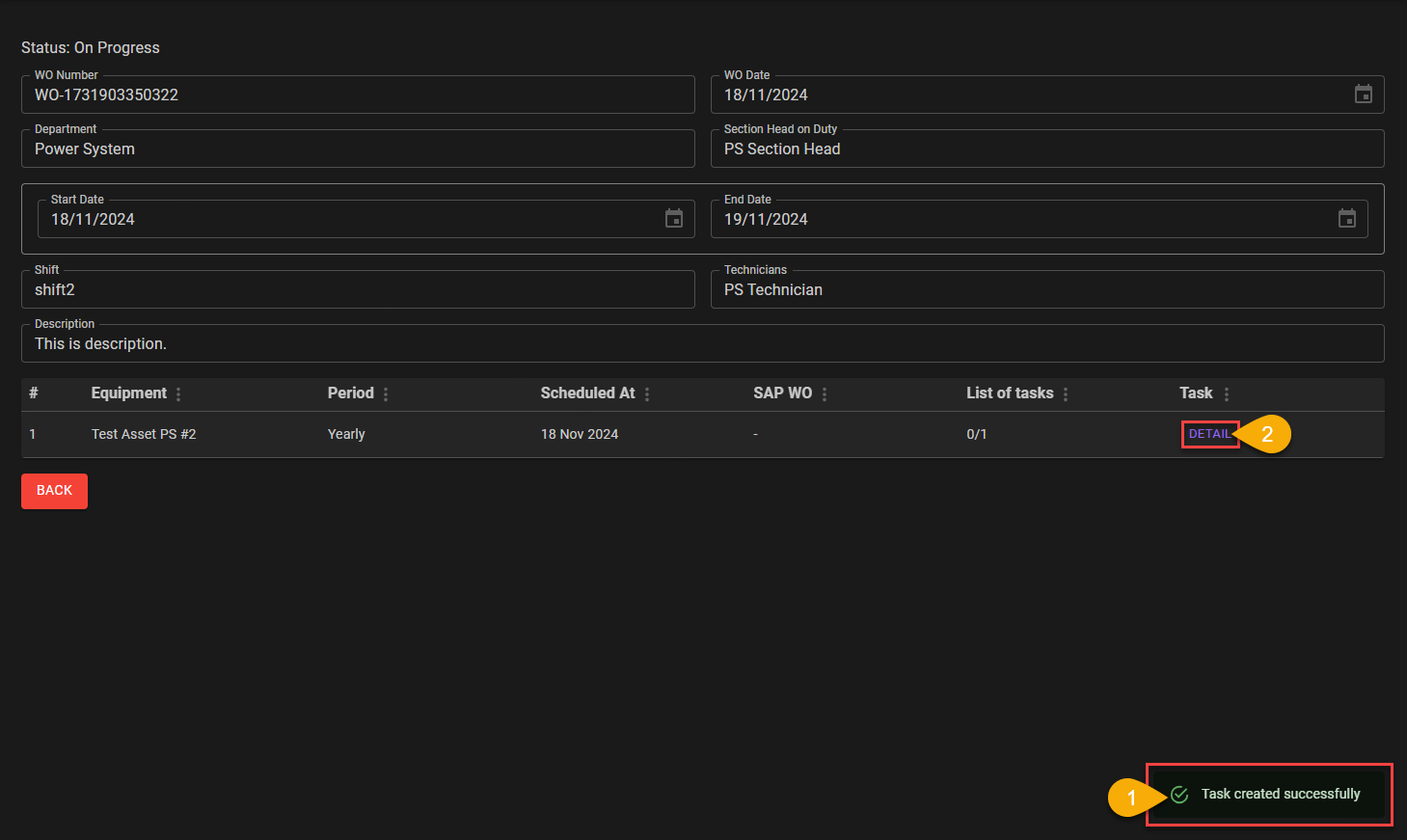
- After submiting the materials and tools that have been prepared for the task, Technician wil got a notification
Task created successfully. - After making sure name on the Task column is changed from
TAKEtoDETAIL, the Technician need to click on theDETAILbutton to start doing the task.
5. Doing the Task - part 2
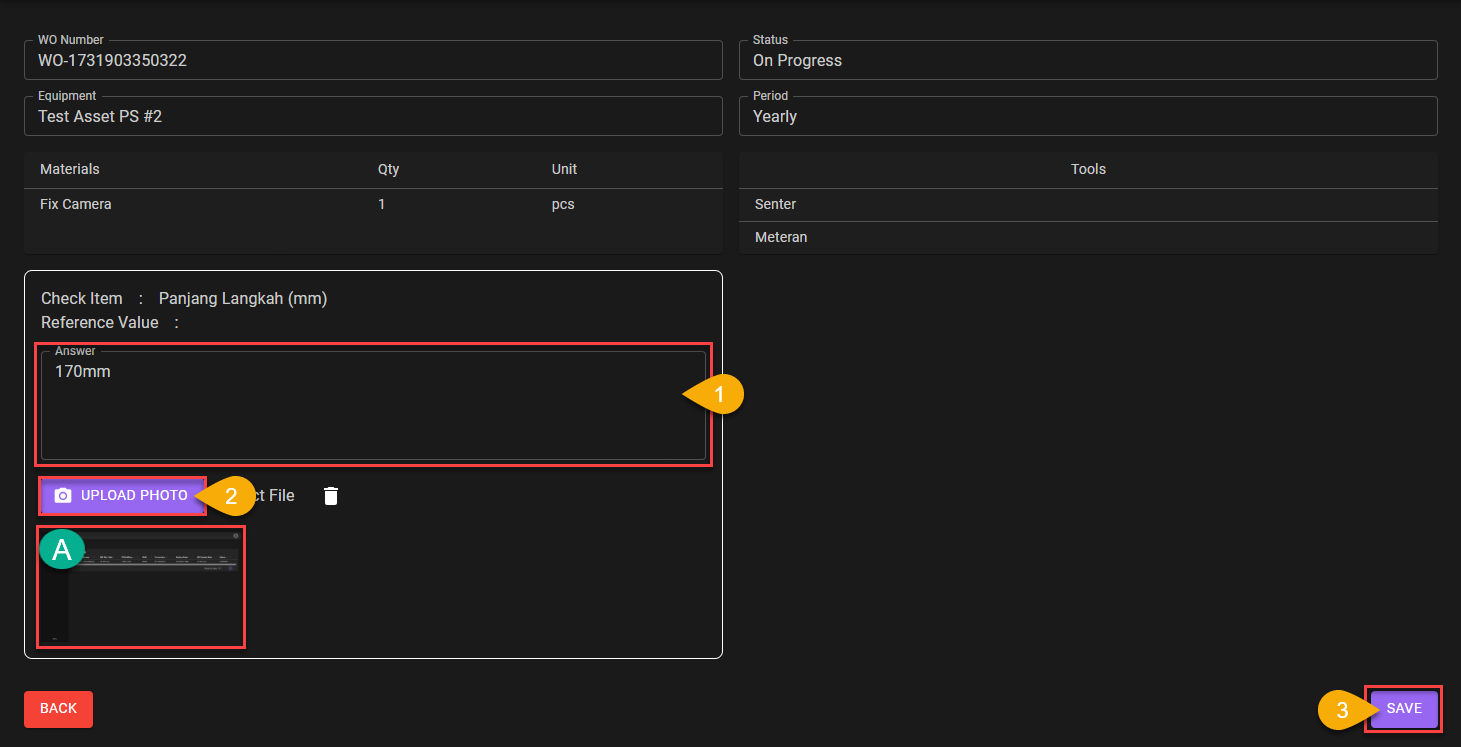
- Technician can fill in
Answerby answering according to the questions asked in the Check Item section, in this case it is 170mm. - Technician can upload photos according to the contents or evidence of activities during the check.
- If all questions have been completed by Technician, Technician can click the
SAVEbutton
Extra:
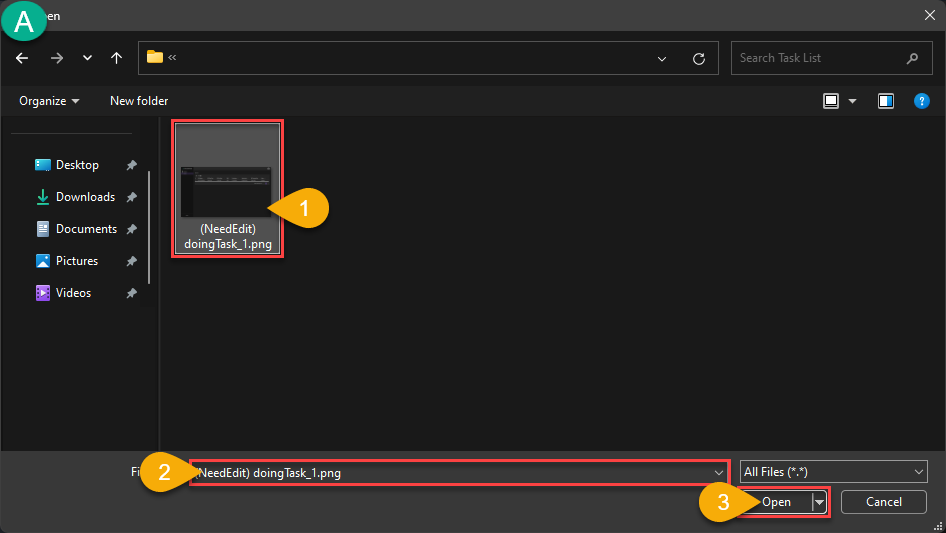
A. Uploading Photo
- The Technician can choose the desired photo to upload.
- Select the photo to upload.
- If the selected photo is correct, Technician can click the
Openbutton to complete theUploading Photoprocess.
6. Submit Work Order
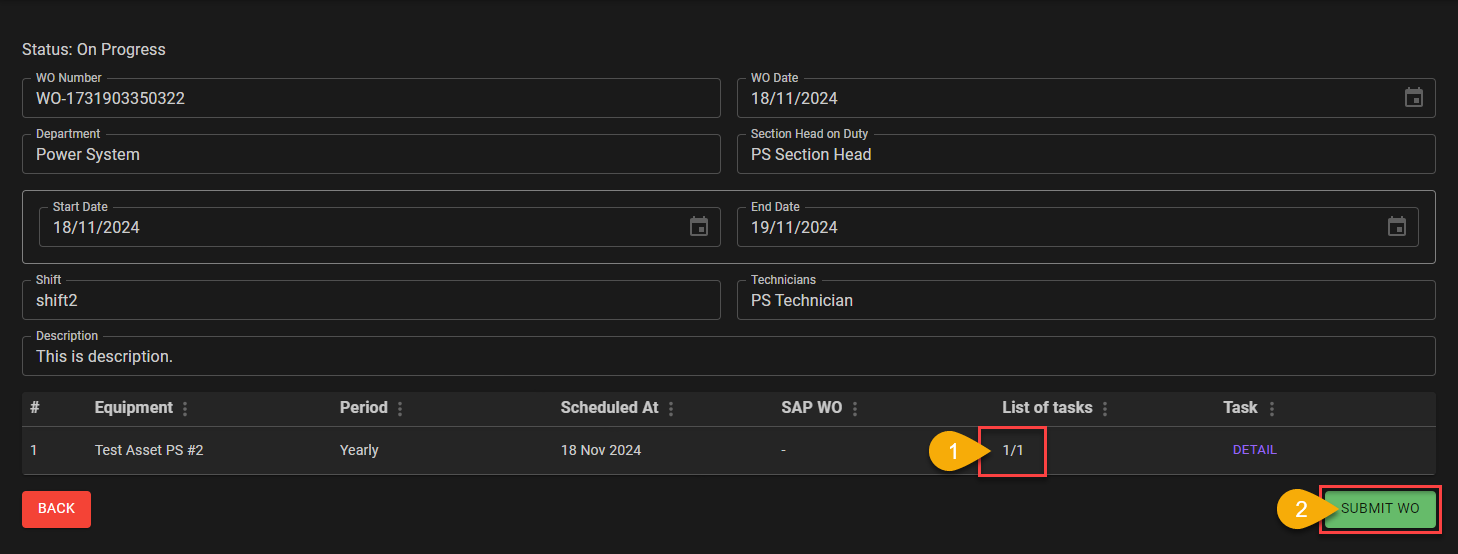
- After doing all the task, make sure the
List of taskare all completed accoring to the amoung given. (eg. if 1 task given theList of taskshould written1/1, if 6 task are given theList of taskshould written6/6). - After making sure all the Task are done Technician can click on the
SUBMIT WOto finishing the Work Order.
7. Confirming the Submit Process/
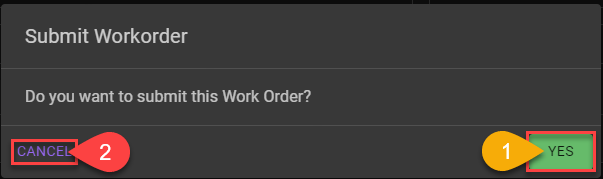
- If the Tehcnician are confident on the task answer/result the Technicians can click on the
YESbutton. To finalize the submit process. - If the Technicians are not sure about the task answer/result the Technician can click on the
NObutton, to edit the answer.
8. Work Order Finished
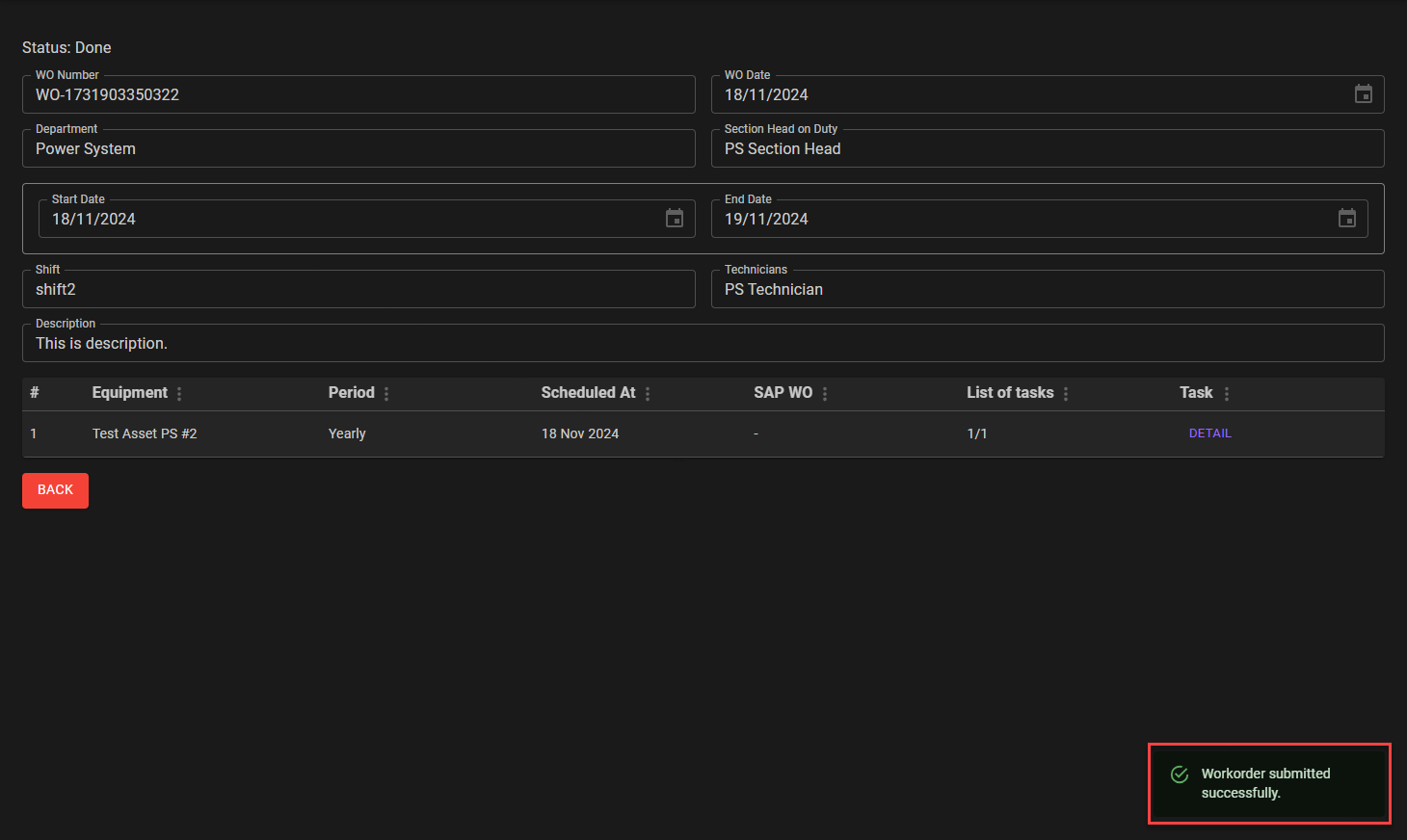
After finishing the Work Order process, the Technicians got notification which are Workorder submitter successfully.