Add/Create New Company
1. Go to Company Page and Open Create Company Panel
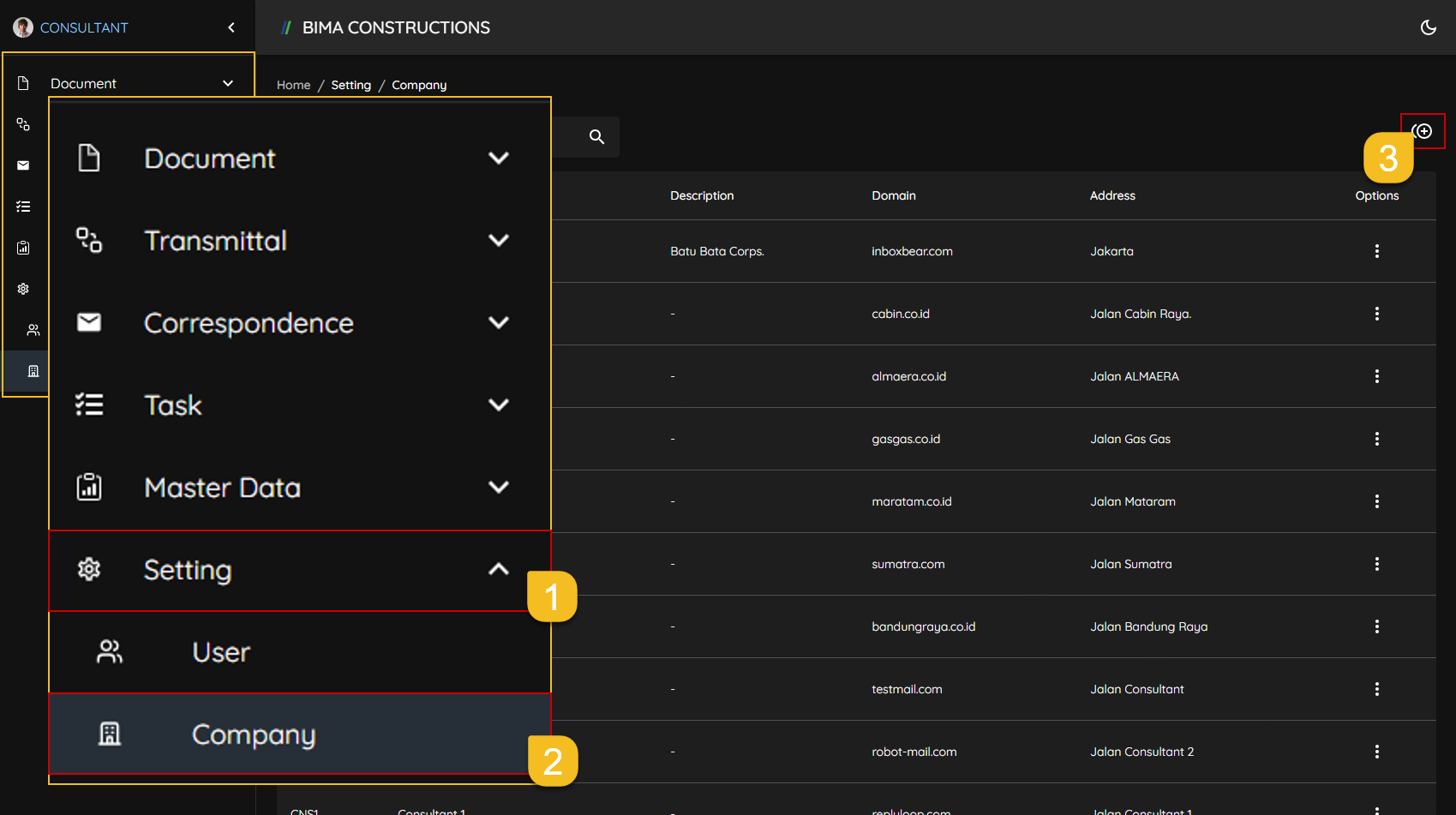
- HyperUser can click on the
Settingsmenu to open the dropdown list of menu insideSettings. - HyperUser then can click on the
Companymenu to go to theCompanypage. - After opening up the
Companypage, HyperUser can click on the+button located on the upper right of the page, to open up theCreate Companypanel.
2. Add/Create a New Company
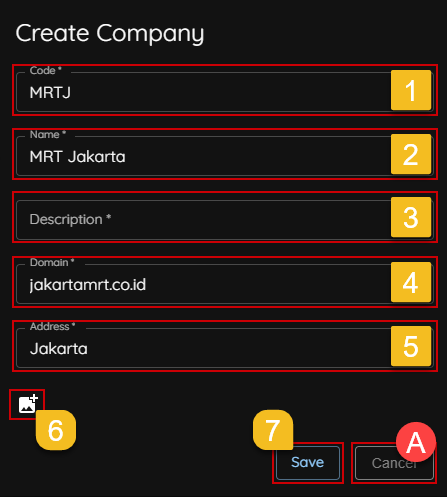
- HyperUser enters the company code (letter that represent the company).
- HyperUser gives a name of the company that needs to be added to the system.
- HyperUser adds a short description of the company to be added.
- HyperUser enter the company domain (adjust to the comapany email that will use later).
- HyperUser Fill the detail adreess of said company.
- HyperUser can upload a photo that contain a logo for the company.
- If all the company information the HyperUser filled in all are correct, HyperUser can click on the
Savebutton to complete theCreate Companyprocess.
A. Extra
If HyperUser wants to cancel the
Create Companyprocess, HyperUser can click on theCancelbutton.
3. Create a New Company Finished
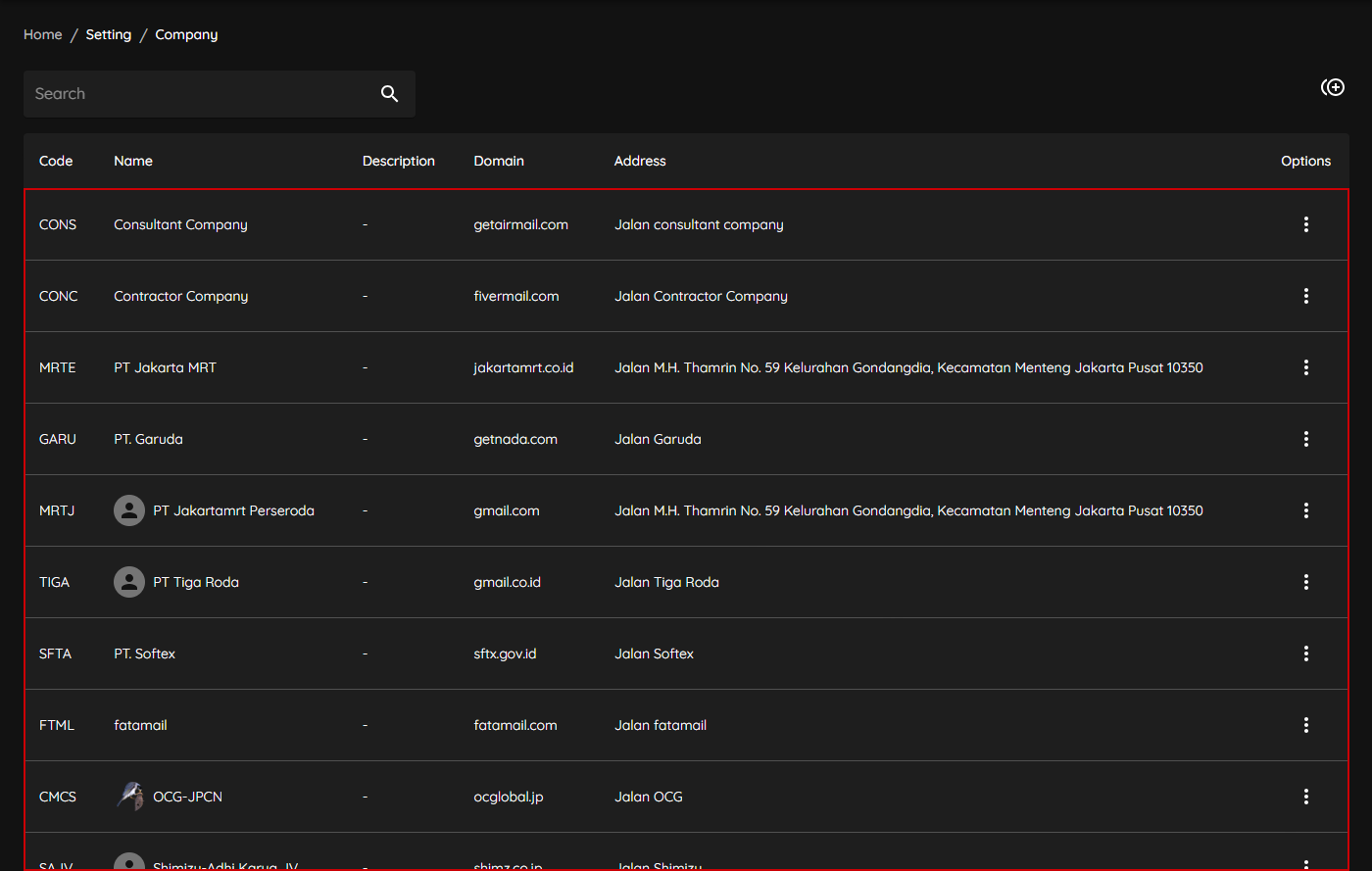 After saving the new
 Company HyperUser will got a notification Create [Company Code] successfully.
- Make sure the new
Companyare created successfully by looking on the list.