Registration
Registration
1. Already Have an Account?
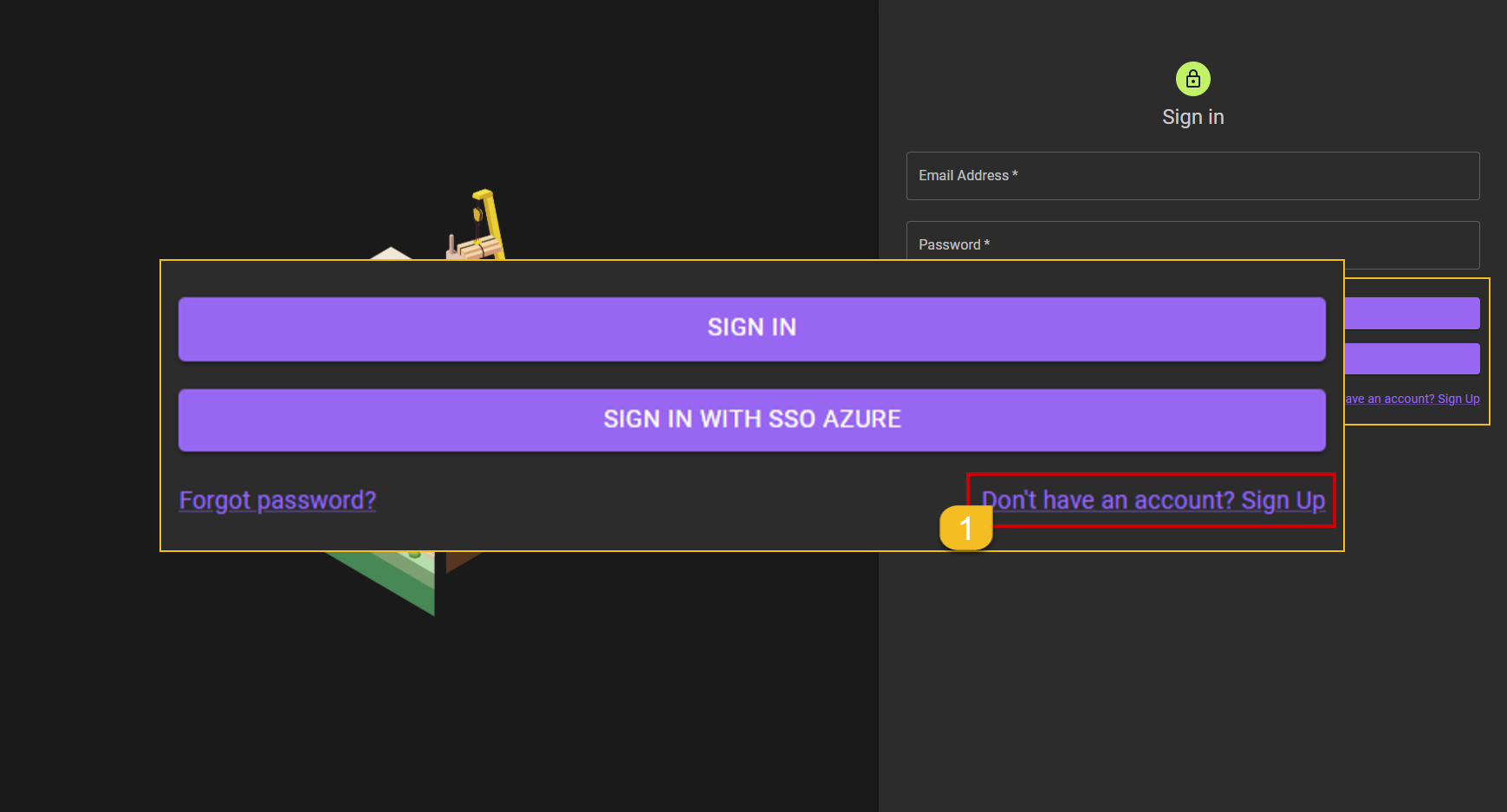 If the USER feels that they already have an account, the USER can follow this instruction Already have an account? Login.
- To begin the registration process the USER can just click on the
Don't have an account? Sign Uphyperlink.
2. Fill the Registration Form
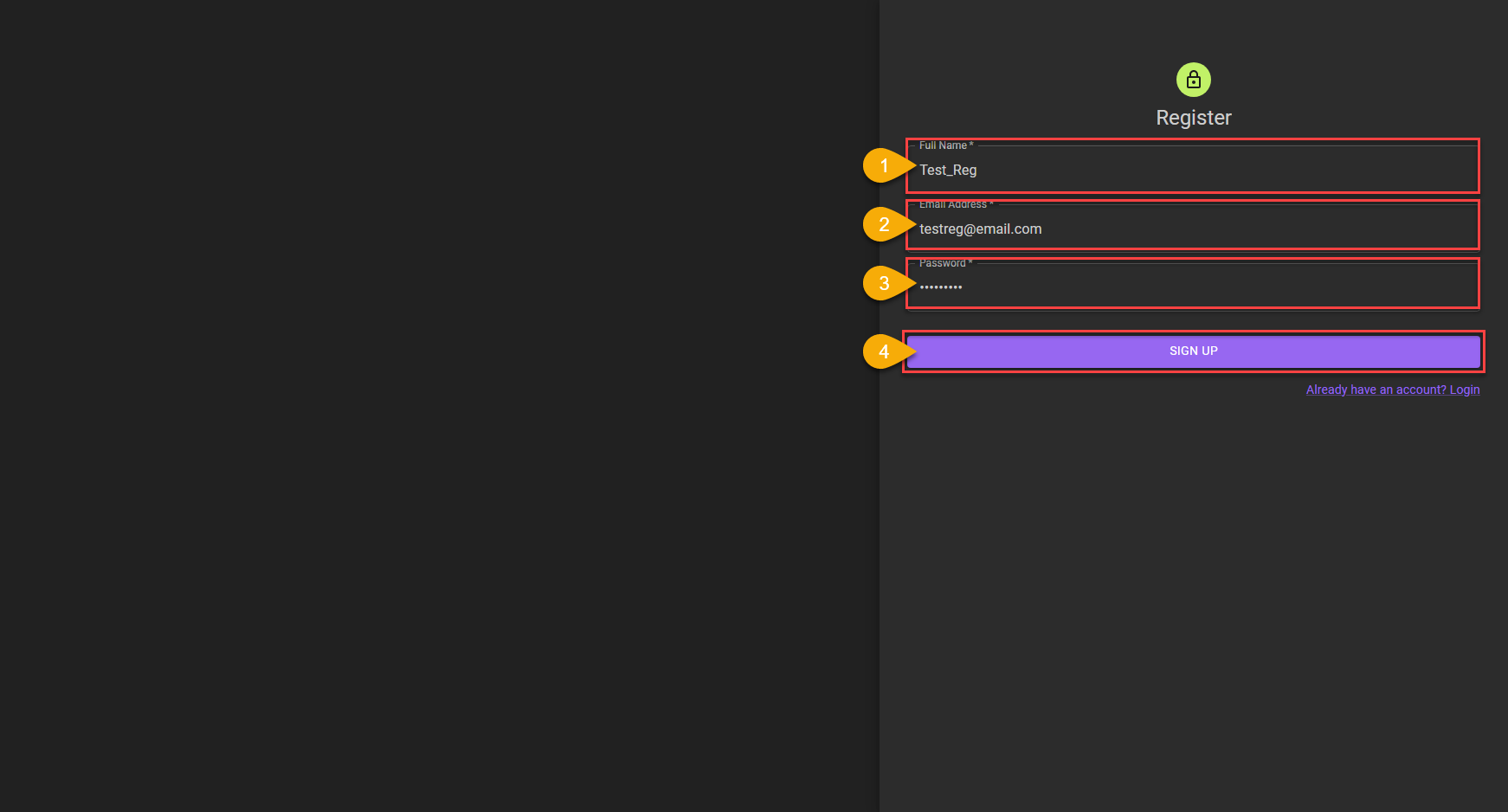 After opening the
 Registration Page, the USER can start filling up all the field that needed to be filled.
- USER fills in the
Full Namefield. (Field can only be filled with letters). - USER fills in the
Email Addressfield with the company email. - USER fills in the password. The password can only be filled with a combination of:
- Consist of atleast 8 with the maximum of 64 characters.
- Contain minimum of atleast 1 symbol (!,@,#,$,%).
- Contain minimun of atleast 1 number (1,2,3,4,5,6,7,8,9,0).
- Contain minimum of atleast 1 capitalized letter.
- If all the data has been filled in correctly, the USER can end the registration process by clicking the
SIGN UPbutton.
3. Registration Finished
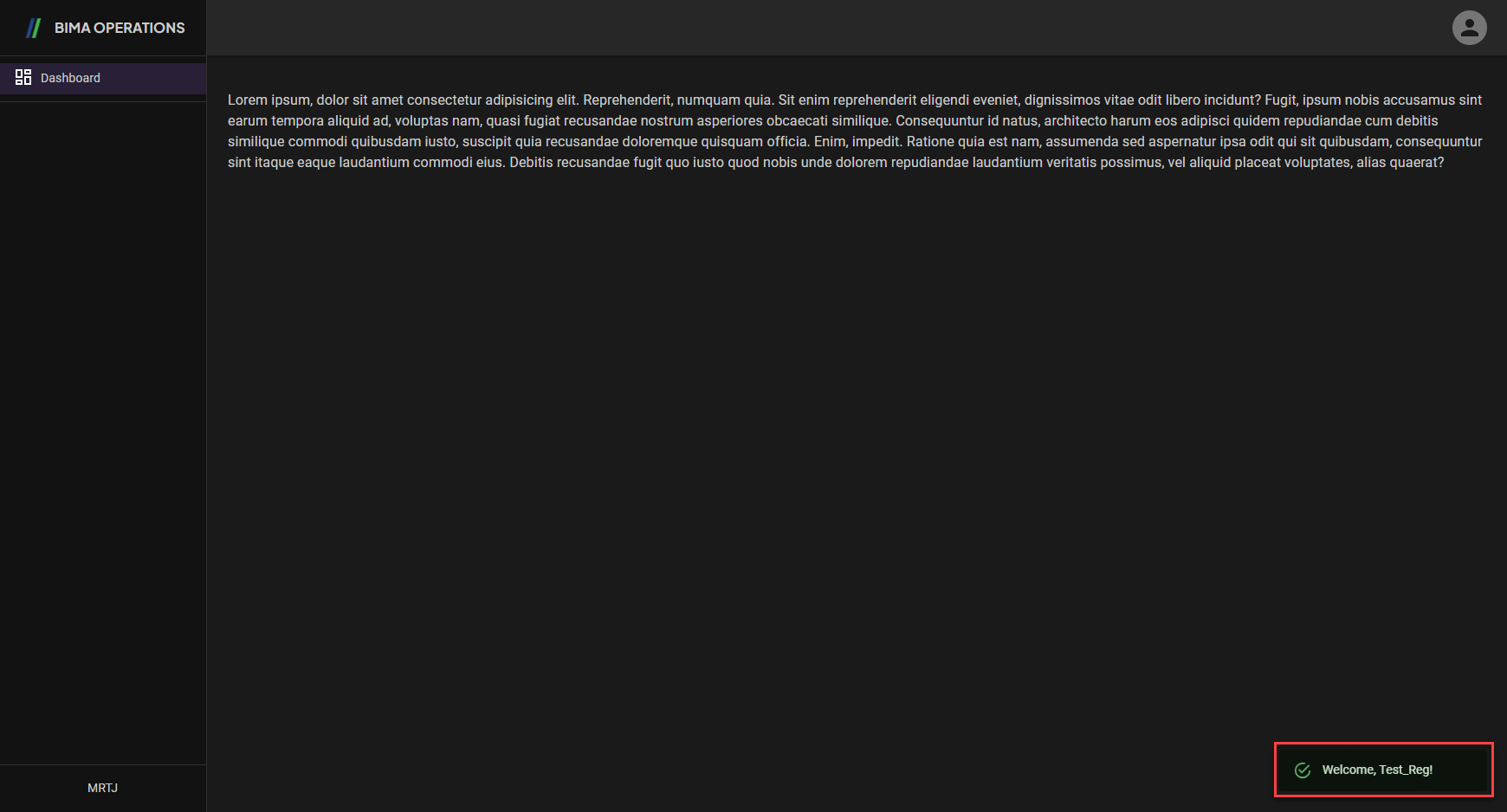 A notification wil appear saying
 Welcome, [Full Name].
Extra:
After registring an account, the initial display of the BIMA Operations application will only display the
Dashboardpage with an empty display. It is because the account that freshly created will be aRole-less&Department-lessaccount. The USER then can ask the Admin to give USER the role & department based on what the role & department that are proper and are required at that time.