Document Validation
Document Validation
1. Check the Work Task List
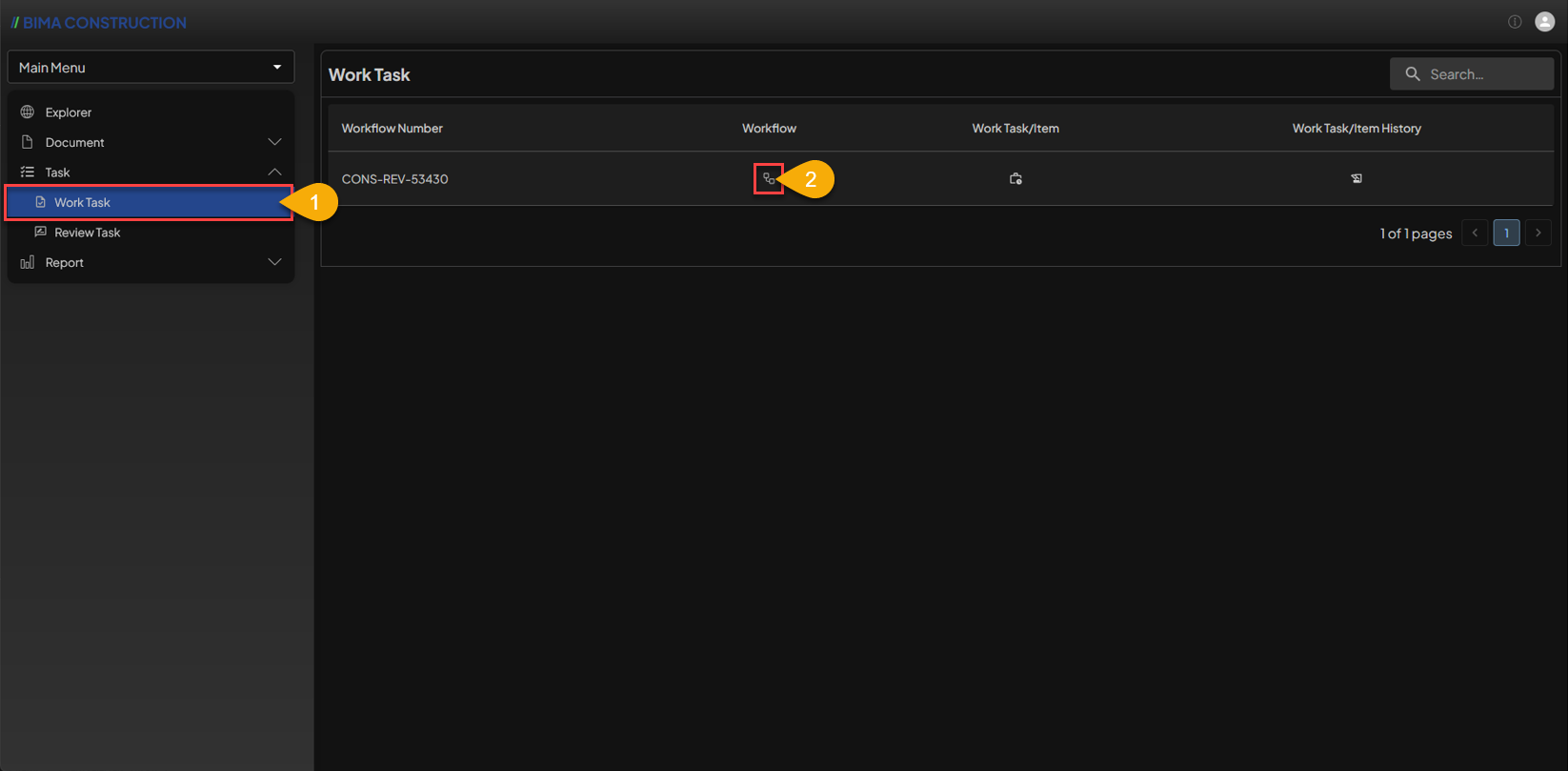
- USER can select the
Task Menuand open theWork Tasksub menu to see the list of task given. - USER can select the second part of
second partof the process, to enter theWorkflowpage on the task that has been given by the document controller.
2. Accepting the Task
-7f99f2efab504653d18b9ec48721c4d7.png)
- USER can previously accept the assignment given by the Document Controller first, by pressing the
Acceptbutton marked withnumber 1.
3. Exporting All the Review Comments to Excel
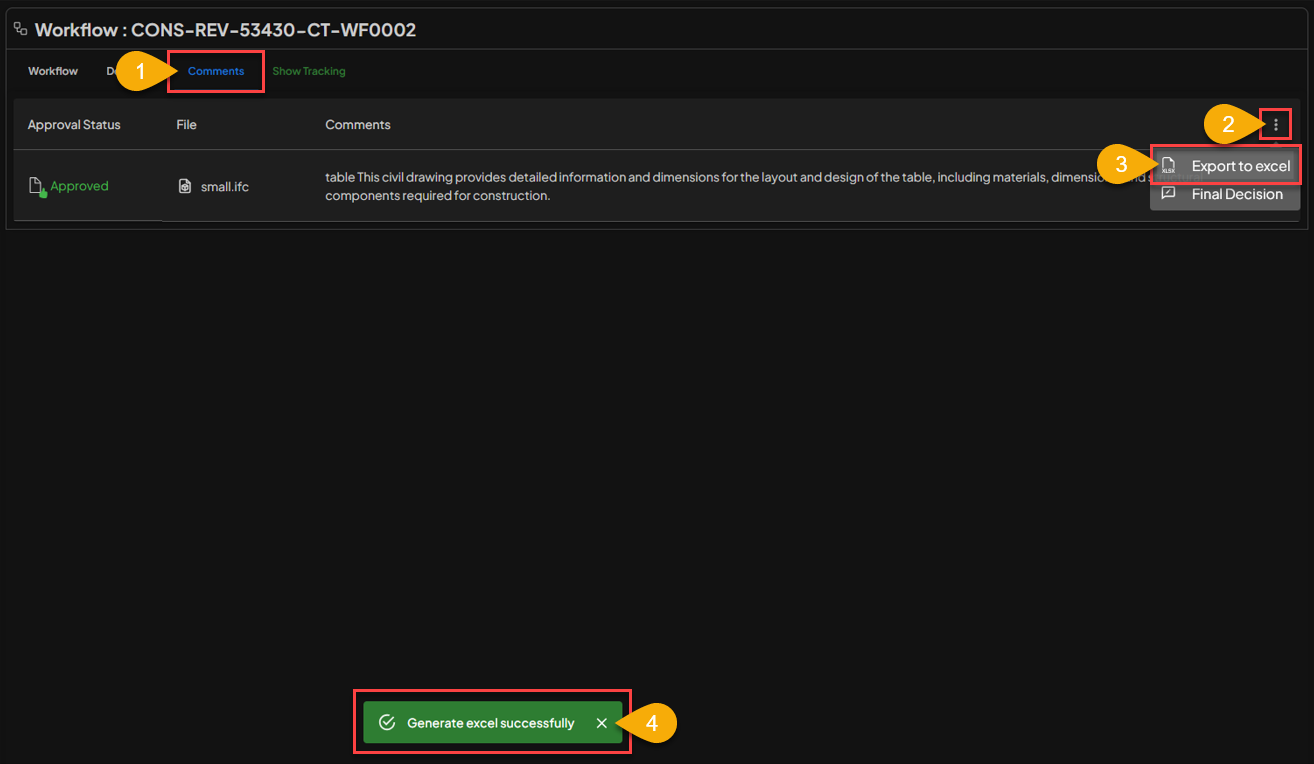
- USER can select the
Commentstab to see a list of reviews left or given by reviewers. - USER seelct the three-dot menu to see a selection of actions that can be taken on the model file that has been reviewed.
- USER click
Export to excelto converl all comments and reviews into excel format. - If the comments have been successfully converted, a notification will appear that says
Generated excel successfully.
4. Check the File
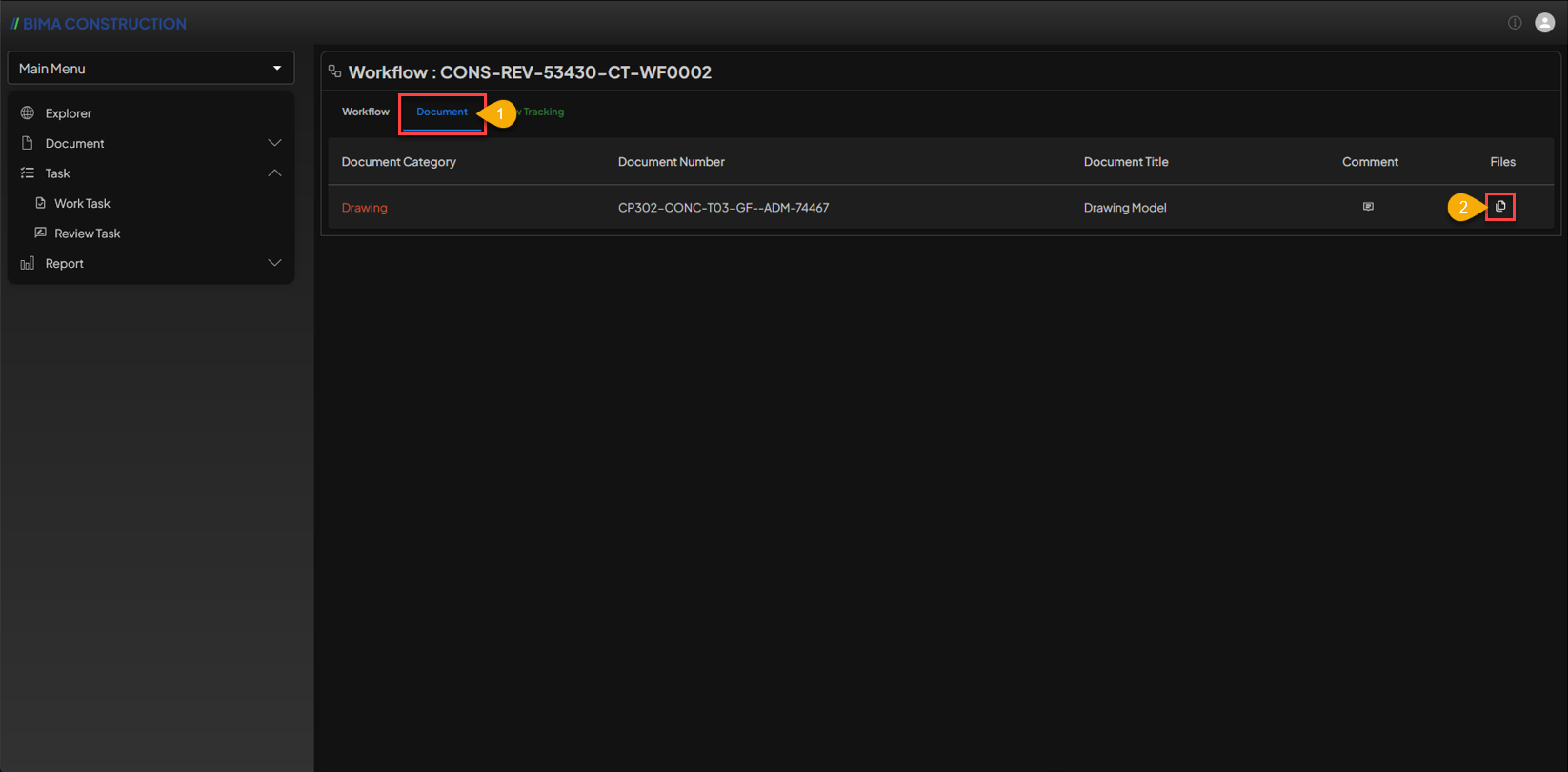
- USER can move to the
Documenttab first by clicking theDocumenttab. - When the
Documentstab is open, the USER can click on the 🗎 symbol to see the files in the document.
5. Opening the Review File
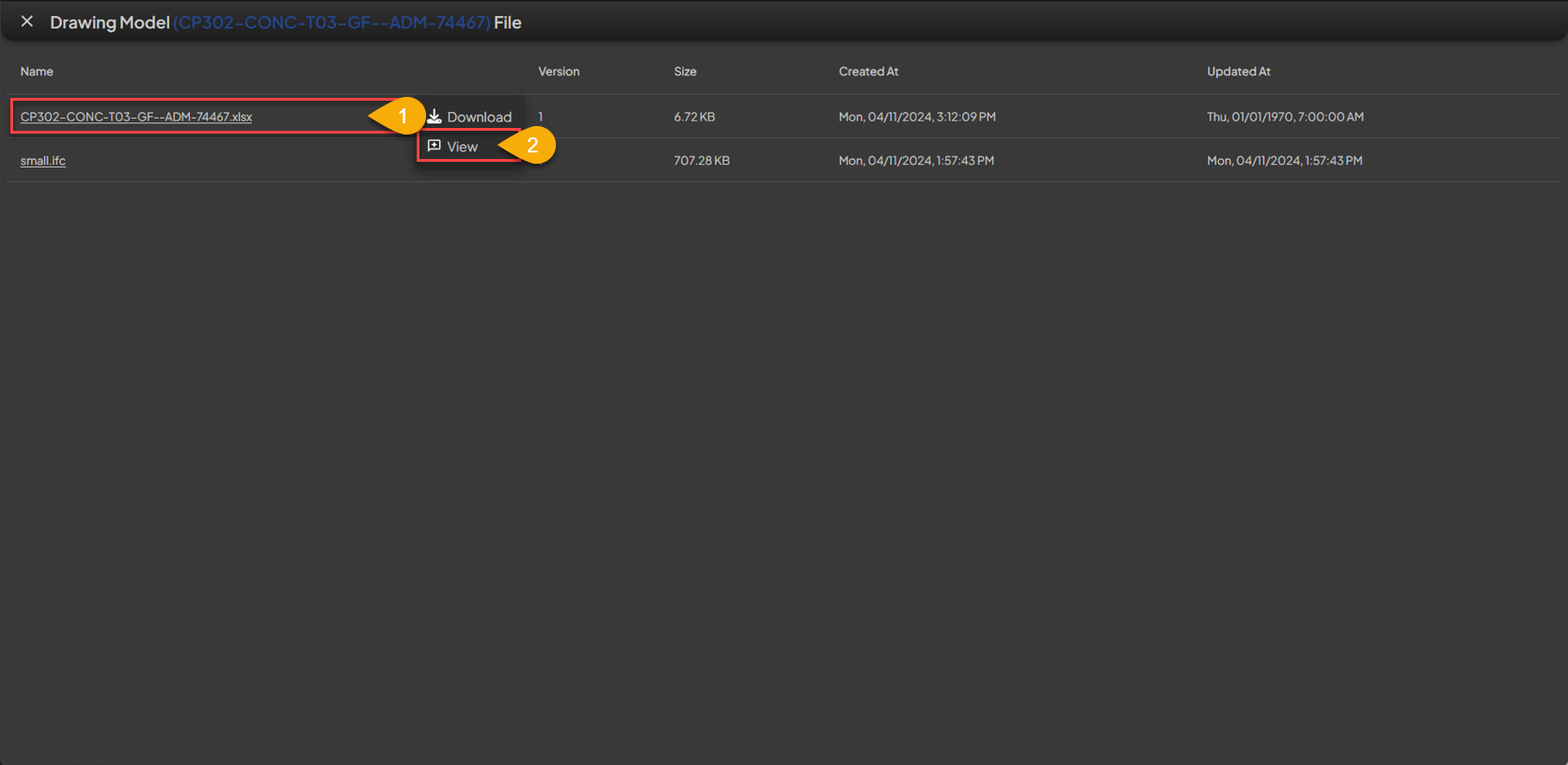
- The USER select the previously converted excel file by
left-clickingon the red box area. - The USER select the
Viewaction menu to view the converted file results.
6. See the Result
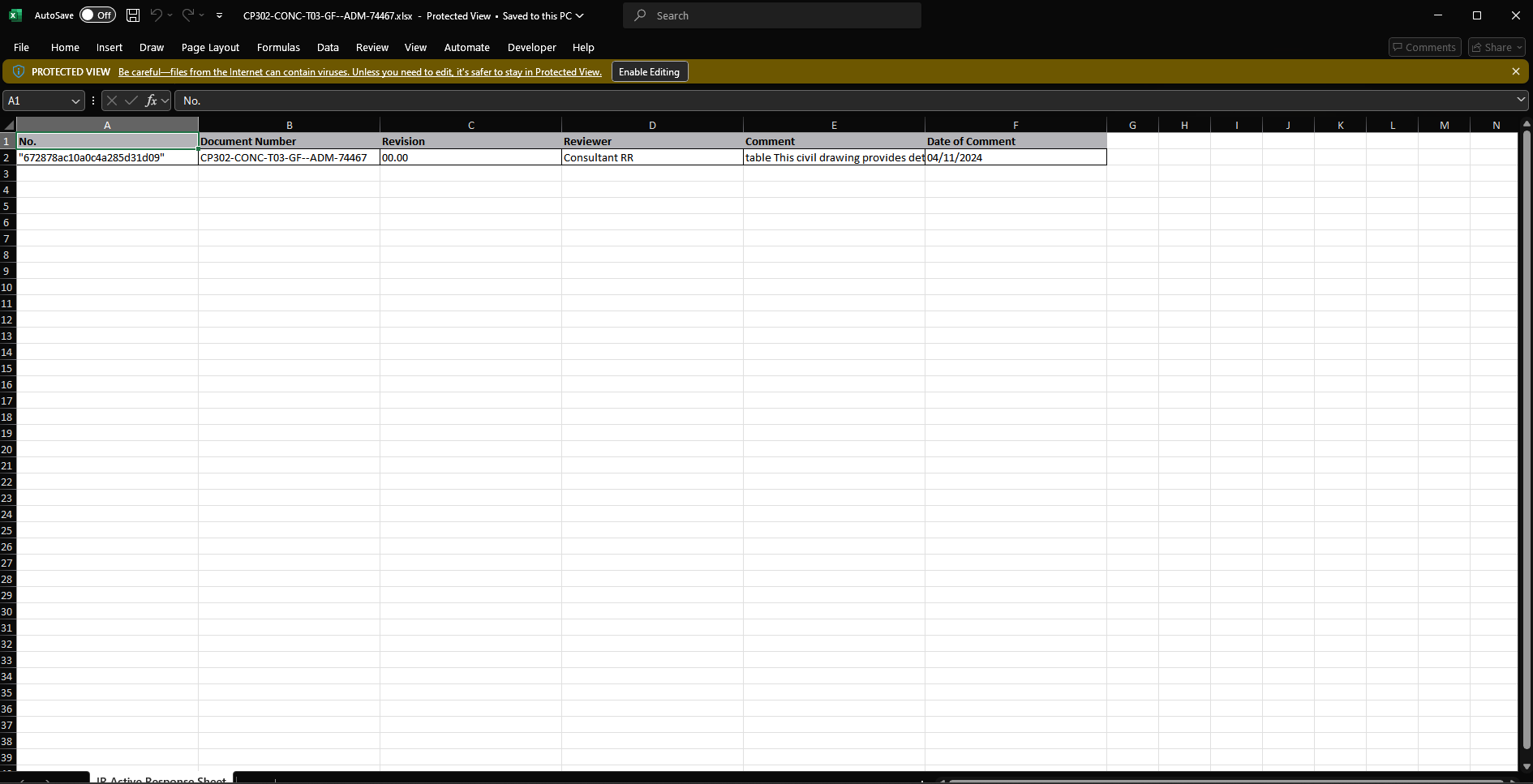 After the excel file is opened, the USER can view, check or validate the exsisting comments once again. If it is appopriate, the USER can close the excel and return to the
 Workflow page.
7. Completing the Validation Processx
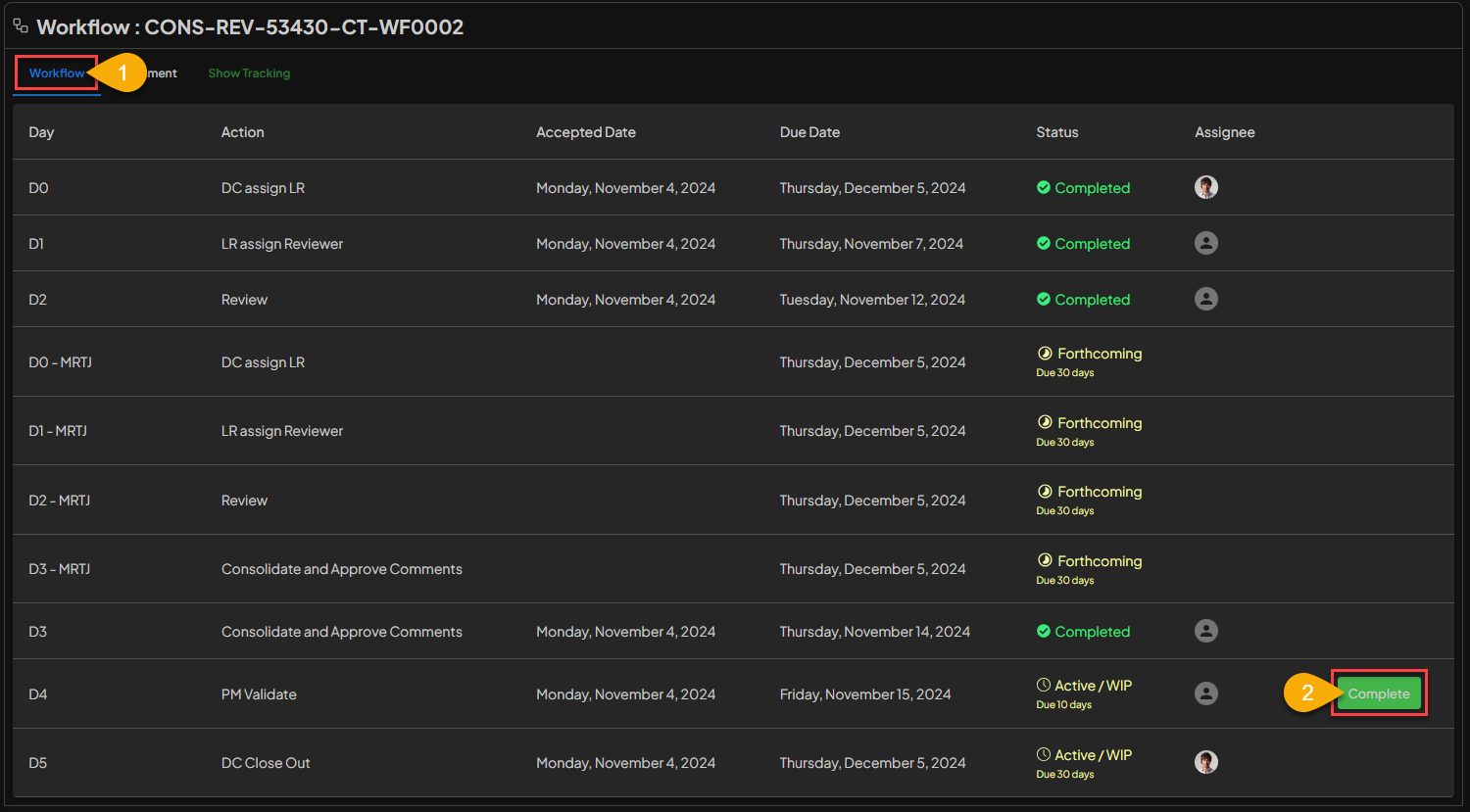
- The USER can first go to the
Workflowtab. - On the
Workflowpage, USER can complete theDocument Validationprocess by clicking theCompletebutton.
8. Document Validating Finish
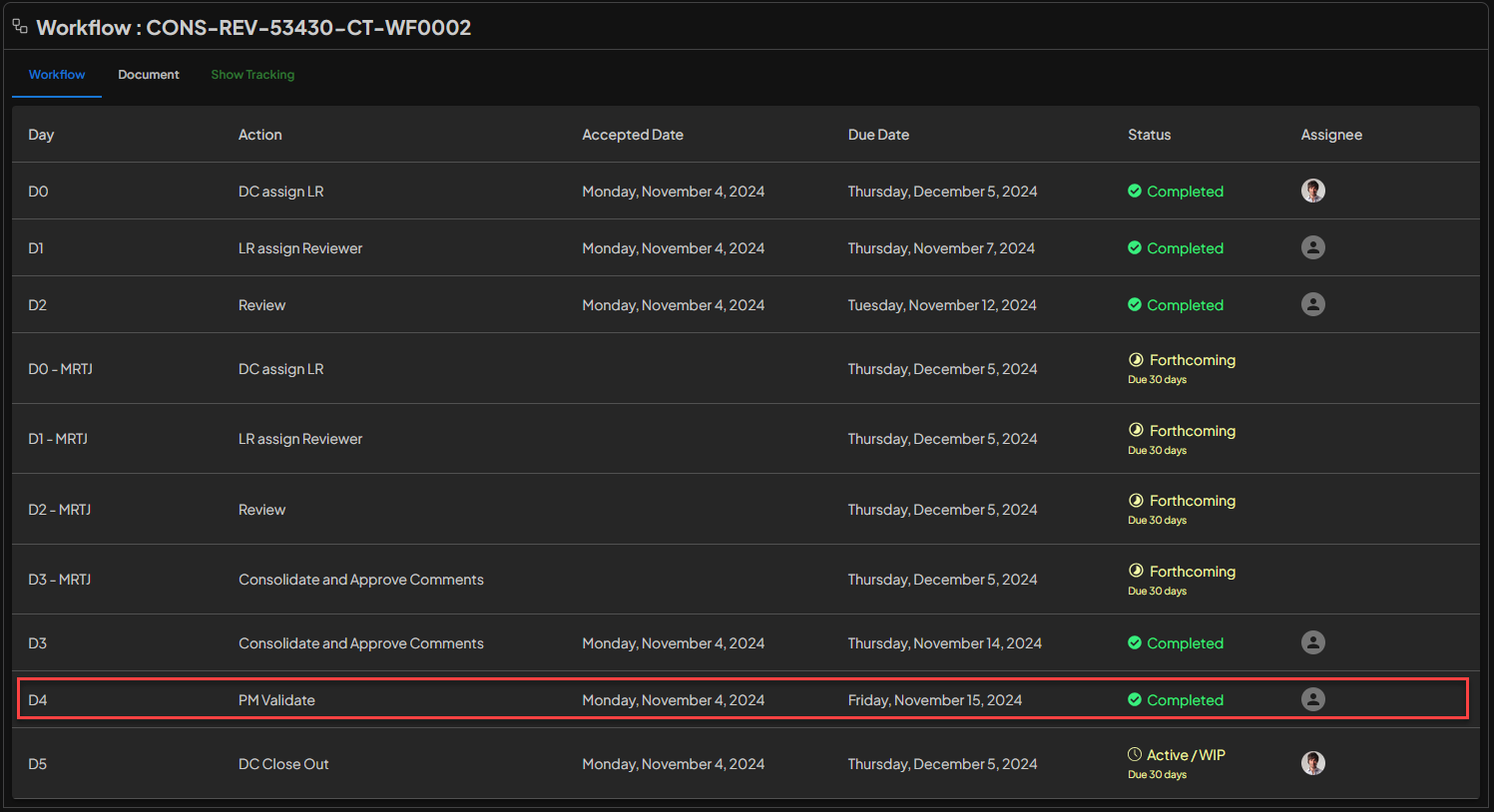 The
The Document Validation process is complete, BIMA Construction will notify the Document Controller regarding the completion of the task.