Document Review
Notice
Read below first
To be able to reveiew/comment to a particular document, USER must first receive/be given task from USER with the Lead Reviewer role.
1. Open the Workflow Page
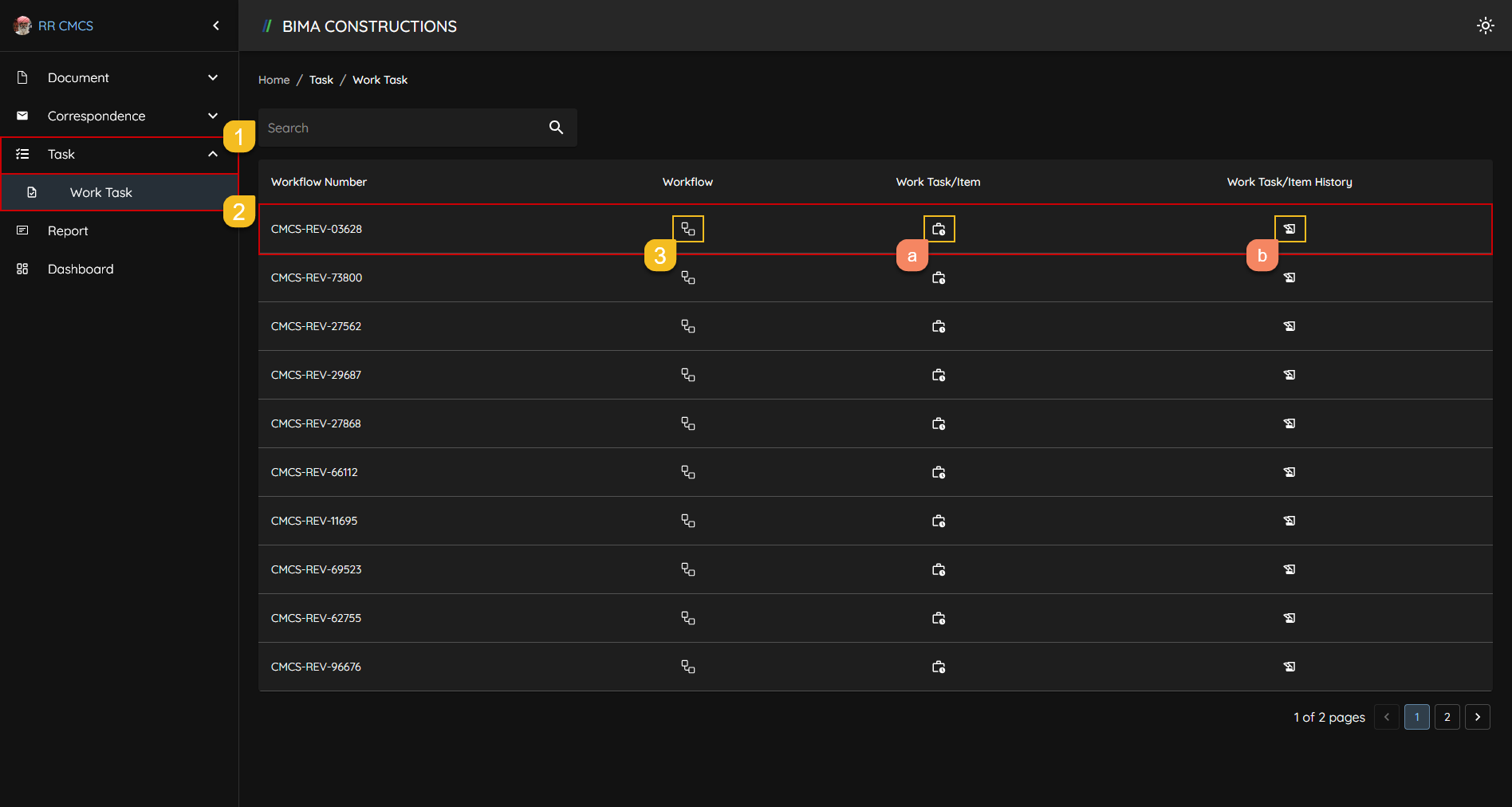
- On the side menu, Reviewer (RR) can click on the
Taskmenu to show the location of theWork Taskmenu button. - After the menu button shown, RR then can click onto the
Work Taskmenu to open up theWork Taskpage. - At the
Work Taskpage, RR can pick on the active workflow and click on theWorkflowsymbol that marked withNumber 3,
Extra:
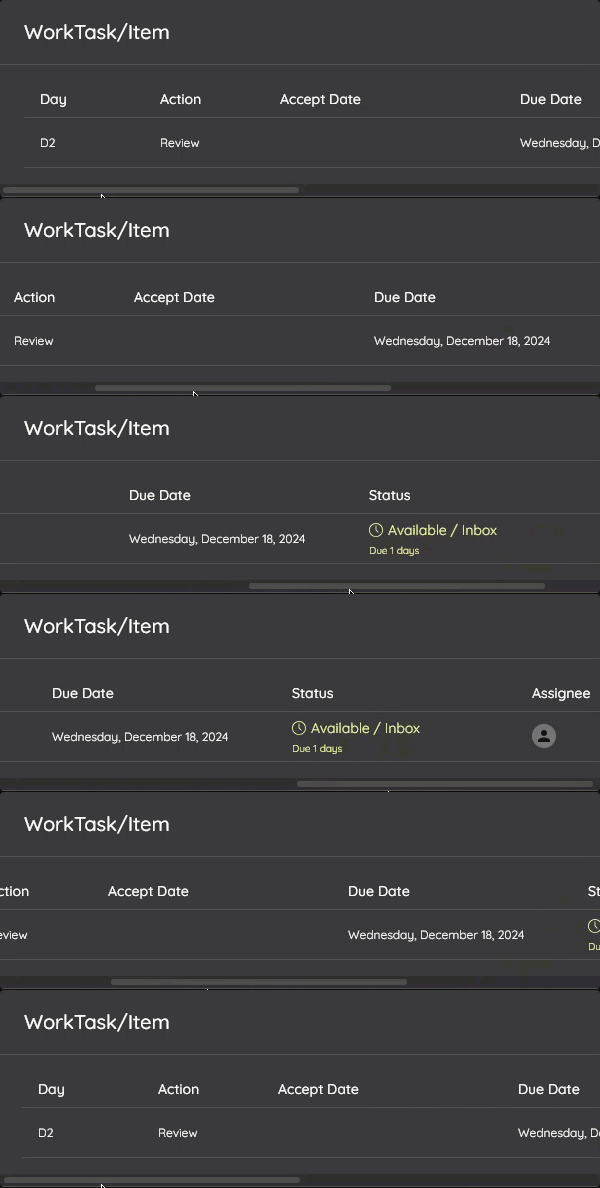
a. Work Task/Item
RR can look on what task are given to them by clicking on theWork Task/Itemsymbol button.b. Work Task/Item History
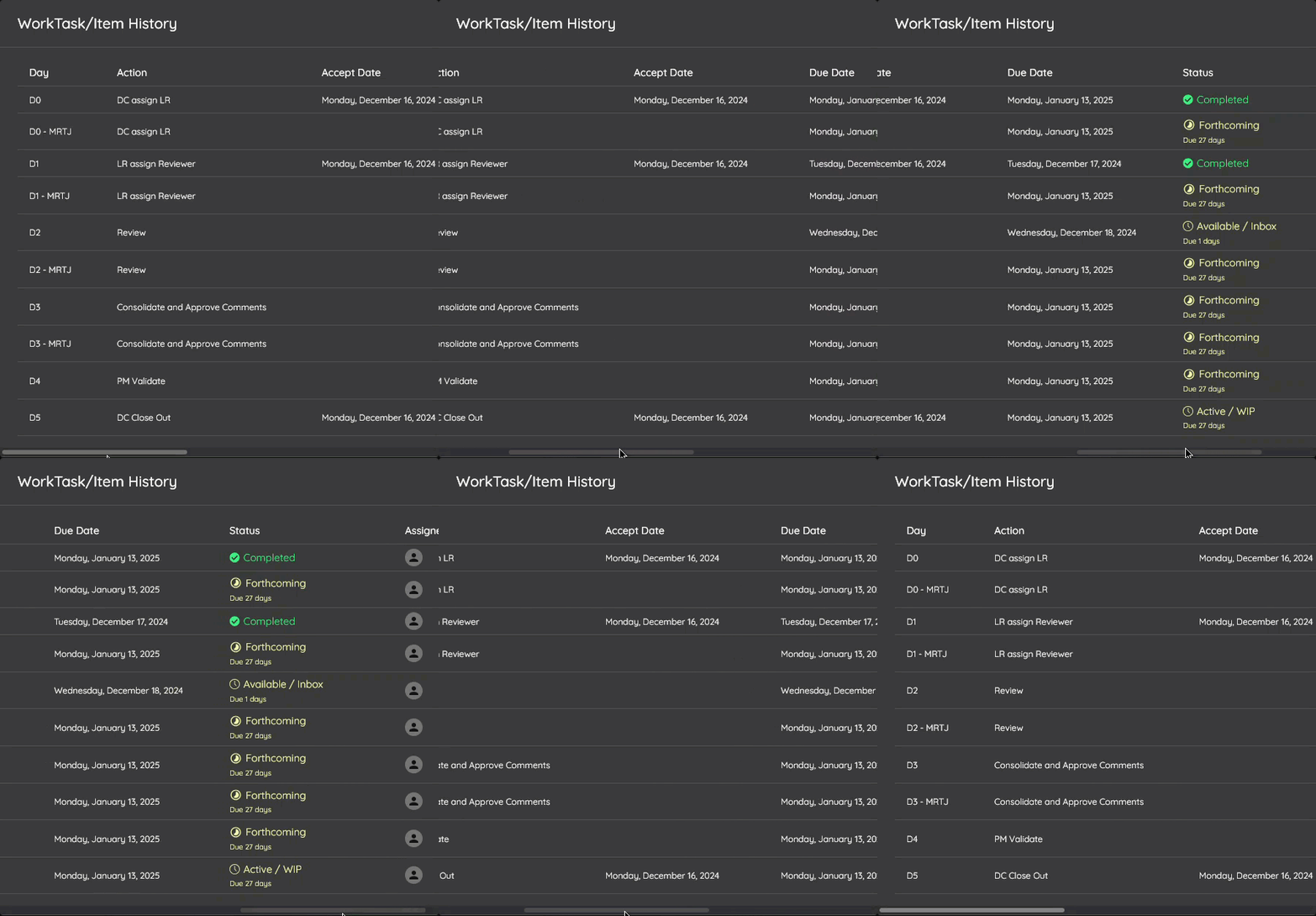
RR can look on the task flow by clicking on theWork Task/Item History.
2. Do the Review
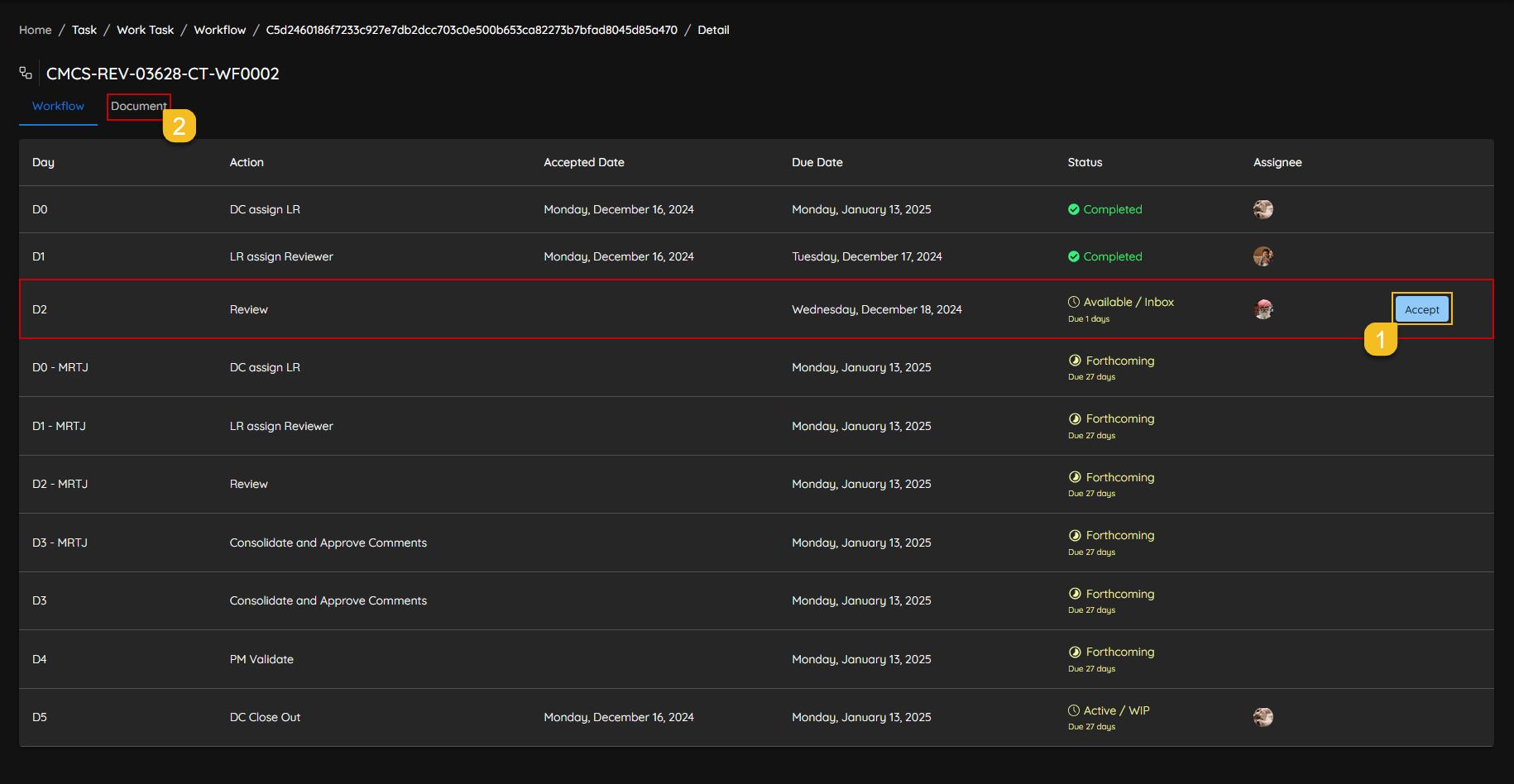
- Before RR could do any task given, RR can accept the assignment given by LR first by clicking on the
Acceptbutton. - RR then can click on the
Documenttab to start the review process.
3. Open the Document Detail

- RR can click on the
Filessymbol button to open theDocumentdetail. - RR can also check all the comments that have been added before.
4. Open the File

- After the
Documentdetail are open, RR then can click on file name to open the file and start to do theReviewprocess.
5. Looking at the Model
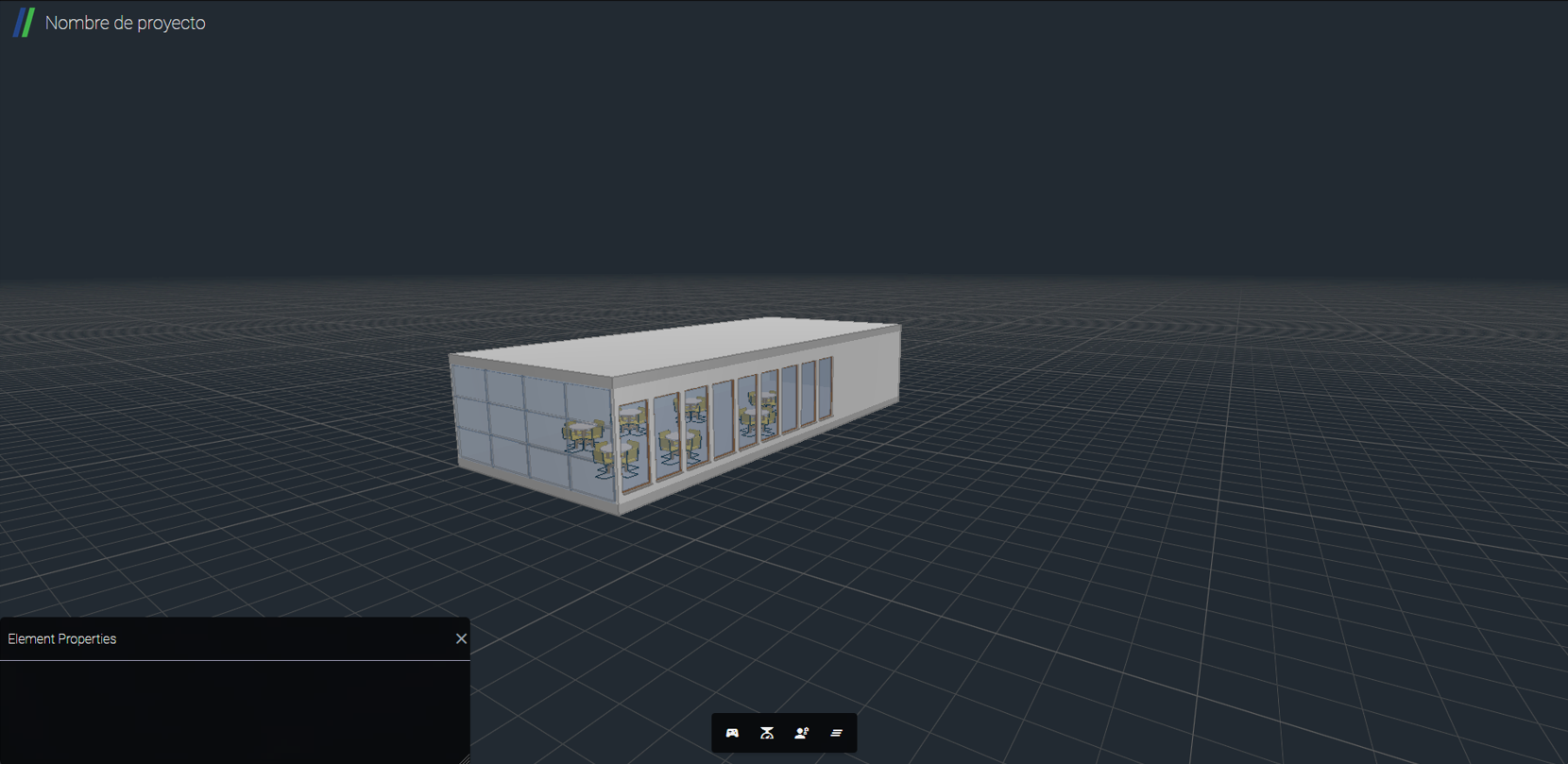 After RR open the file/model from the detail of the document RR will be directed to the BIMA3D app, which will display the model of the file to be review. In this phase RR can start on exploring BIMA3D that showing the file/model.
6. Selecting Object
 After exploring the file/model RR can start commenting on something if RR think its needed to be done so. To leave any comment/review on the object RR can follow the instruction below,
- RR can pick on any object that RR thinks need to add a comment/review.
- RR then can click the symbol that marked on
Number 2to open up the comment pannel. - RR then can click on the pencil symbol to start on leaving a comment/review.
7. Writing a Comment/Review
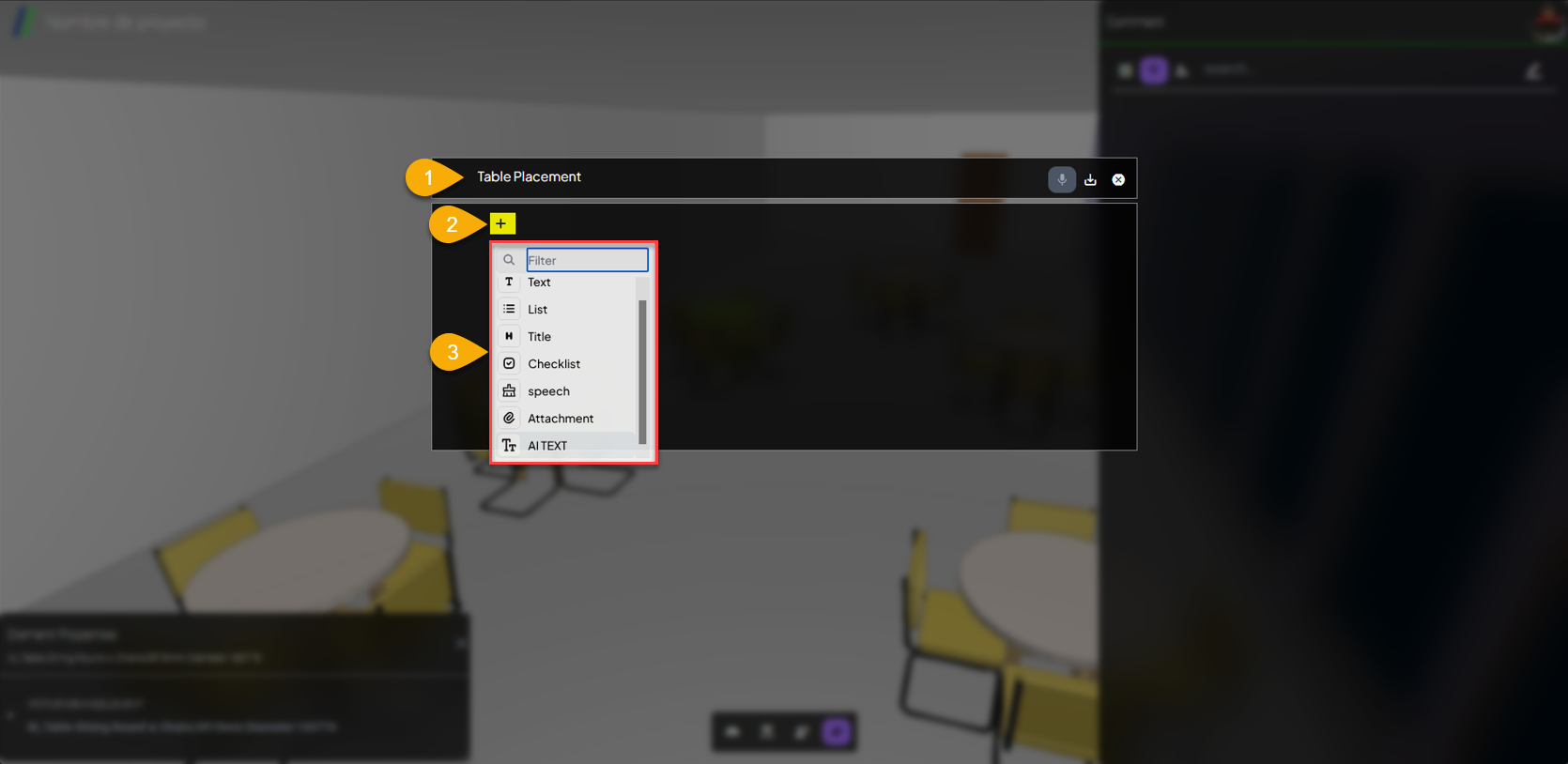
- On the first row, RR can place a title/subject for the comment on the object.
- RR can click on the
+symbol to open up a toolbar that will help on writing comment/review, the toolbar are contain several menus that can help on writing comment/review process. - On the toolbar there are several option on how to leave a comment/review on the object model. RR can also use AI to help on creating/leaving a comment/review.
8. Save the Comment/Review
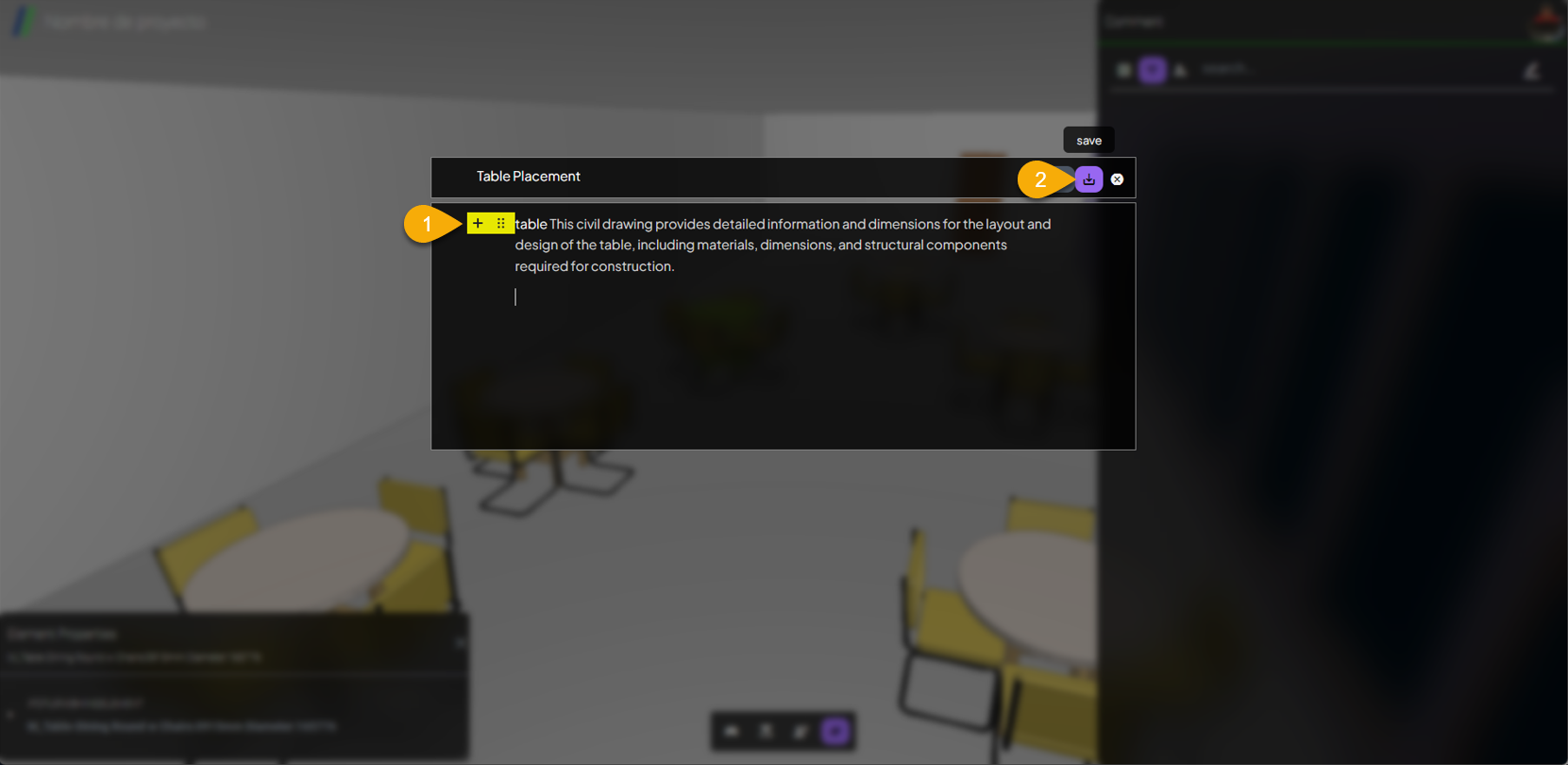
- If RR want's to add another comment/review, RR can again simply click on the
+symbol. - If RR feels enough on leaving comments/review, RR can click on the
Savebutton that located on the upper-right corner of the comment form (or RR can look at the symbol that marked withNumber 2).
9. Comment On Another Object?
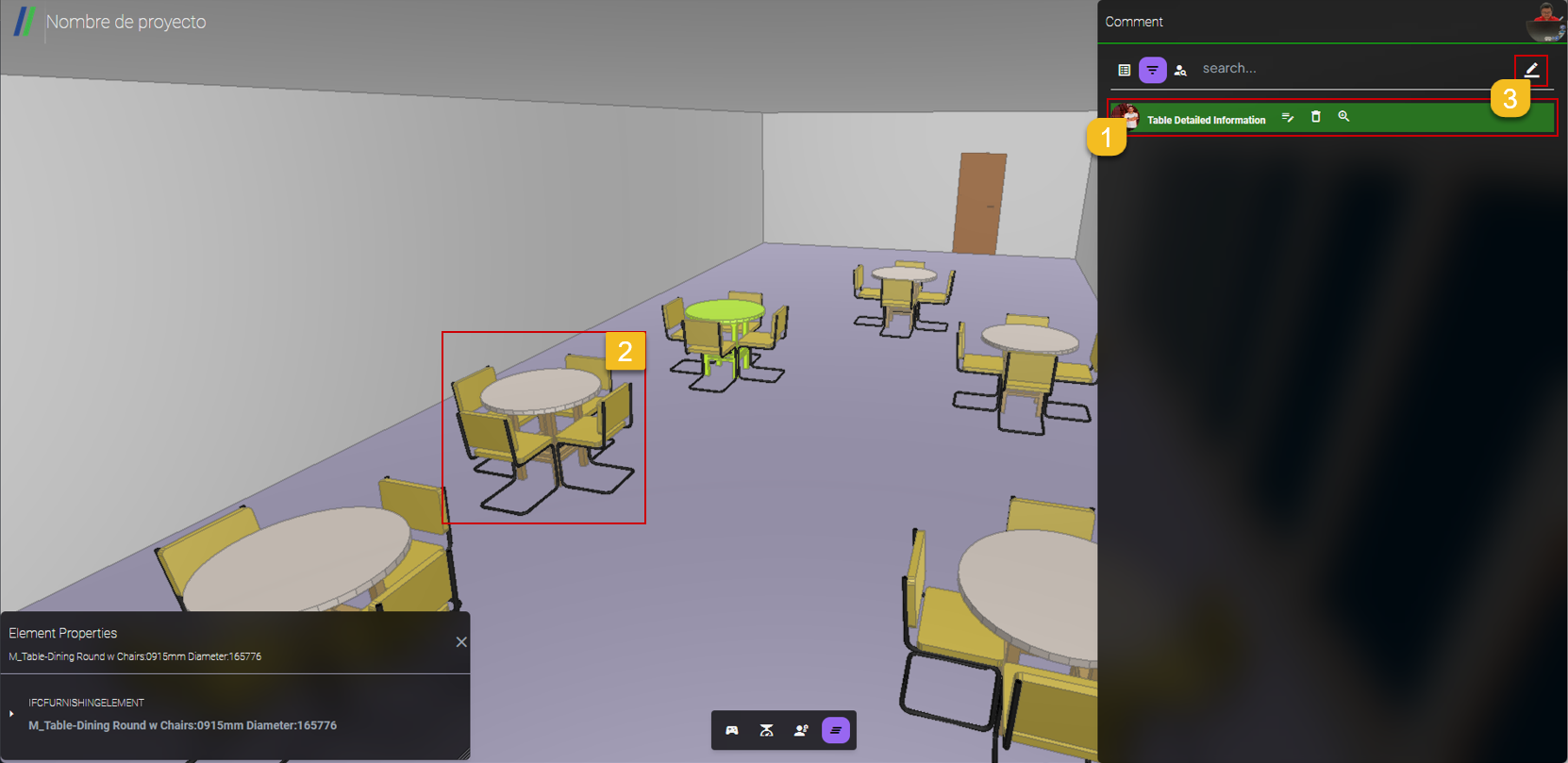
- RR can check on the review/comment thats been added until now.
- RR also can give another comment/review simply by picking another object and repeat Procedure 6 all over again.
- If RR feels the comment/review are enough for this particular file/model, RR can just simply close the BIMA3D apps.
10. Complete the Review Process
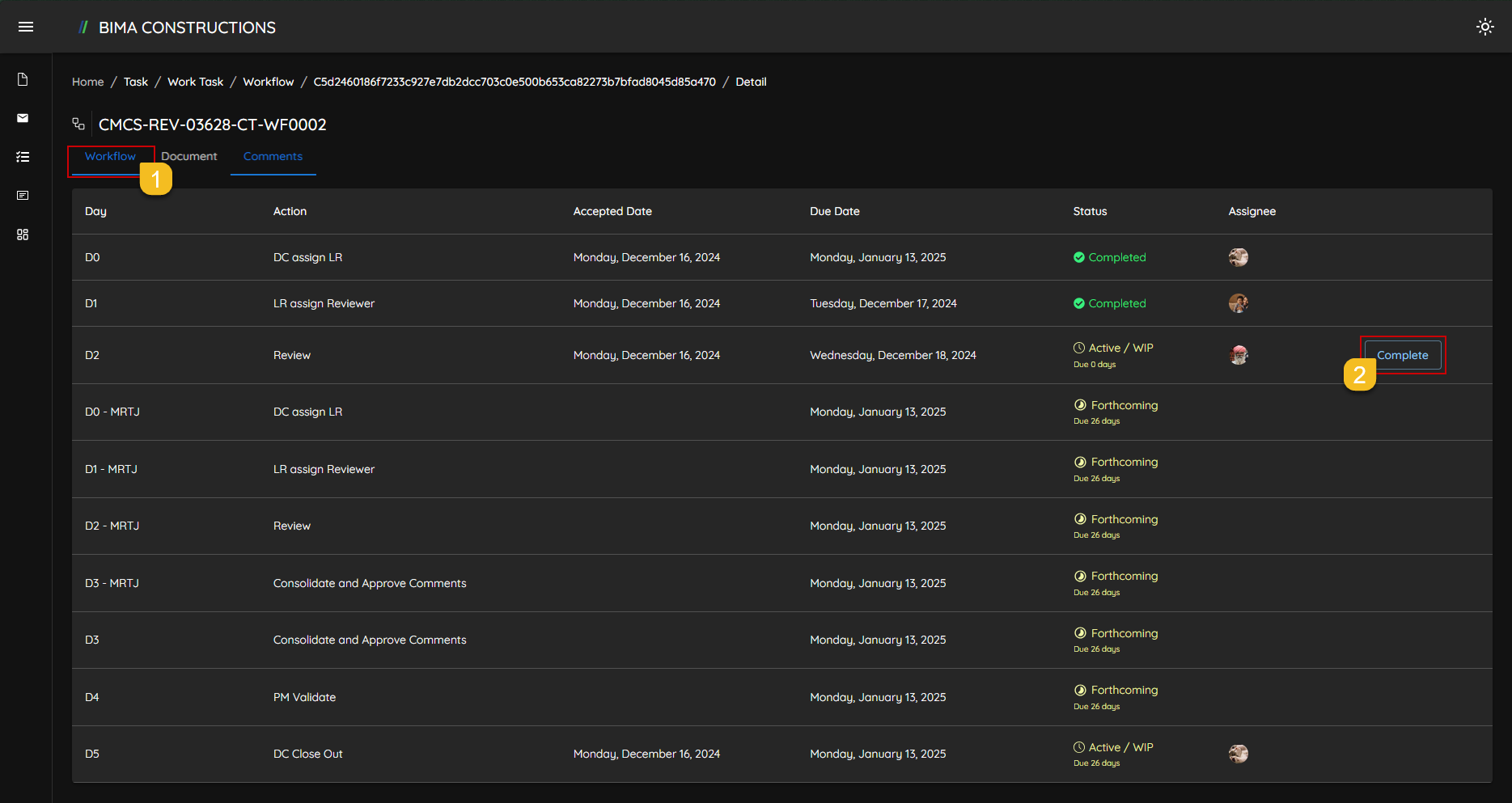
- RR can firstly go back to the
workflowtab to be able to access theCompletebutton. - Once RR on the
workflowtab, RR then can simply click on theCompletebutton to finish up theReviewprocess.
11. Review Completed
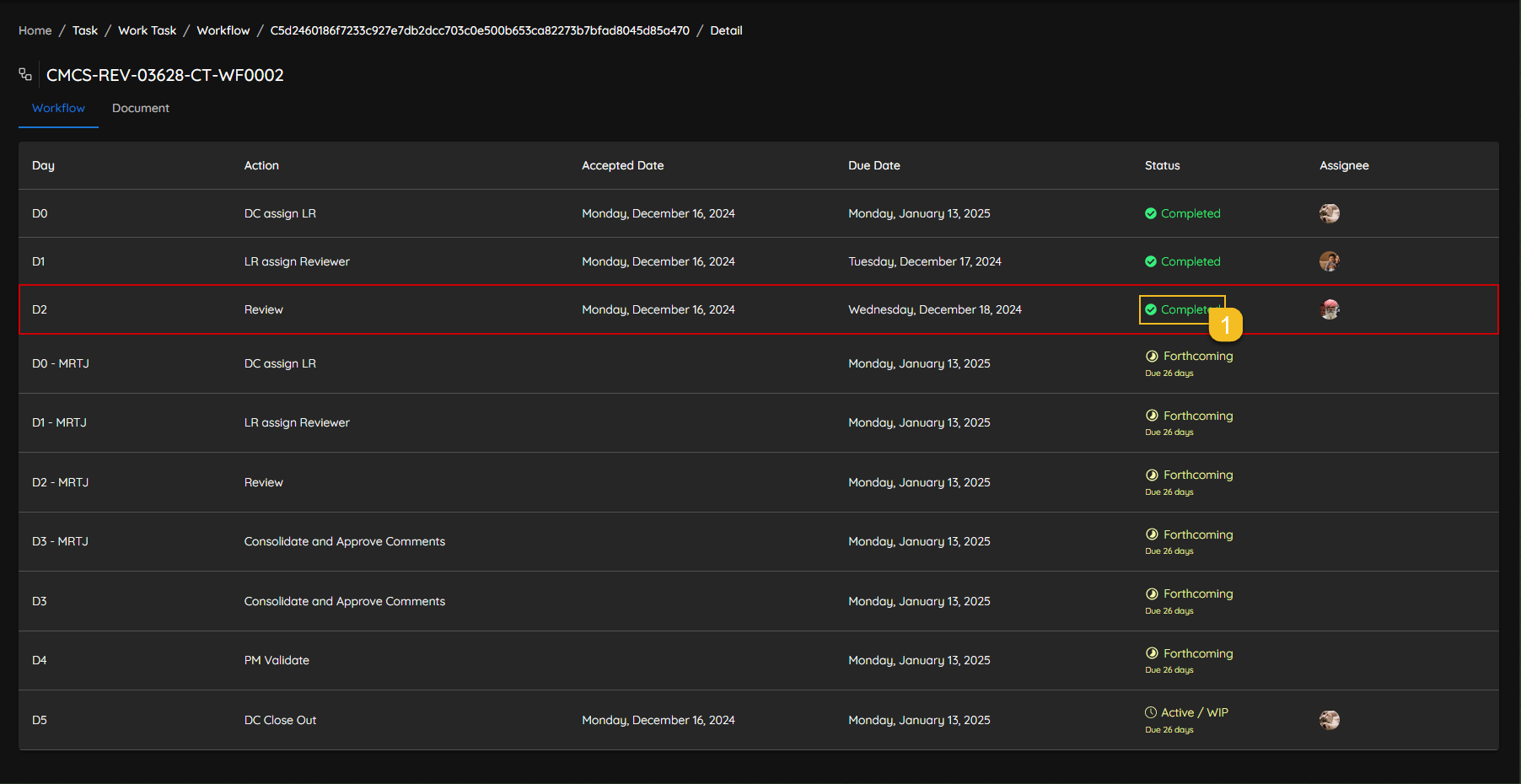
- Finish!, the review proces are finished; it's marked with the
completion statuson the Status column of the workflow.