Consolidate & Approve Comments
1. Accept the Assignment
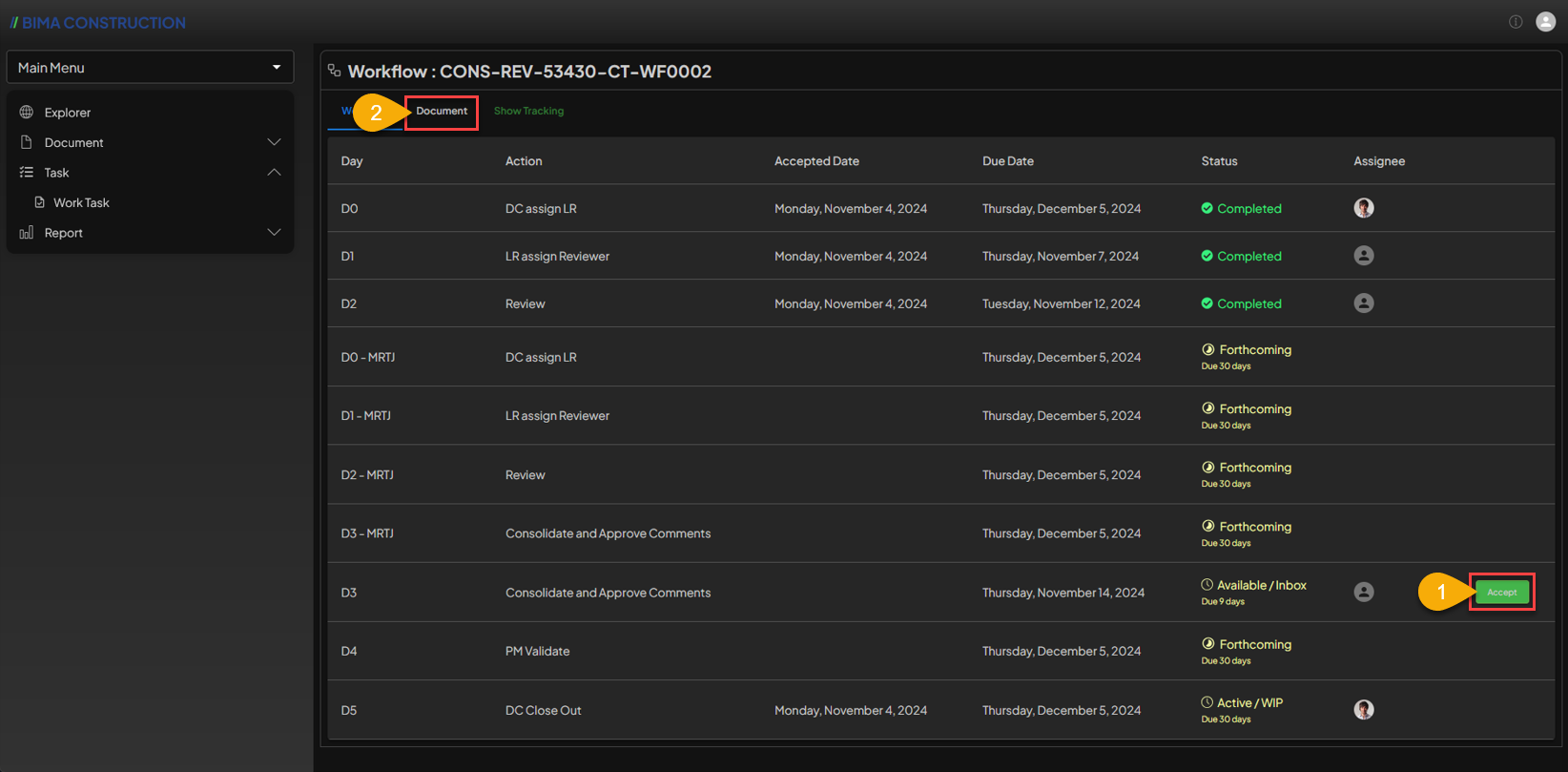
- The USER can previously
Acceptthe assignment given by the Document Controller first, by clicking theAcceptbutton. - After accepting the assignment, the USER then can click on the
Documenttab to be able to see the file that need toConsolidate & Approval.
2. Show File
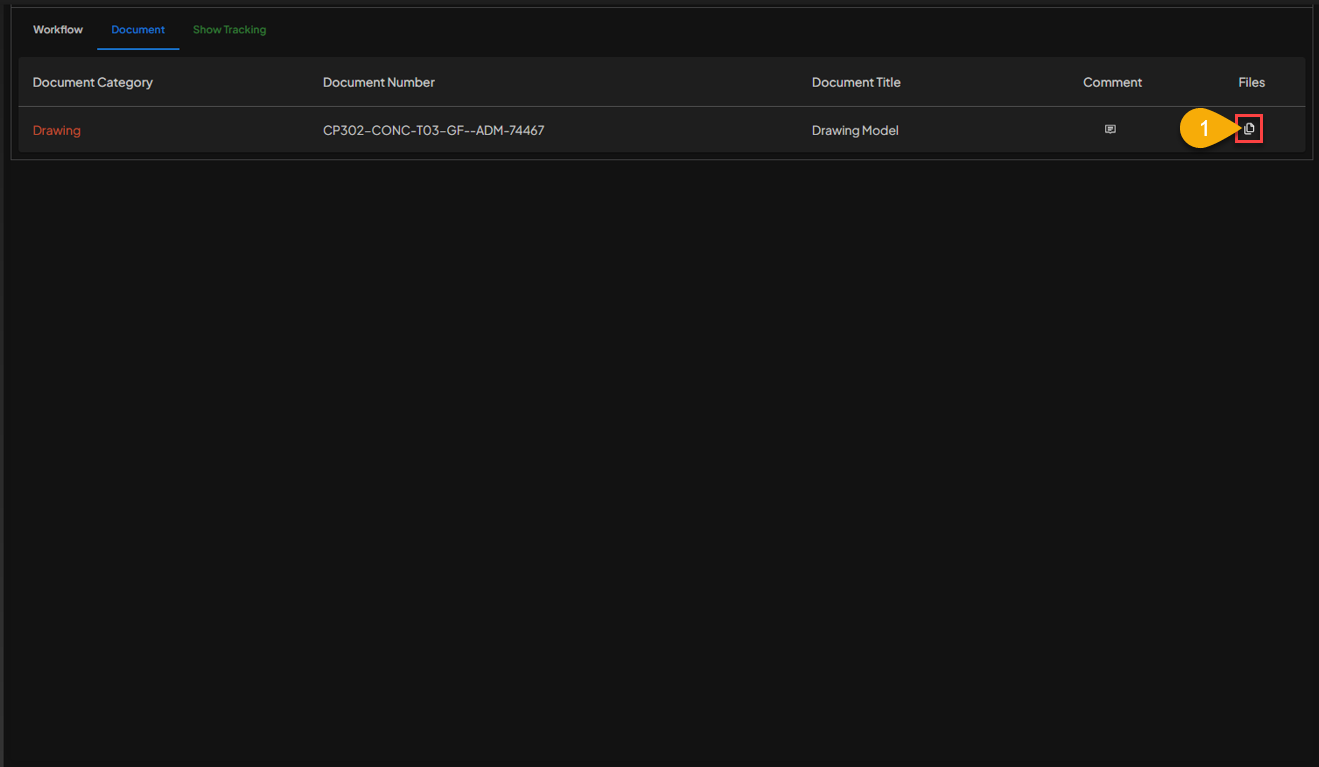 After the
 Document tab is shown,
- The USER can click on the 🗎 symbol as shown
number 1mark.
3. Checking on the Documents/File Models
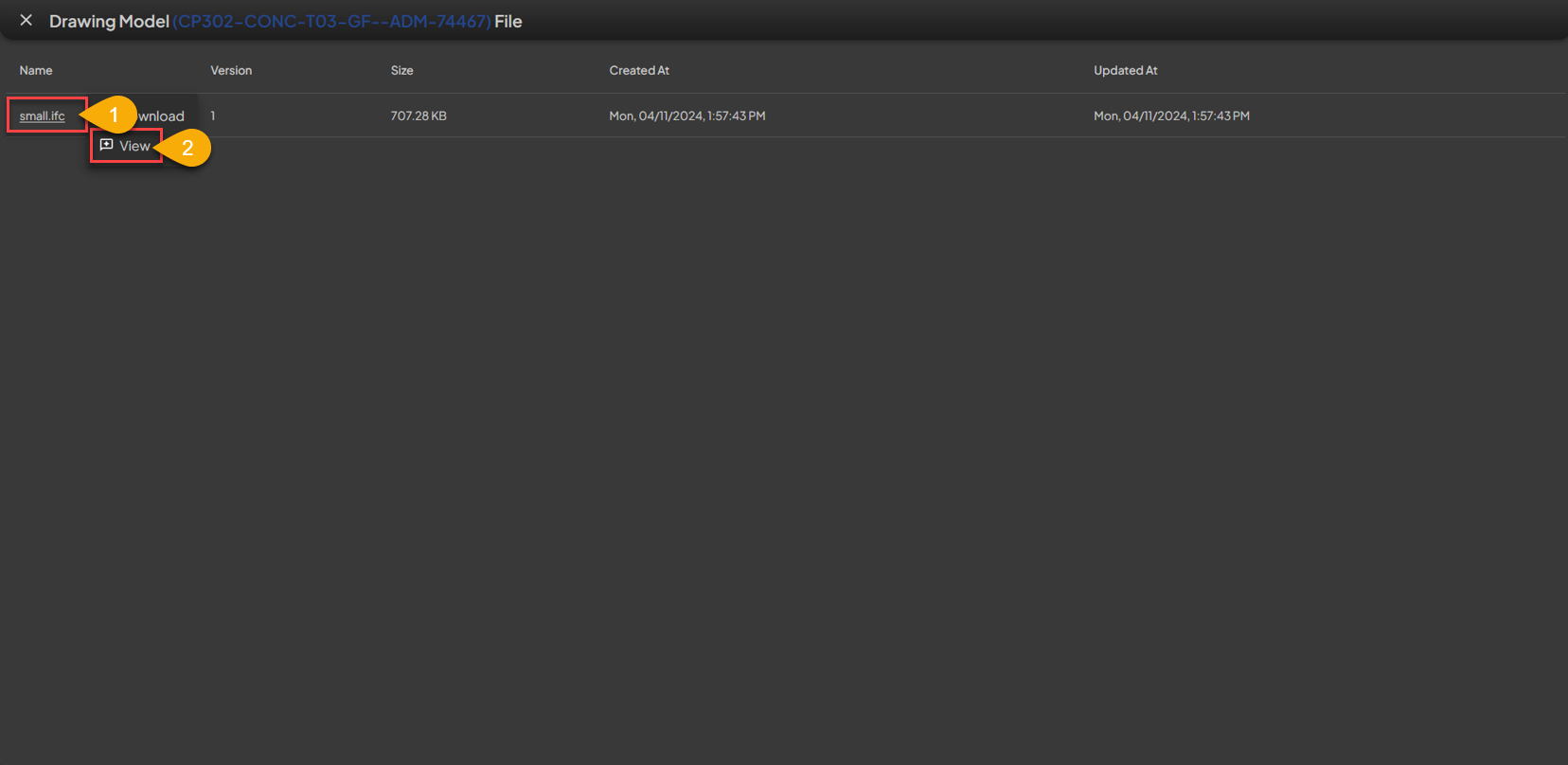 After the document is opened, a list of files will be visible.
- The USER can click on the
Number 1area, and series of action will shown. - The USER then can select
Viewaction to be directed to BIMA3D, which will display the model of the file USER choose to be shown.
4. Checking on the Reviewed Documents/File Models
 When opening a file USER will be directed to BIMA3D, USER can explore comments or reviews that have been given by the Reviewers. USER can also follow the steps above to directly check the results of the reviews/comments left by reviewers.
- the list of reviews/comments has not appeared, USER can click the symbol at
number 1to re-sort the reviews/comments that have been made. - In the review list, USER can click the 🔍 symbol at to see which objects have been commented on by the Reviewers.
- After the USER clicks the 🔍 symbol, BIMA3D will show which objects have been reviewed by the Reviewers.
Extra:
a. Also if the USER wants to add more to the review/comment, USER can click on the symbol at theletter apointing.If USER feel that they have checked enough or added additional reviews/comments, the USER then can close BIMA3D to continue to the next process.
5. Finalize the Consolidate & Approval Process
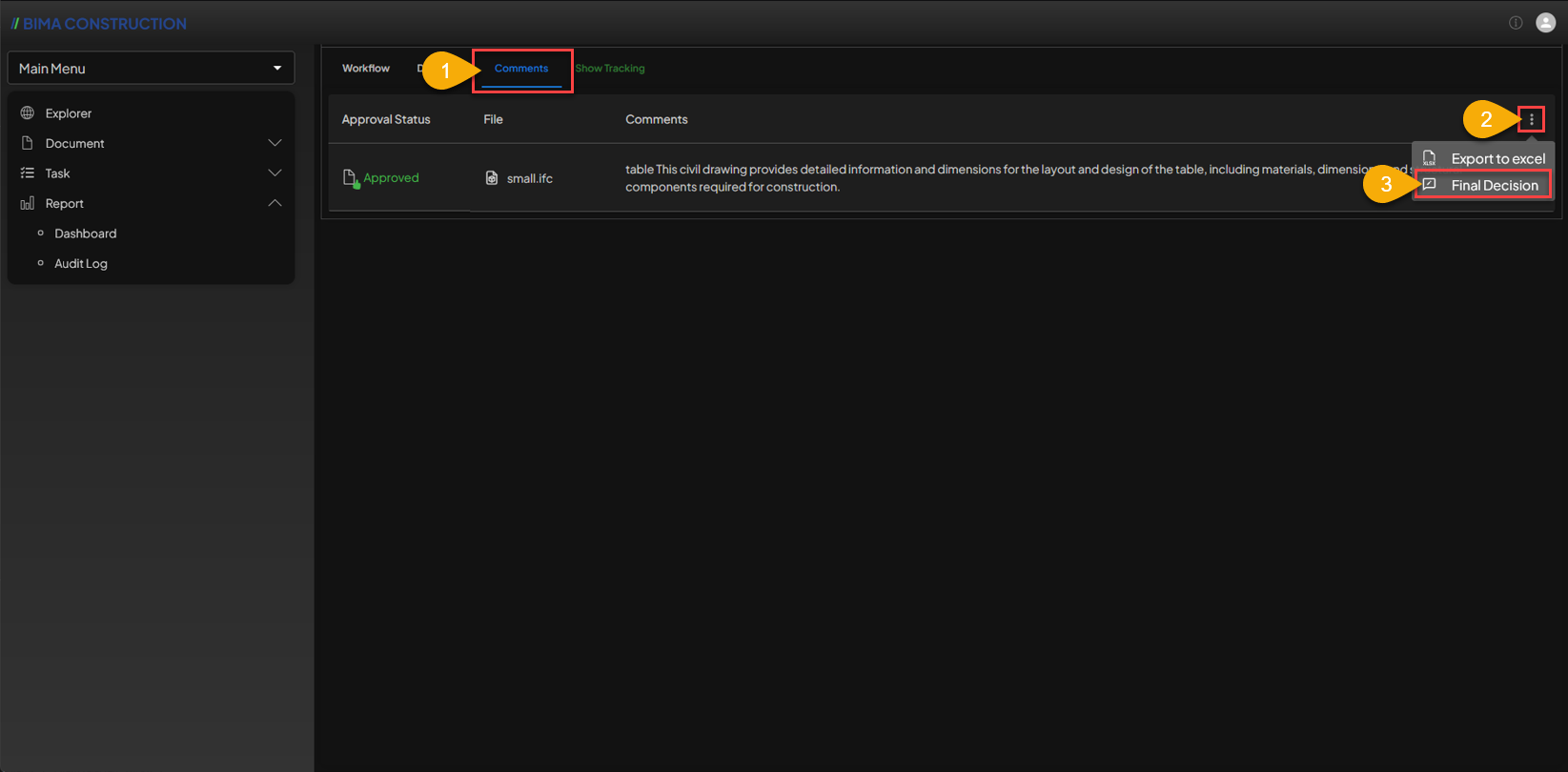
- After closing BIMA3D, USER can click the
Commentstab to see a summary list of comments left by Reviewers regarding the model file in the existing document. - If the USER satisfied with the review resultls, USER can click the
3-dotmenu as shown by the 3rd process (as in the image) to display the action menu for the comments hat have been made. - USER can then click on the
Final Decisionaction menu to end the approval process.
6. Completing the Assignment
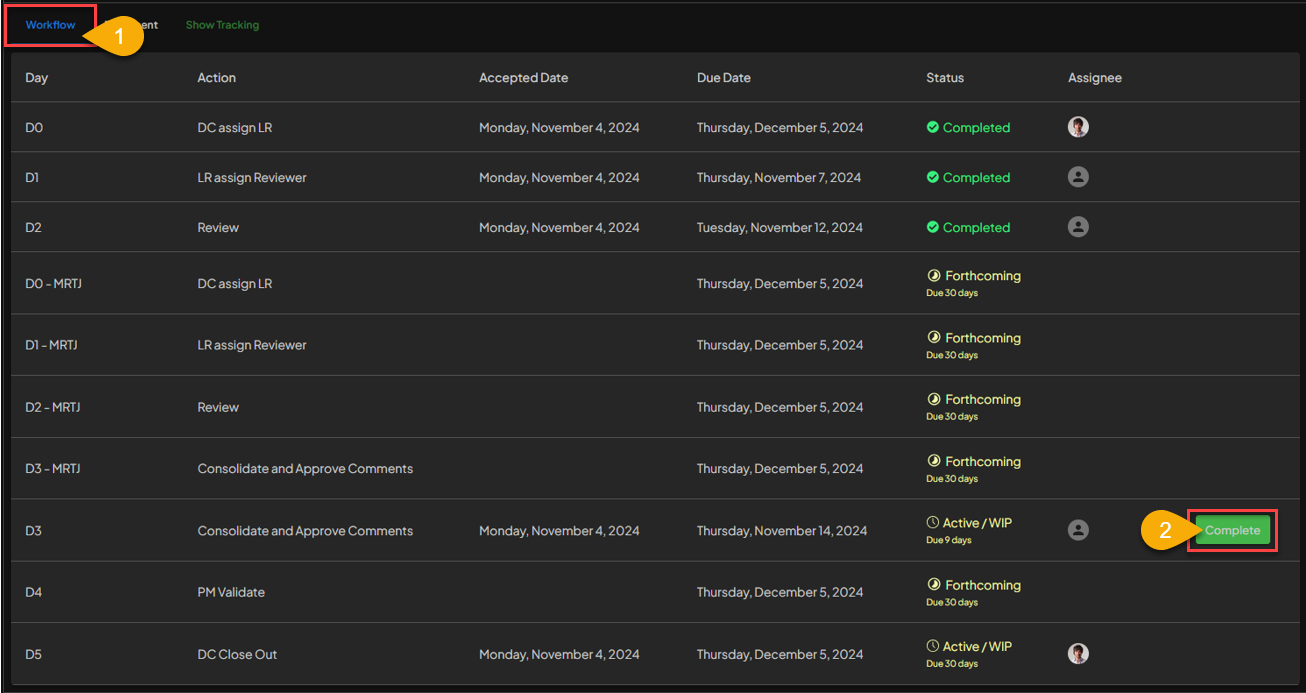
- USER can click the
Workflowtab agan, so that BIMA Construction can display theWorkflowtab. - After the
Workflowtab opens, USER can click theCompletebutton to complete the given assignment.
7. Consolidate & Approval Finish
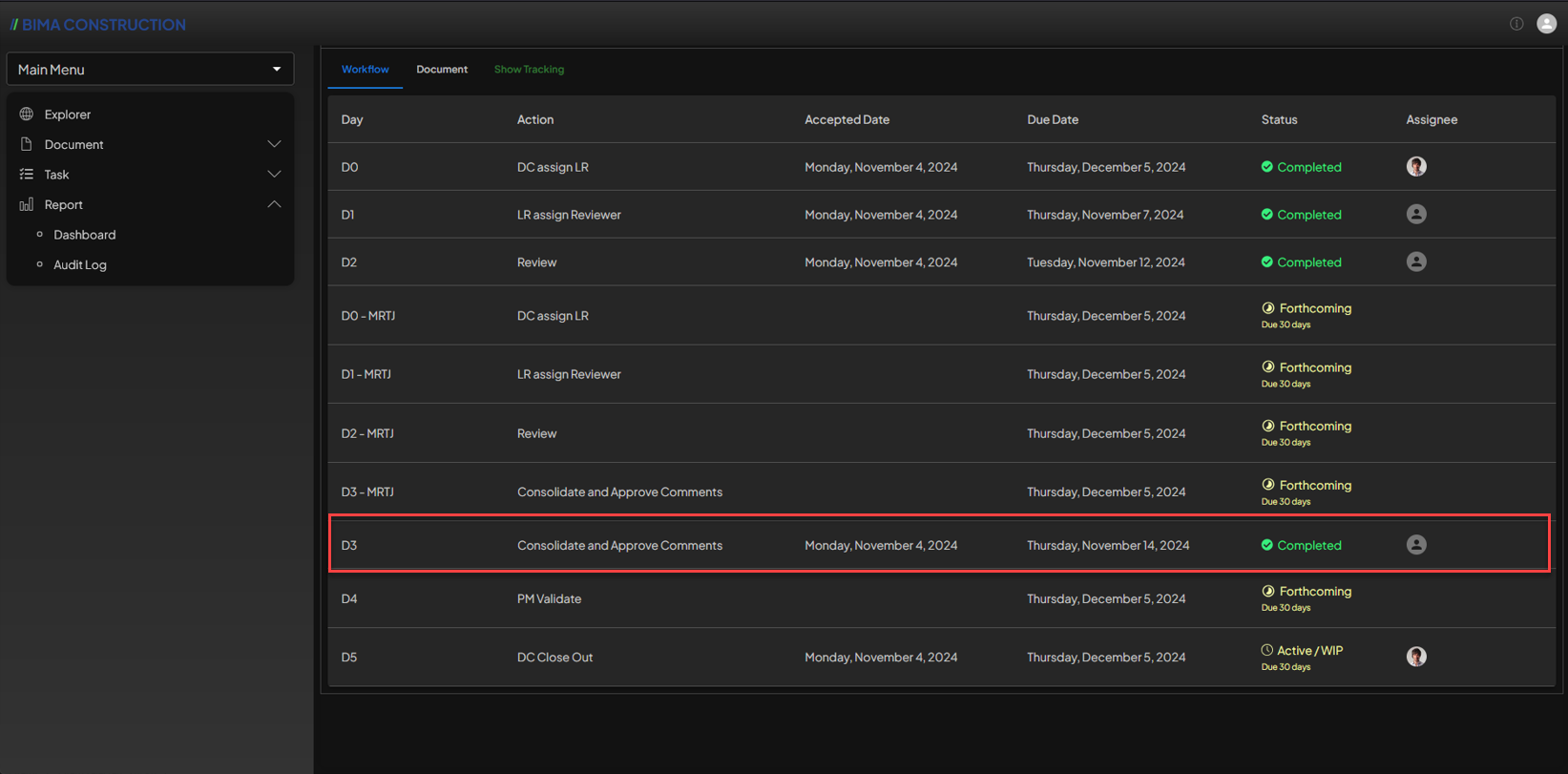 The
The Consolidate & Approval process is complete, BIMA Construction will provide notification to the Document Controller.