Assign Task to Reviewer
1. Go to Workflow Page
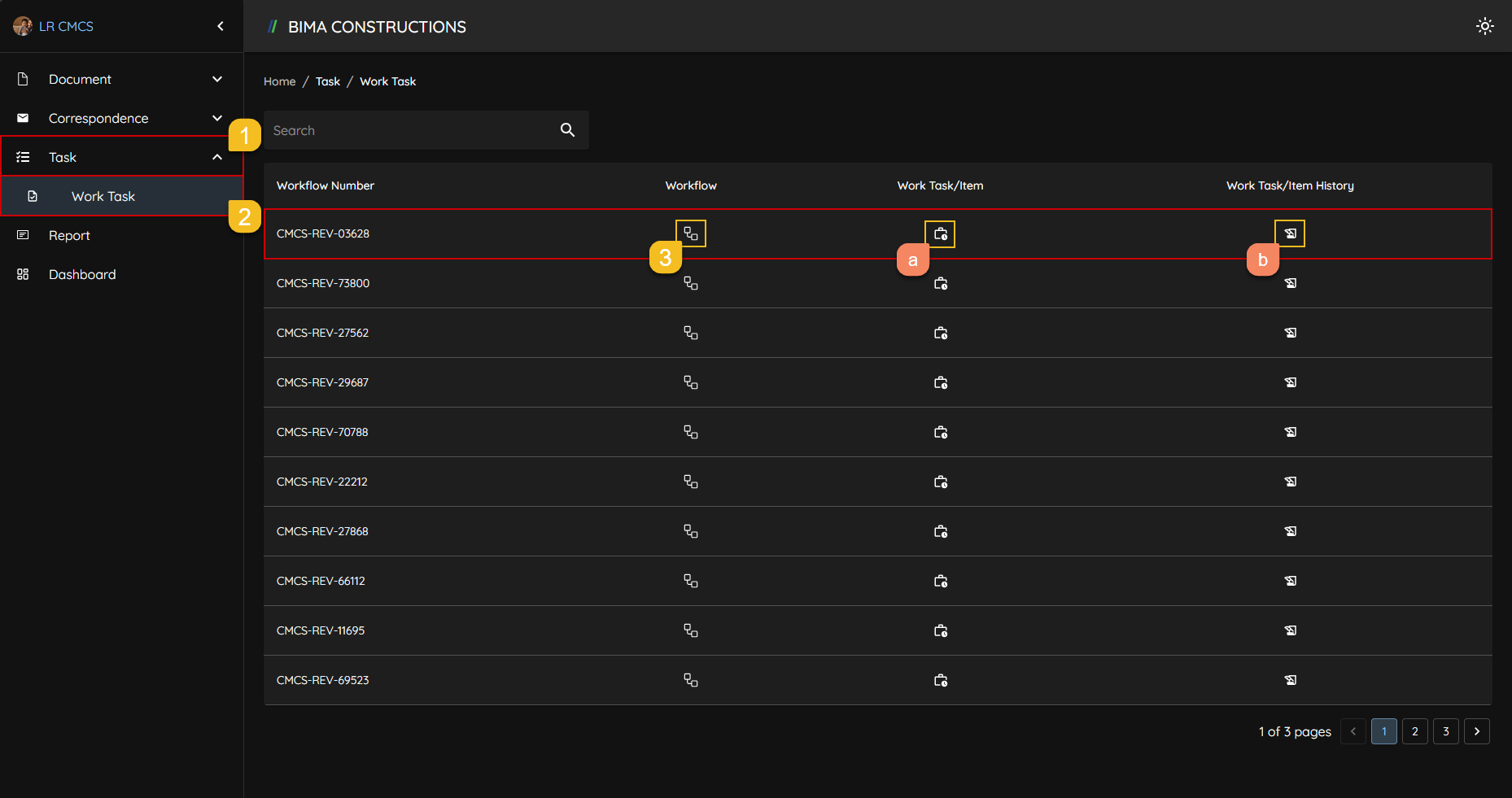
- On the side menu, Lead Reviewer can click on the
Taskmenu to show the location of theTaskmenu for the workflow. - After the menu shown, DC Consultant then can click onto the
Review Taskmenu to open up theWork Taskpage. - At the
Review Taskpage, DC Consultant can pick on the active workflow to and click on theWorkflowsymbol that marked withNumber 3.
Extra:
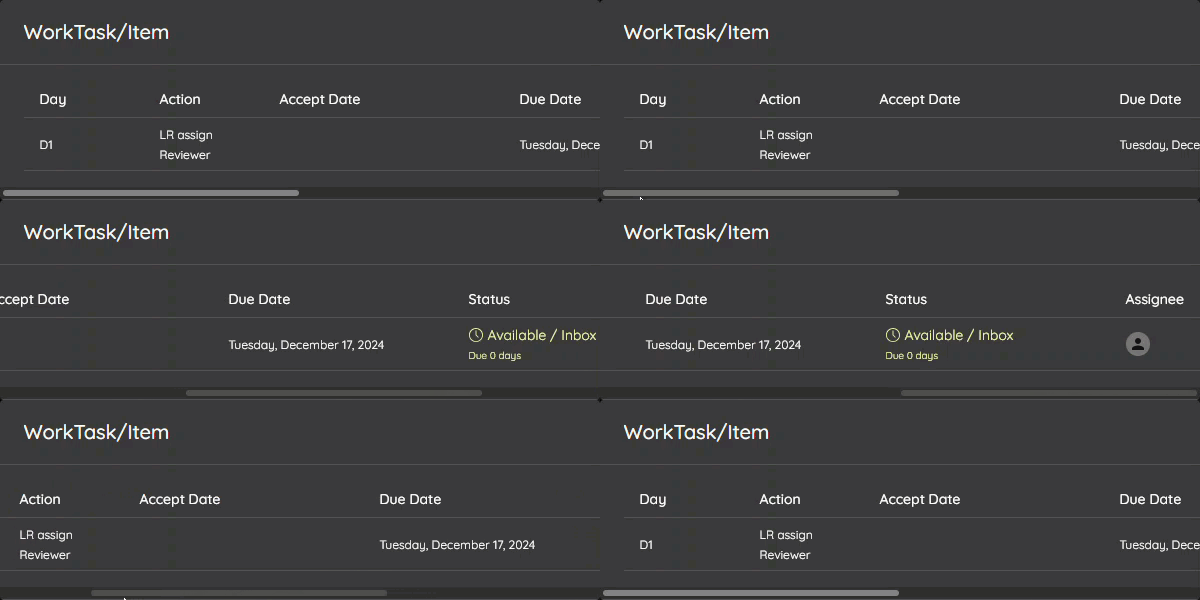
a. Work Task/Item
USER can look on what task are given to them by clicking on theWork Task/Itemsymbol button.b. Work Task/Item History
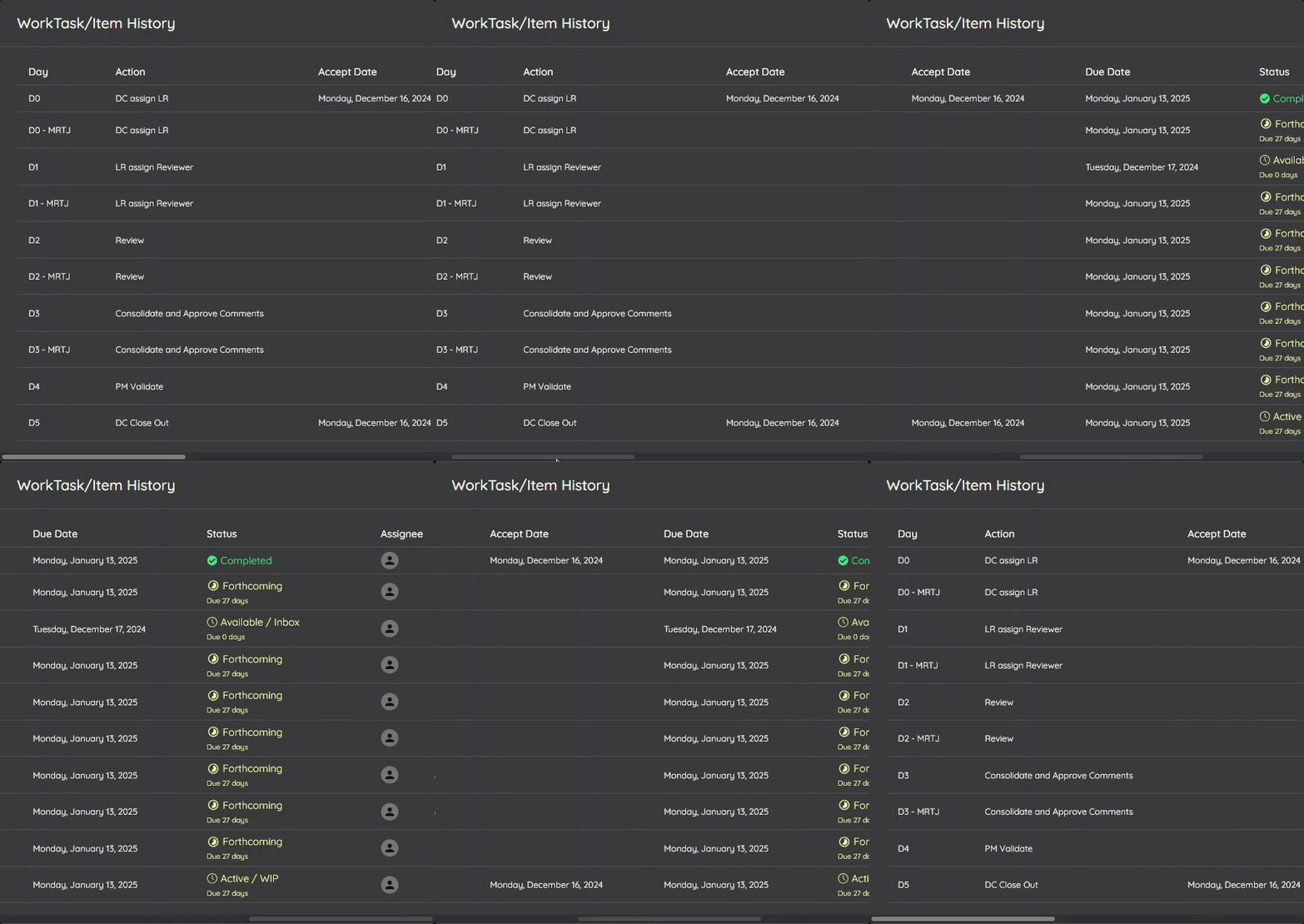
USER can look on the task flow by clicking on theWork Task/Item History
2. Assign The Task
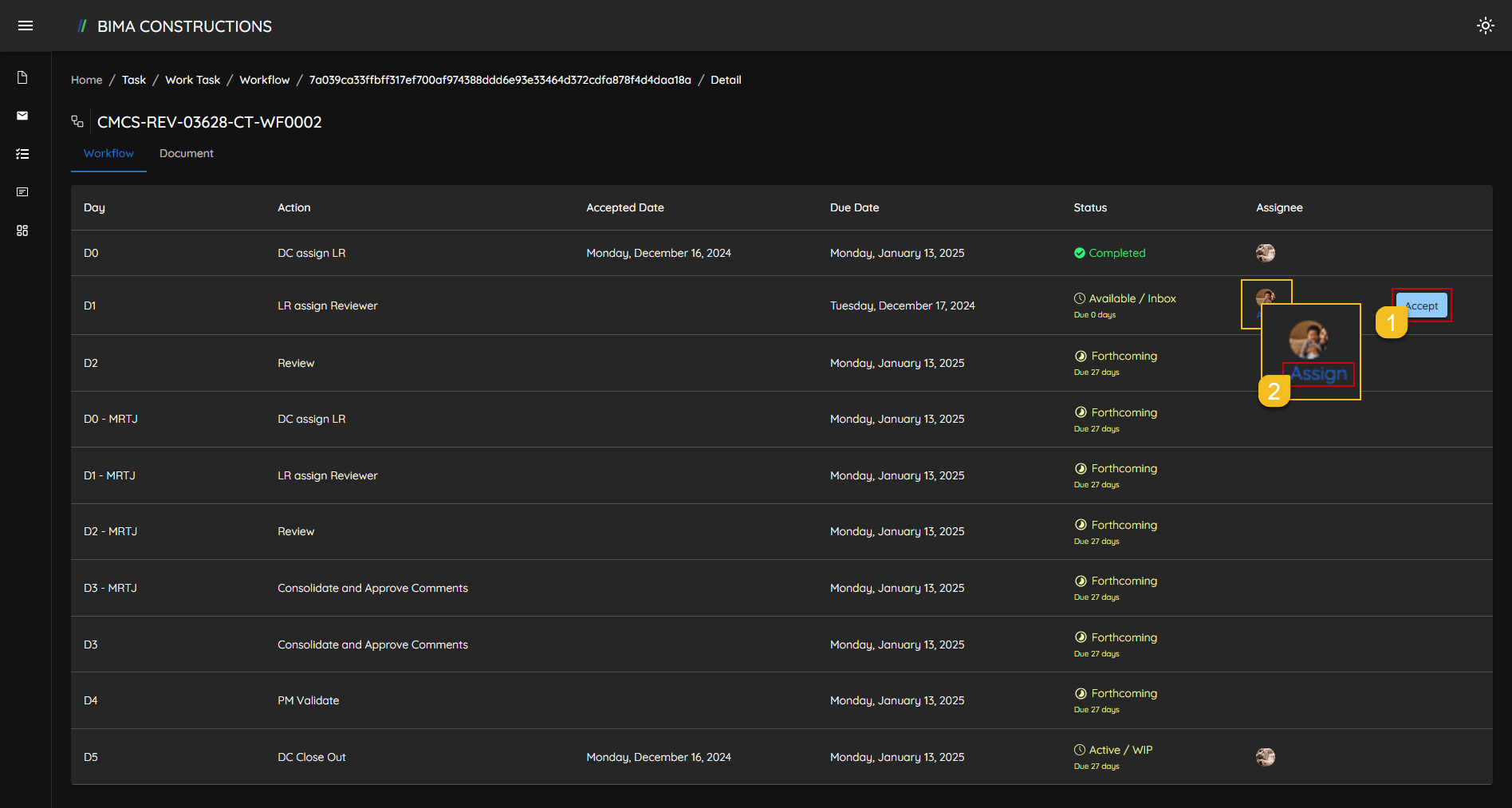
- Before Lead Reviewer could gave any task to Reviewer (RR), Lead Reviewer (LR) can accepting the assignment by LR first by clicking on the
Acceptbutton. - LR then can click on the
Assignbutton to bring up theEdit Task Assignmentspanel.
3. Edit Task Assignment
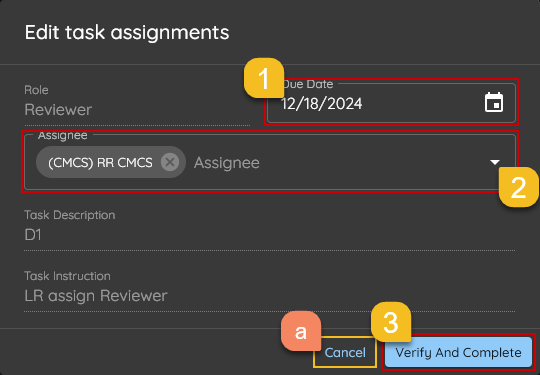
- Pick on the deadline of the task that are given to the RR.
- From the dropdown list provided by BIMA Construction apps, pick the Reviewers (RR) that needs to be assigned task to. (LR can assign multiple RR for the same work/task)
- If LR done on make sure the data for the task are input correctly, LR just need to click on the
Verify And Completebutton to completed the task assign process.
Extra:
a. If the LR for some reason feel the need to cancel the process, LR can simply click the
Cancelbutton.
4. Task Assigned Successfully
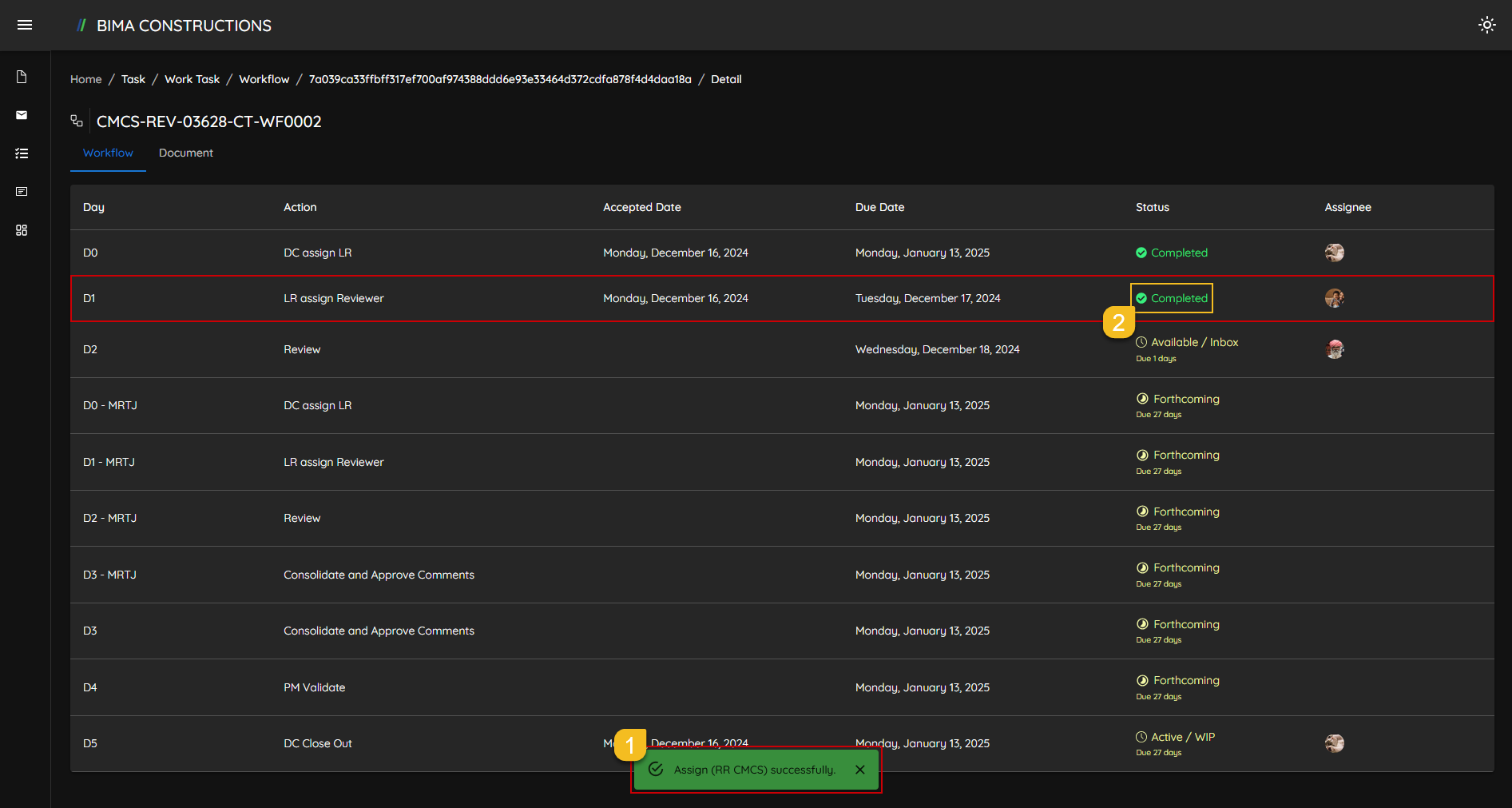
- After LR click on the
Verify And Completebutton, a notification will appear saying ``Assign ([Name]) successfully''. - To make sure even more the successful assignee process are also marked with the
completion statuson the Status column of the workflow.