Create Document
Read Below First
To be able to create a document, a USER must have a Document Control role. If the USER does not have access problems even though they are using the correct account, the USER can contact the admin regarding the problematic access rights.
Create Document
1. Go To Create Document Page
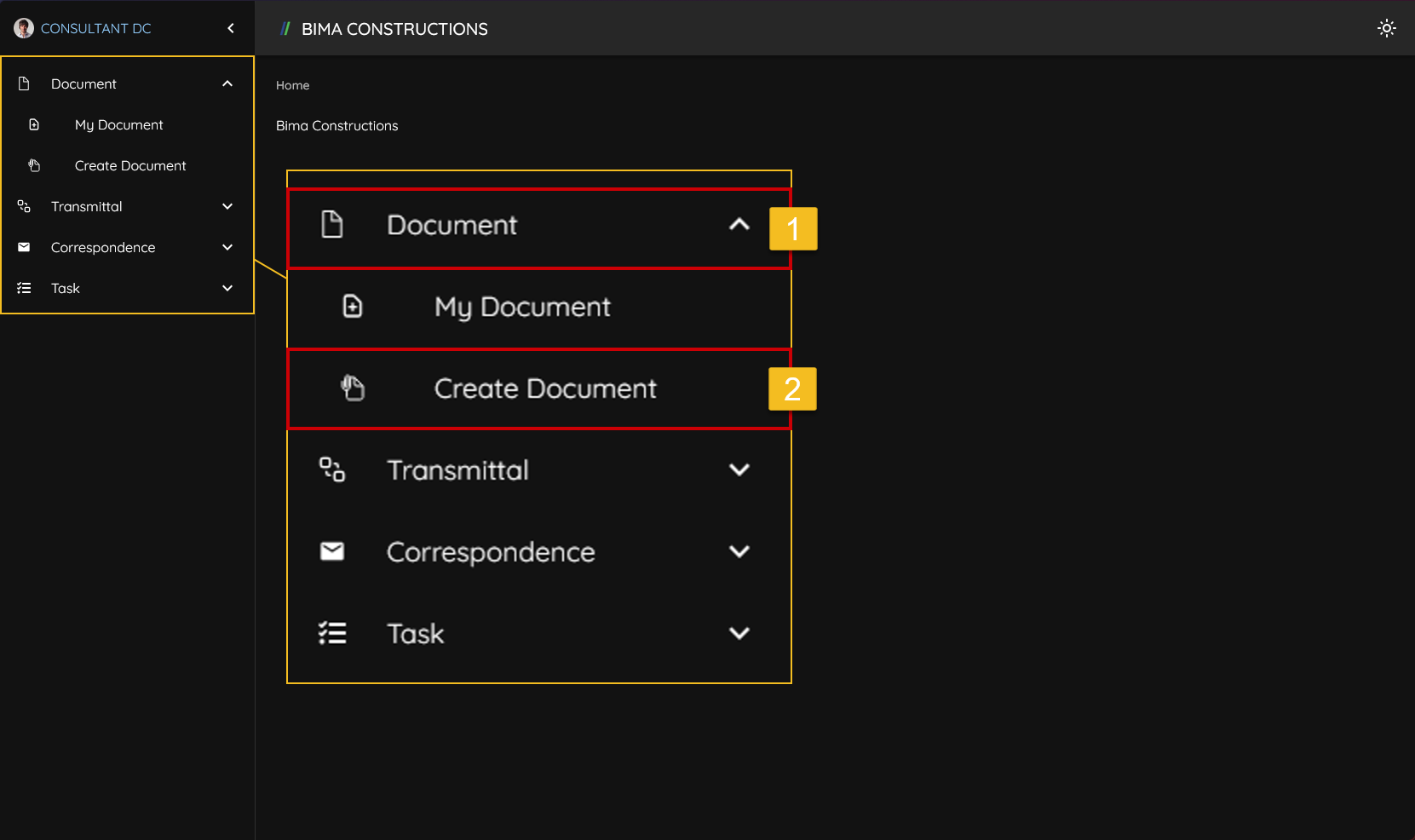 It can be seen in the side menu, in the
 Documents menu there is a menu titled Create Document, users can click on this menu so that the application can direct them to the Create Document page.
- Document Controller can click on the
Documentmenu button to open its sub menu. - Document Controller can then click on the
Create Documentmenu to go toCreate Documentpage.
2. Fill The Input Field
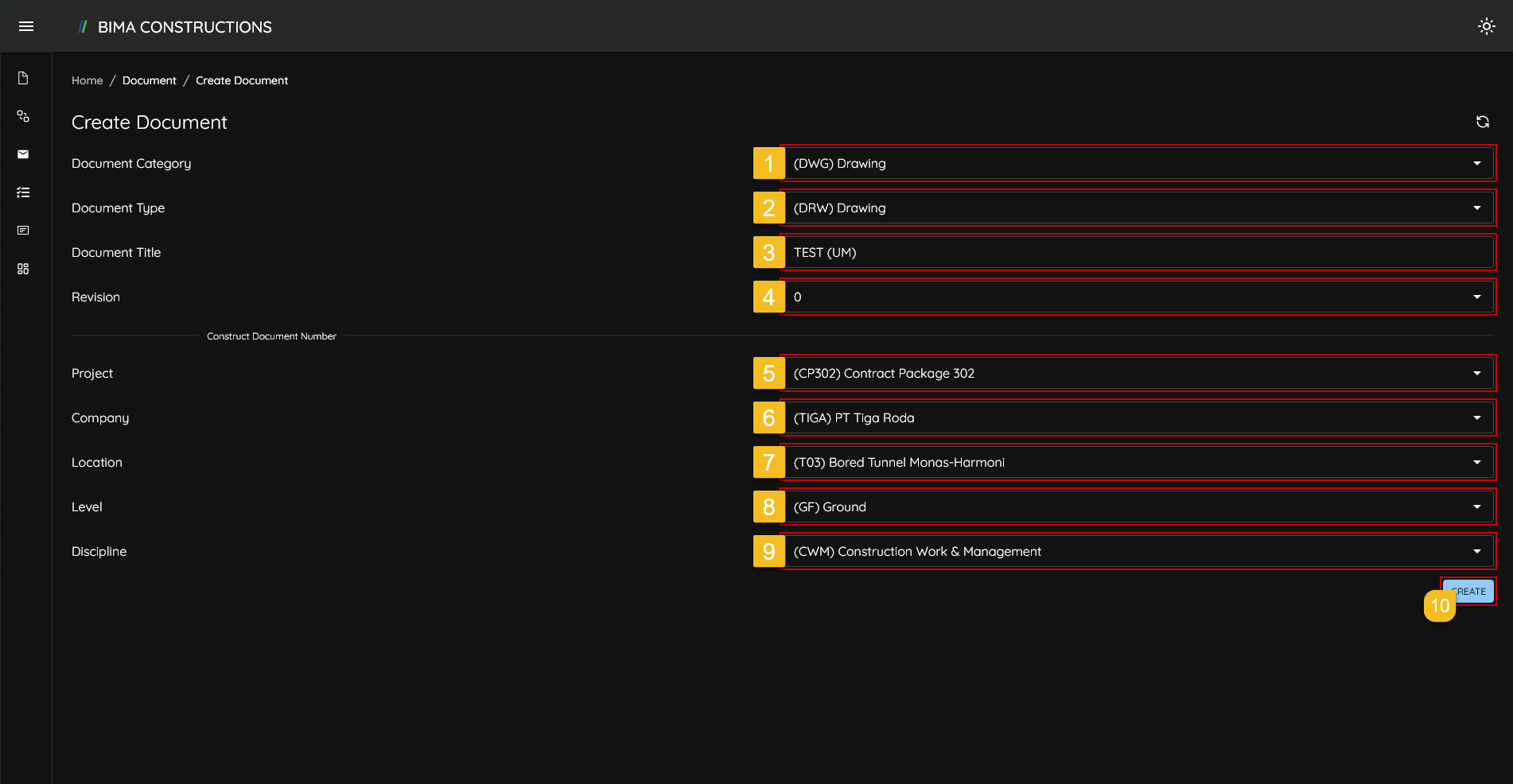 Once Document Controlller are on the
 Create Document page, Document Controller needs to fill in all the data required for the documents, that consist of:
- Document Category : Category of the document to be entered by the USER can be Document/Drawing/Correspondence.
- Document Type : The file type that depends on the category of the document to be entered based on the first field.
Drawing:
- Model Rendition
- Combined Model
- Specific for Clash Process
- Animation Model
- Drawing
- 2D Model File
Document:
- 3D Model FIle
- Combine Drawing Document
- Contract Documentation
- Individaual Clash Report
- Combined Clash Reports
- Calculation Report
- Authority Approval & Permits
- Announcement
Correspondence:
- Document Title : Titlel of the document to be created.
- Revision : Number version of the document (is it an update or a freshly created one).
- Project : The Project origin.
- Company : The Company origin of the document.
- Location : Location where the project will be build.
- Level : From which floor the project on the document is executed.
- Discipline : (PIC) Persosn in Charge of the document project.
- If the Document Controller has confirmed the data is entered correctly, the Document Controller can click the
SAVEbutton
3. Check The New Created Document
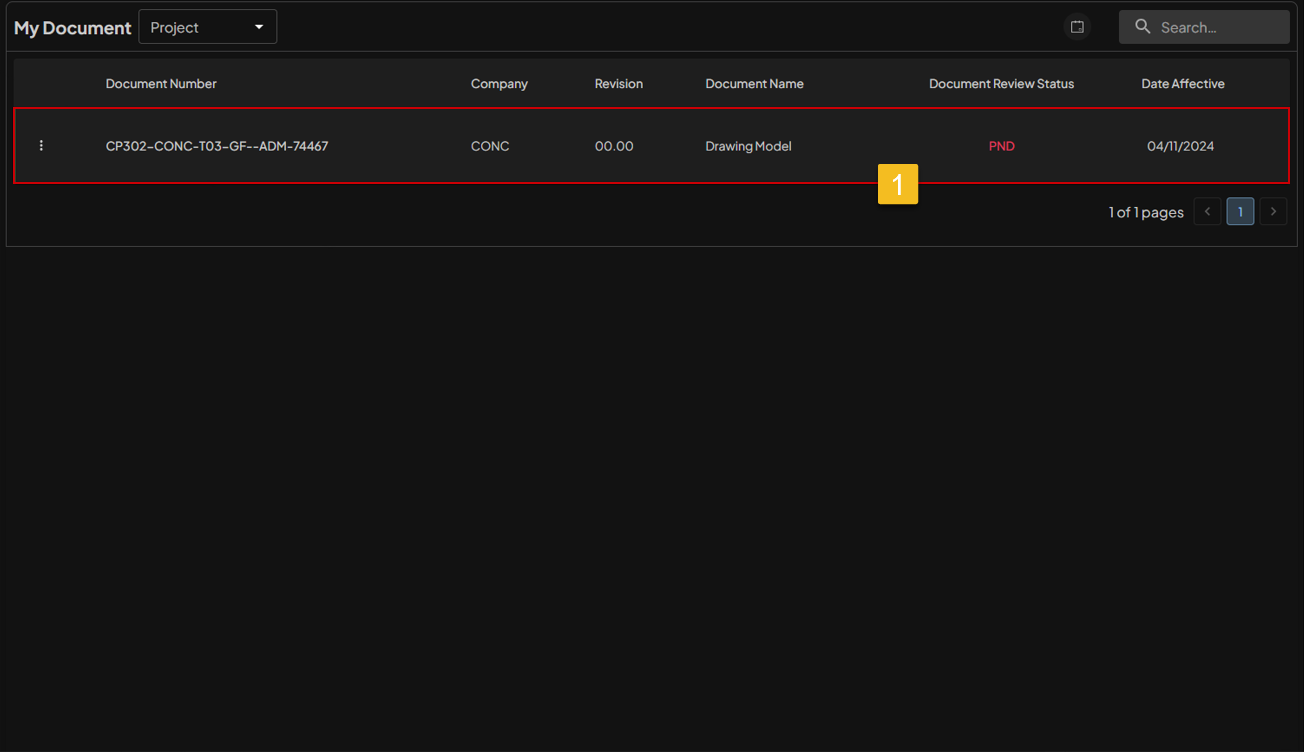 When the USER has clicked the
 CREATE button, the BIMA Construction applicaition will display the My Document page, which constains a list of documents that the USER has successfully created.
Look at the Detail
Document Controller can also view details of all documents that have been successfully created. To start on checking the details of each documents, Document Controller can follow these steps.
1. Choose Document
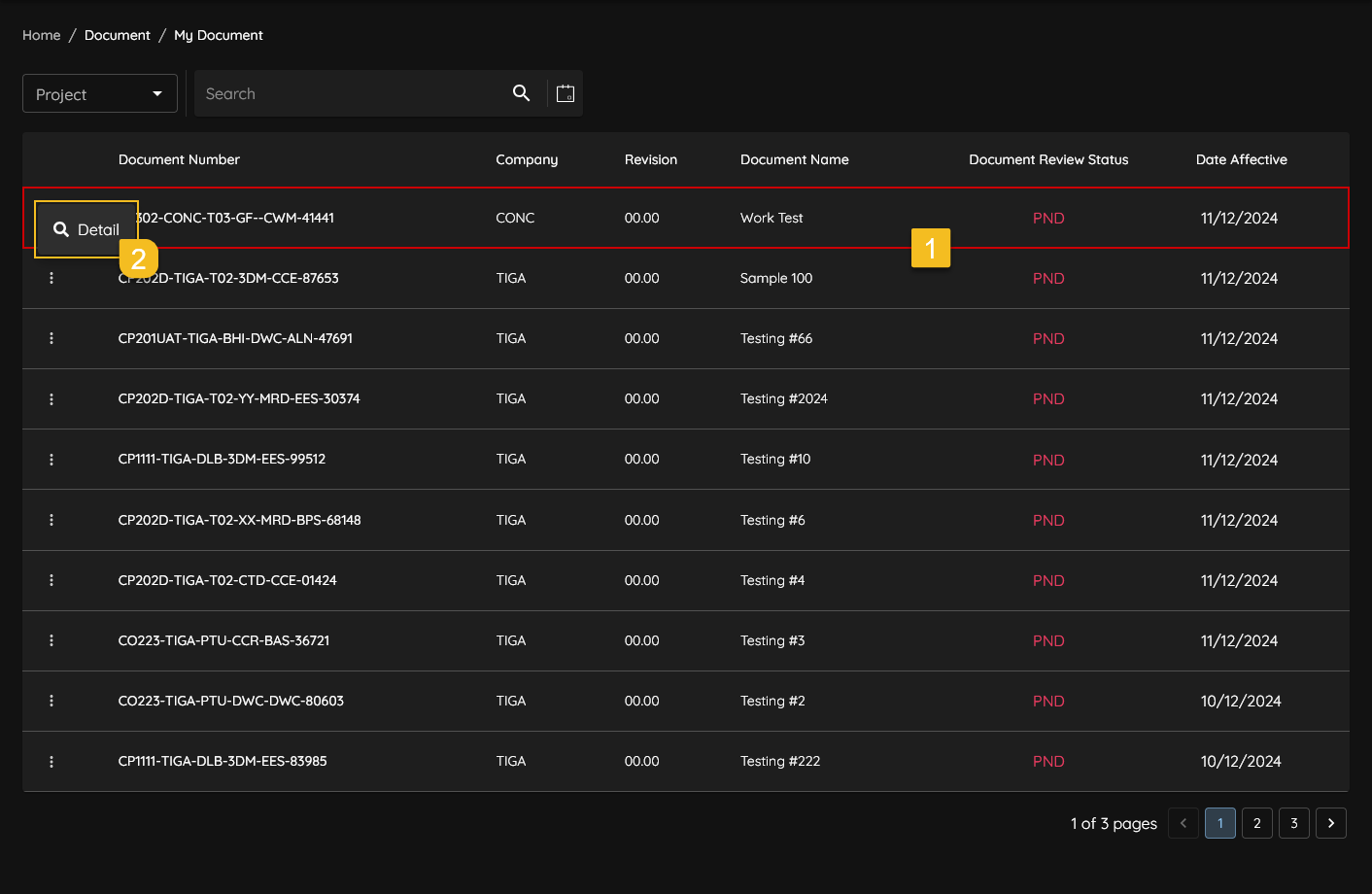 If USER want to look at the detail of the newly created or from any available document, USER can first go to the
 My Document page simply by clicking it from the side menu.
- After the USER are on the
My Documentpage, USER can first choose on which document the USER want to look at the detail from. - USER can click on the
Three-Dotsaction menu (in the picture located under theDetailmenu), then click on theDetailaction menu that show up to access the detail information about the document.
2. Check The Detail
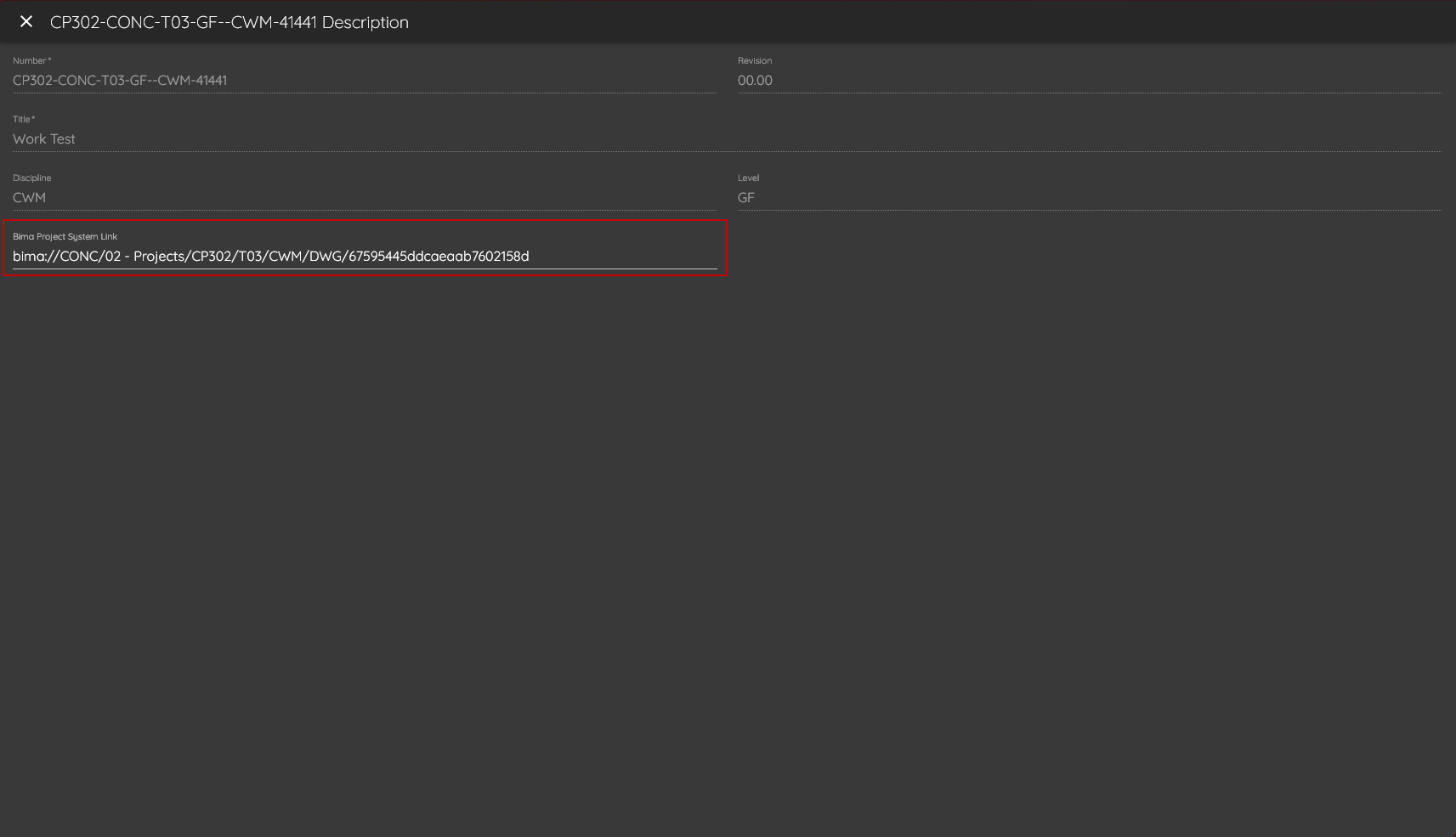 After clicking the
 Details button, the USER is then directed to a pop-up page containing details of document the USER has successfully created previously.
On the red colored border USER can see the link that produced automatically by BIMA, this link are the link that USER can use to access/input files/models inside the document by using the BIMA Projects Application.