Assign Task to Lead Reviewer
Notice
Read Below First
To be able to assign the Lead Reviewer to start the Review process for the created document, the USER with the Document Controller (DC) role must first receive the document sent by the Contractor from the BIMA Projects.
Assign Task To Lead Reviewer
1. Open the Workflow Page
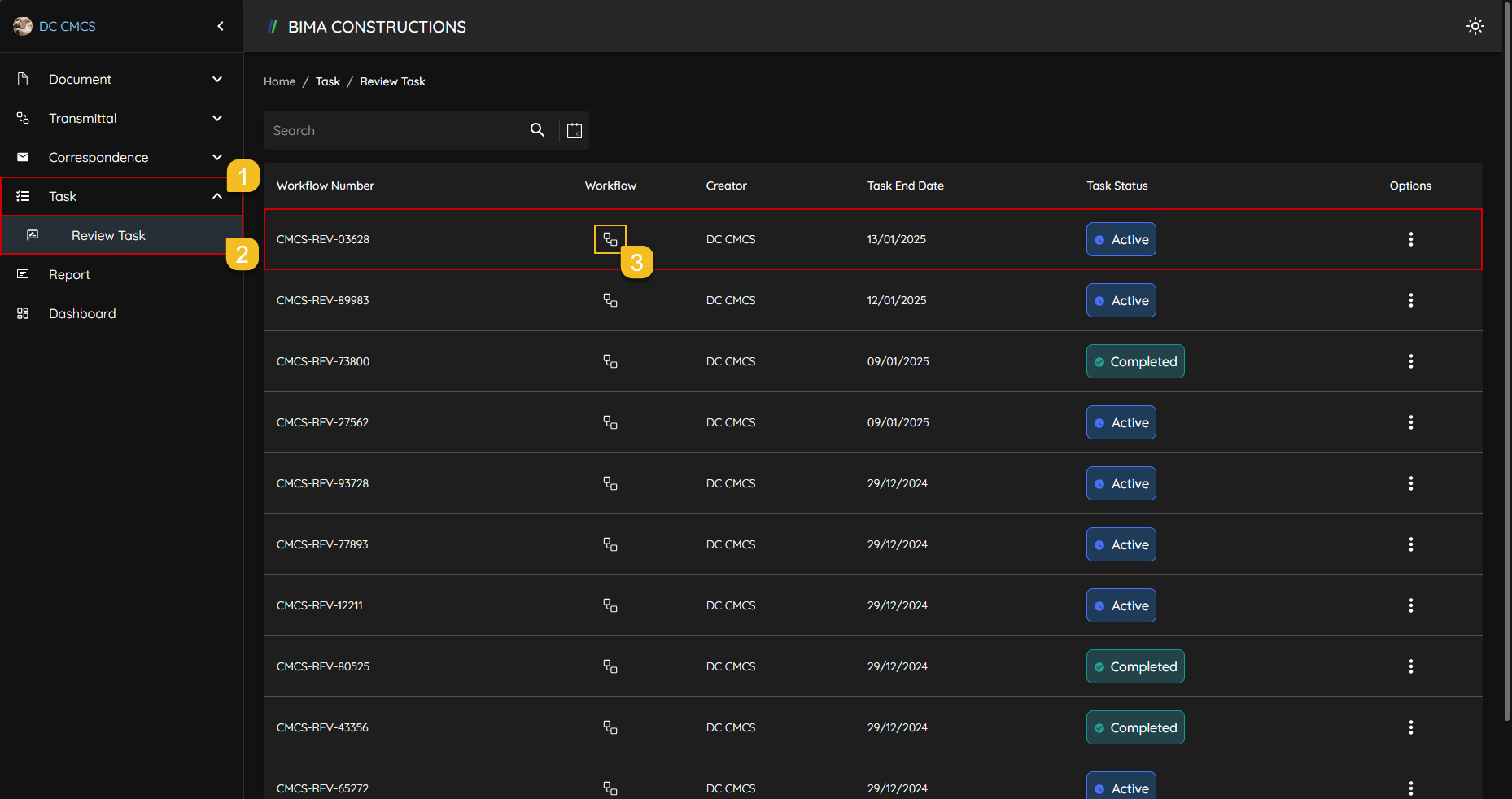
- On the side menu, DC can click on the
Taskmenu to show the location of theReview Taskmenu for the workflow. - After the menu shown, DC then can click onto the
Review Taskmenu to open up theReview Taskpage. - At the
Review Taskpage, DC can pick on the active workflow to and click on theWorkflowsymbol that marked withNumber 3.
2. Assign the Task
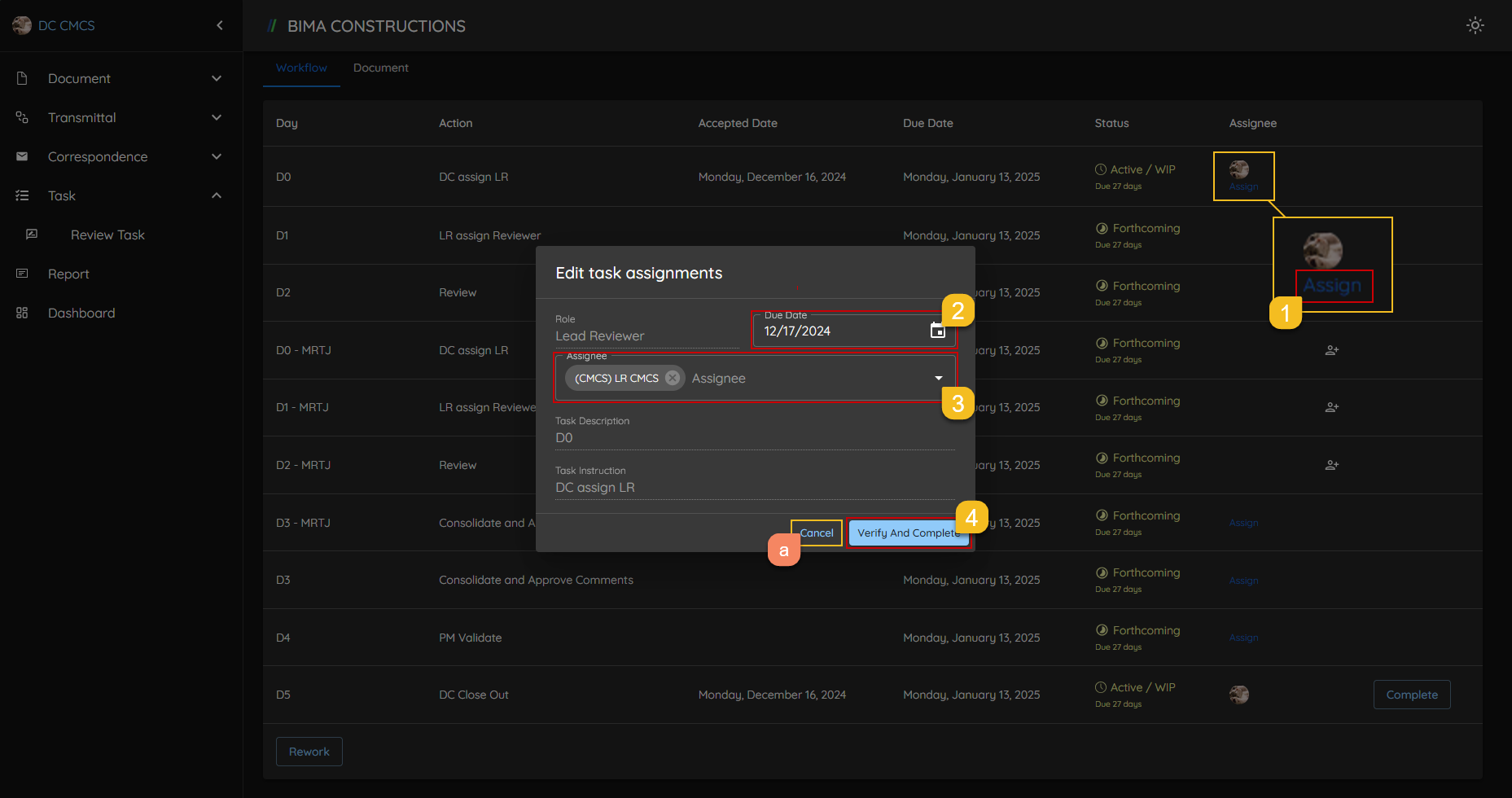
- DC first need to click on the
Assignbutton to open theEdit task assignmentsform, to assign the task to Lead Reviewer (LR). - Pick on the deadline date of the task given.
- From the dropdown list provided by BIMA Construction apps, pick the LR that needs to be assigned task to.
- If DC done on make sure the data for the task are input correctly, DC just need to click on the
Verify and Completebutton to completed the Task Assign process.
3. Task Assigned Successfully
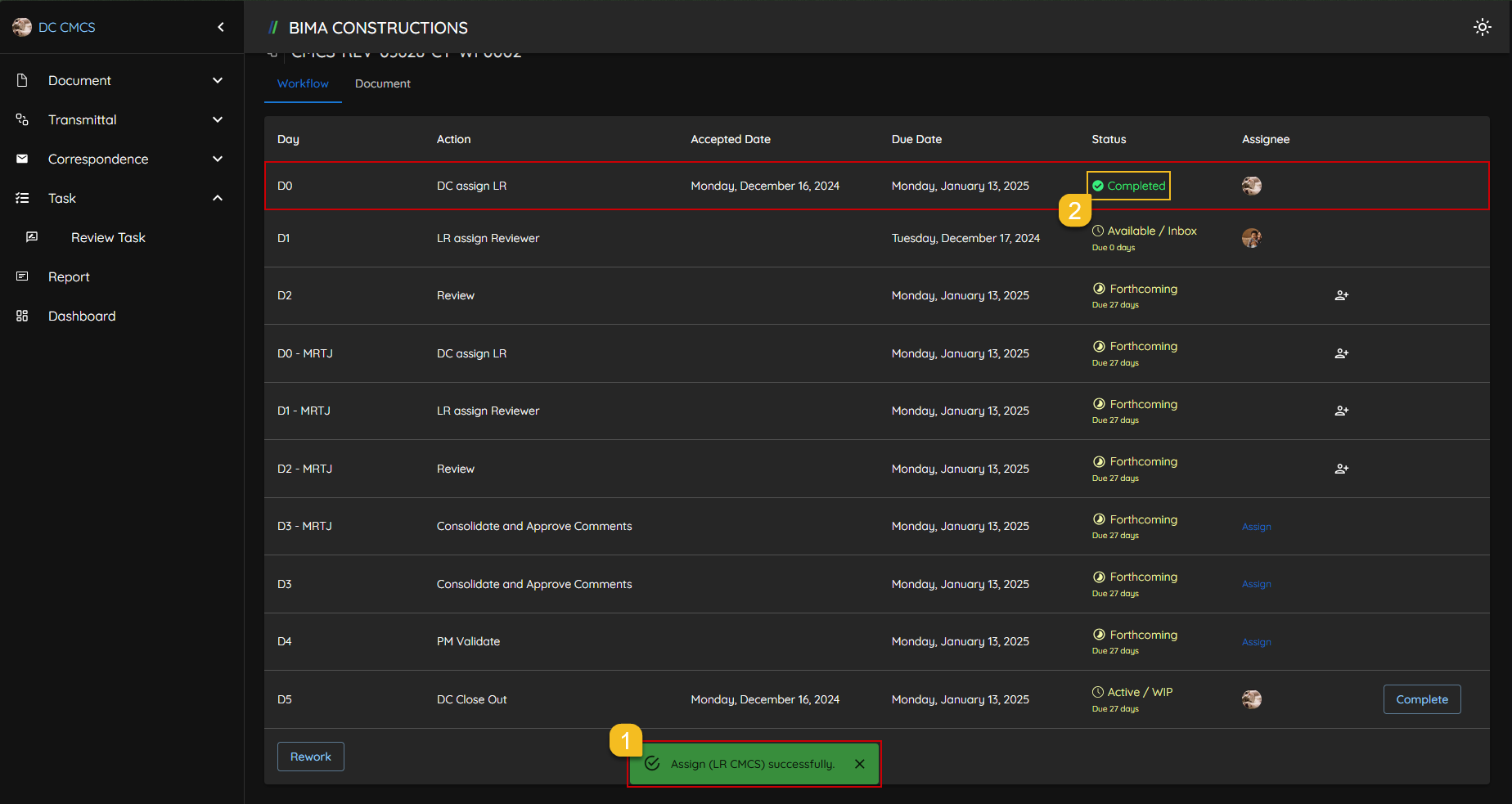
- After DC click on the
Verify and Completebutton, a notification will pop-up sayingAssign ([Name]) successfully. - To make sure even more the successful assignee process are also marked with the
completion statuson the Status column of the workflow.
Assign Task To Lead Reviewer [Consolidate & Approve Comments]
1. Assign the Task
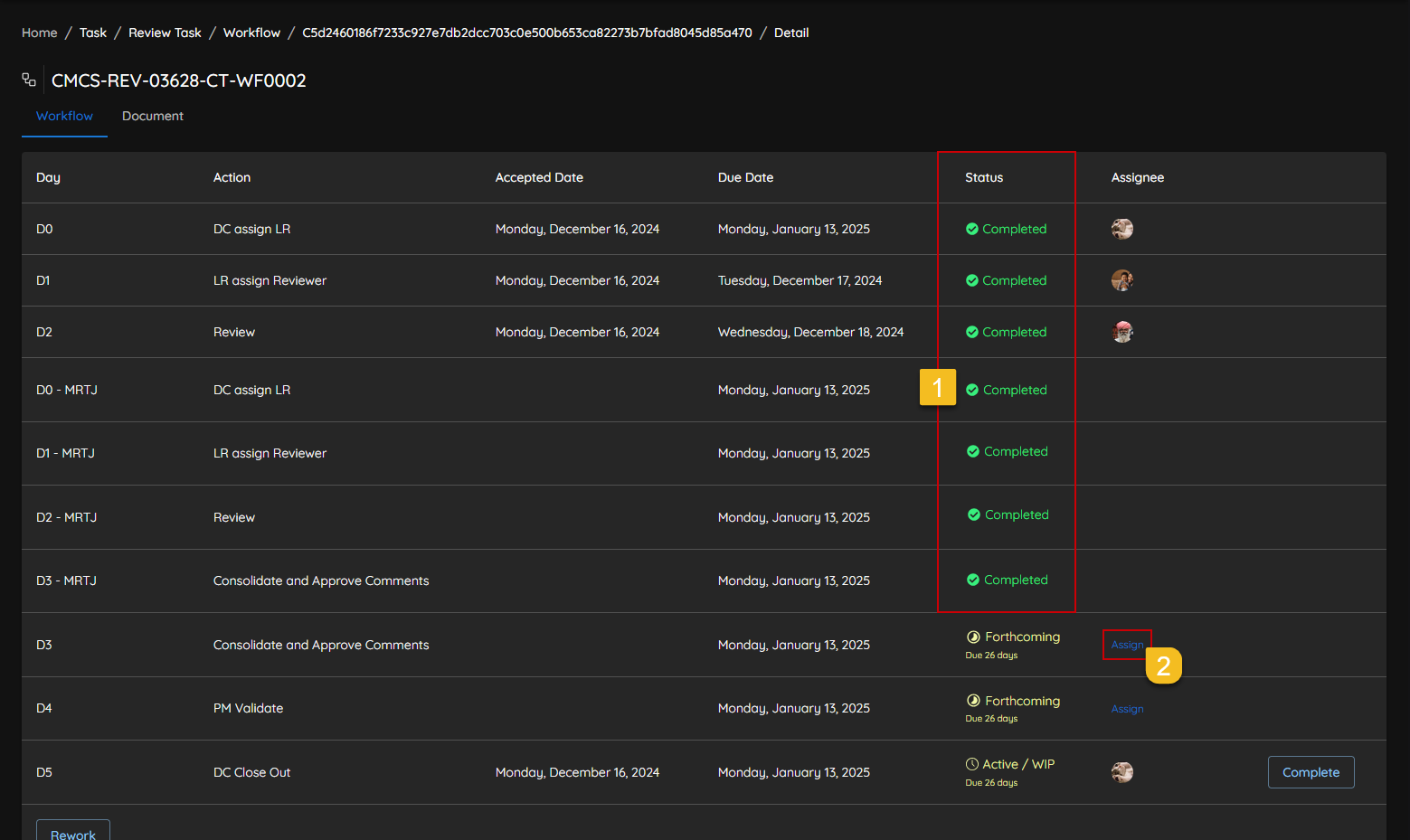
- DC can first check on the workflow list if all the previous task status have been declared as
Completedor not. - If all the previos task are declared as
CompletedDC then can click on theAssignbutton.
2. Set Assignee & Due Date
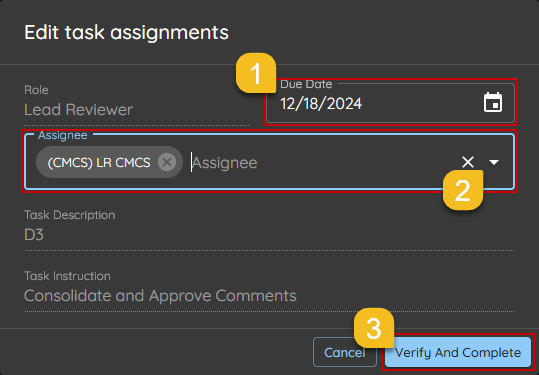
- DC Pick on the deadline date of the task will be given to LR.
- From the dropdown list provided by BIMA Construction apps, pick the LR that needs to be assigned task to.
- IF DC done on make sure of the data for the task are input correctly, DC just need to click on the
Verify and Completebutton to completed theTask Assign [Consolidate & Approve Comments]process.
3. Task Assigned
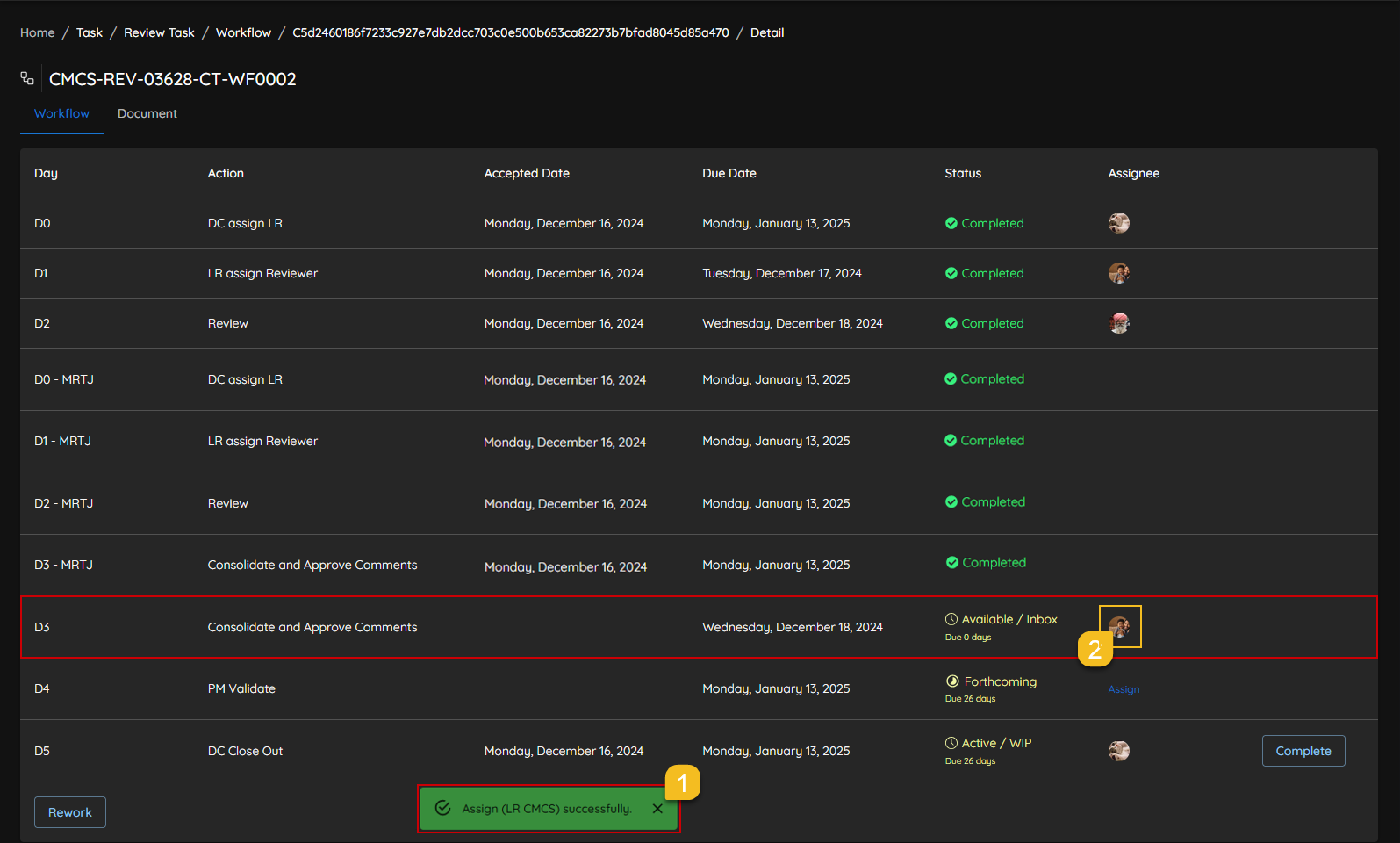
- After DC click on the
Verify and Completebutton, a notification wil pop-up sayingAssign ([Name]) successfully. - To make sure even more the successful assigneed process are also marked with the appearance of profile photo of the assignee.