Create Workflow
First thing first, Document Control (DC) on the BIMA Construction side needs to got a document that already contain files/models that has been added by the Document Control (DC) on the BIMA Projects side and sent it through the Transmittal Process.
1. Review & Accepting The Transmittal
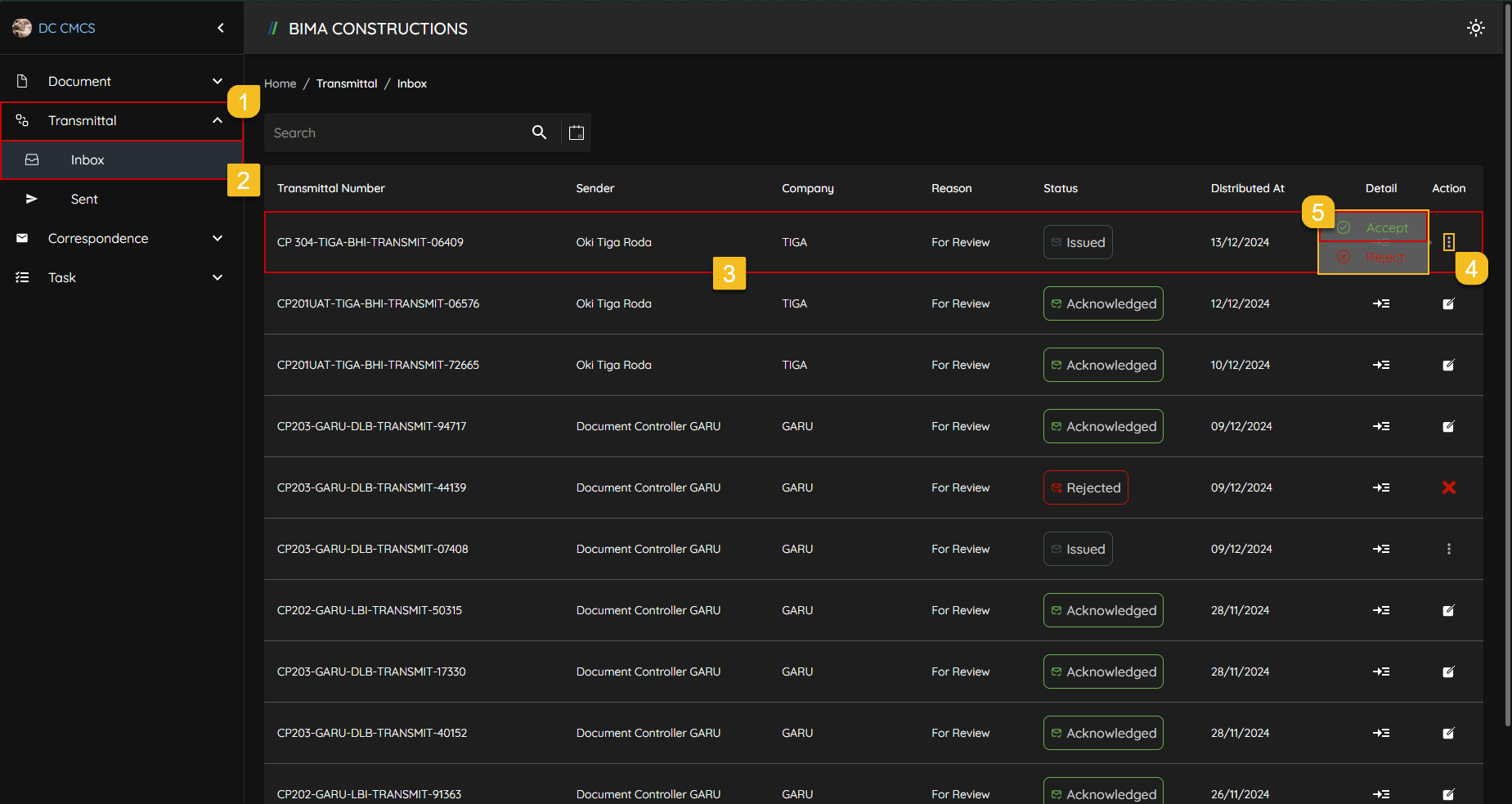 After making sure that DC Consultant already receive the document through the
 Transmittal process, DC Consultant needs to follow this step below.
- On the side menu, DC Consultant can click on the
Transmittalmenu to show the location of theInboxmenu for the Transmittal. - After the menu shown, DC Consultant then can click ono the
Inboxmenu to open up theInboxof the transmittal page. - While DC Consultant on the Inbox page, select on which file that DC Consultant received from the DC Contractor needs to make as a new workflow.
- DC Consultant can click on the
Three-Dotaction button to reveal theAccept/Rejectbutton. - After the button reveal DC Consultant click on the
Acceptbutton to Accept and continue to make the newWorkflow.
Extra:
A. Checking the Document
DC Consultant can check on the document that got sent by the DC Contractor via
Transmittalto be able to check on the detail of the document; DC Consultant can follow this step bellow,
- DC Consultant pick on which document that needs to check.
- DC Consultant then can click on the
Detailsymbol that mark withNumber 2, to open up the detail page.B. Document Detail
After clicking on the Detail symbol like from the step before, a detail page of the document will shown.
2. Start the Workflow process
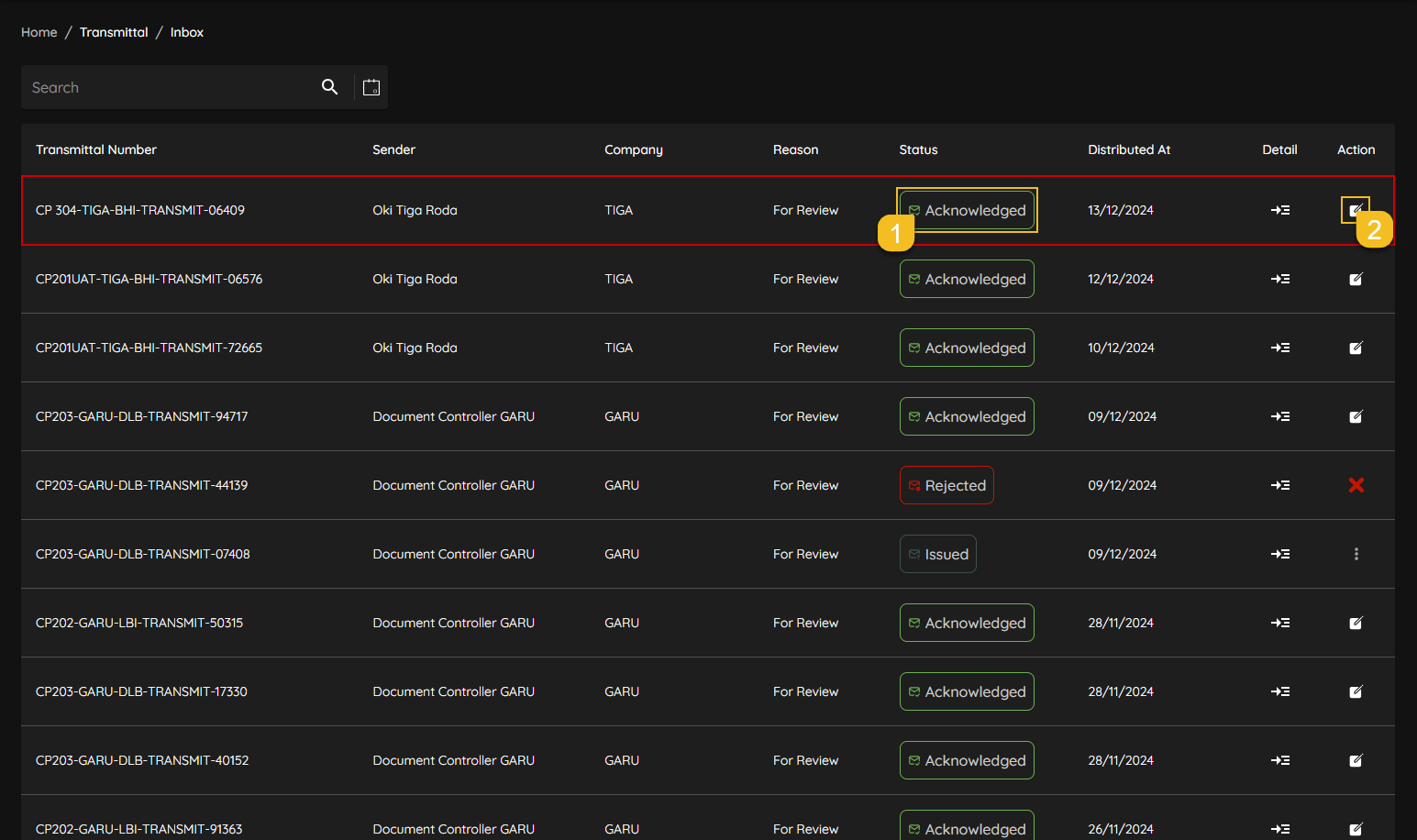
- DC Consultant can check whether the status conditions in the status column have changed to 'Acknowledged' after receiving it from the transmittal sent by DC Contractor.
- If the status
Acknowledged, then DC Consultant can click on the action menu button again, to go to theWorkflowtemplate page.
3. Choose Workflow Template
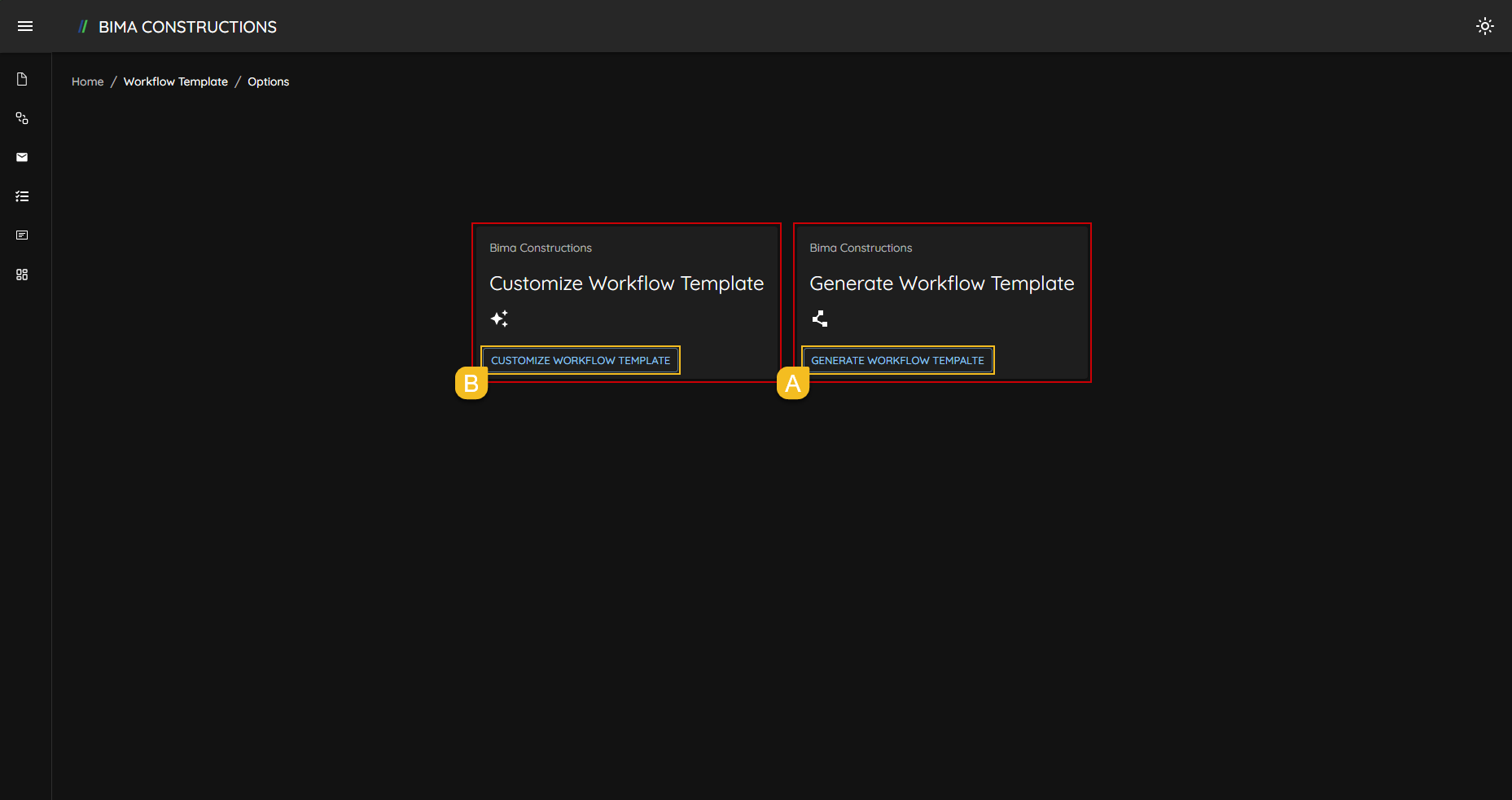 After DC Consultant appear on the
 Workflow Template Generate page, there are basically 2 option to start a new workflow, but the common one that usually used are the second one which is the Generate Workflow Template.
A. Generate Workflow Template
DC Consultant can start a workflow of the document from the template that are already created by the BIMA Construction application.
B. Customize Workflow Template
DC Consultant can start a workflow of the document by editing/customizing the workflow so the process are match with their company usual workflow process.
So the guide that are gonna be use here are the guide for the Generate Workflow Template process. DC Consultant then can click on the Generate Workflow Template button, to show the workflow form.
DC Consultant can still look at the process for the Customize Workflow Template using this link Customize Workflow
4. Pick the Template
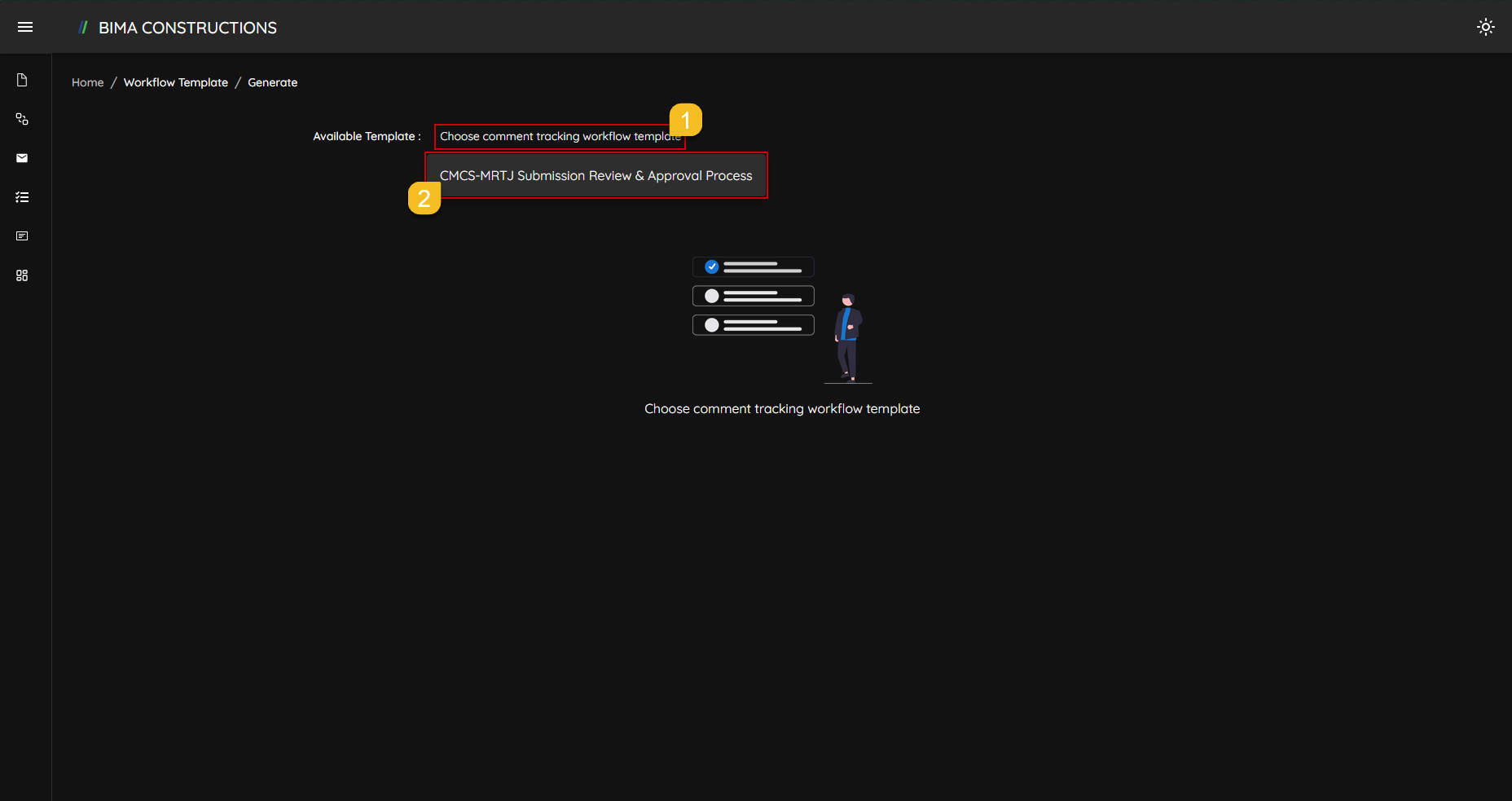
- DC Consultant Can click on the dropdown menu next to the
Template Available:To display a list of templates available in the Bima Construction application. - DC consultant select the template available to show the flow of the selected template process.
5. Confirming the Workflow Template
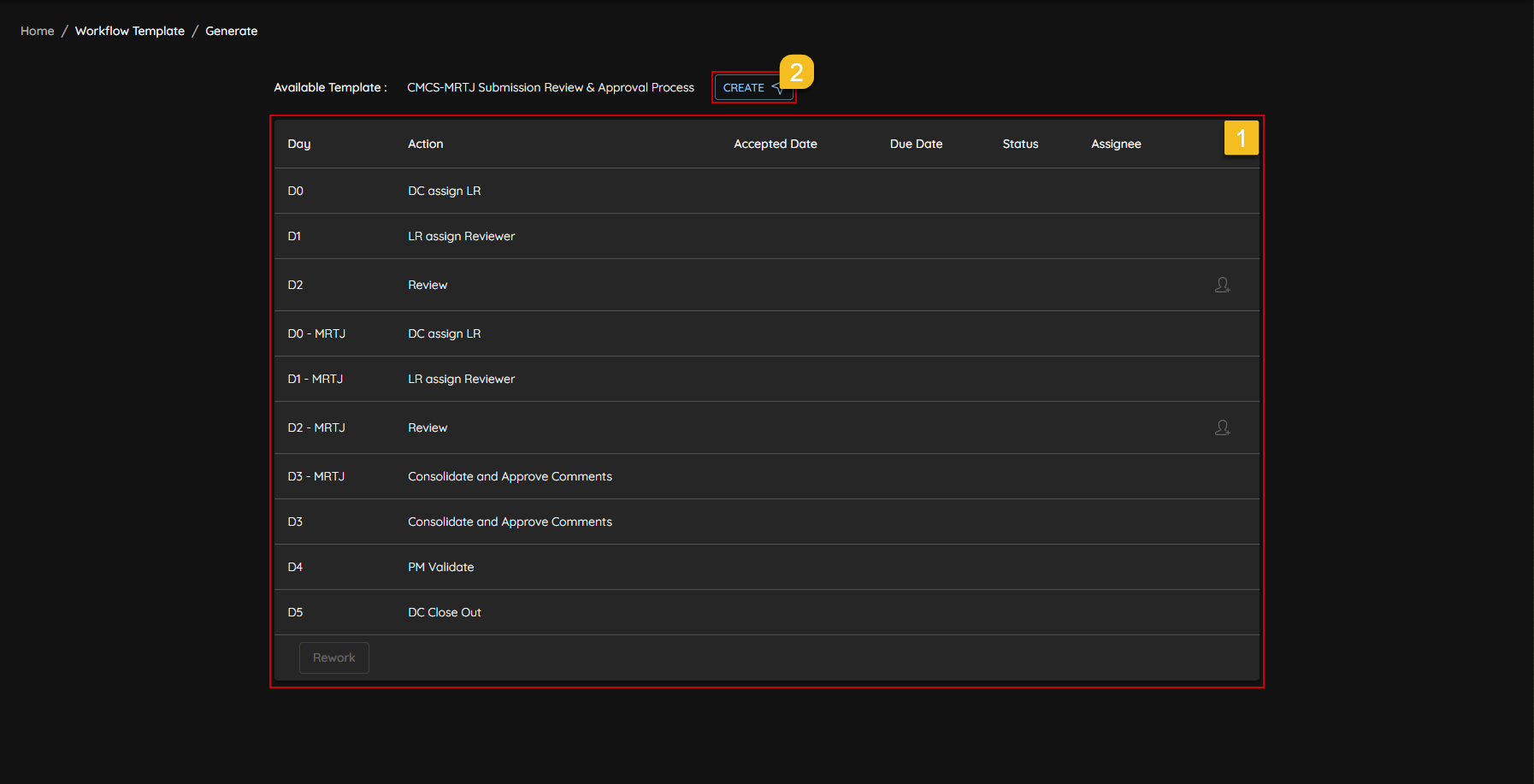
- DC Consultant check on the the flow of the workflow template so its in accordance with the either their company usual process or else.
- If DC Consultant already satisfied with the flow of the workflow, DC Consultant can click on the
CREATEButton, to start assigning people to the task their supposed on.
6. Workflow Created Successfully
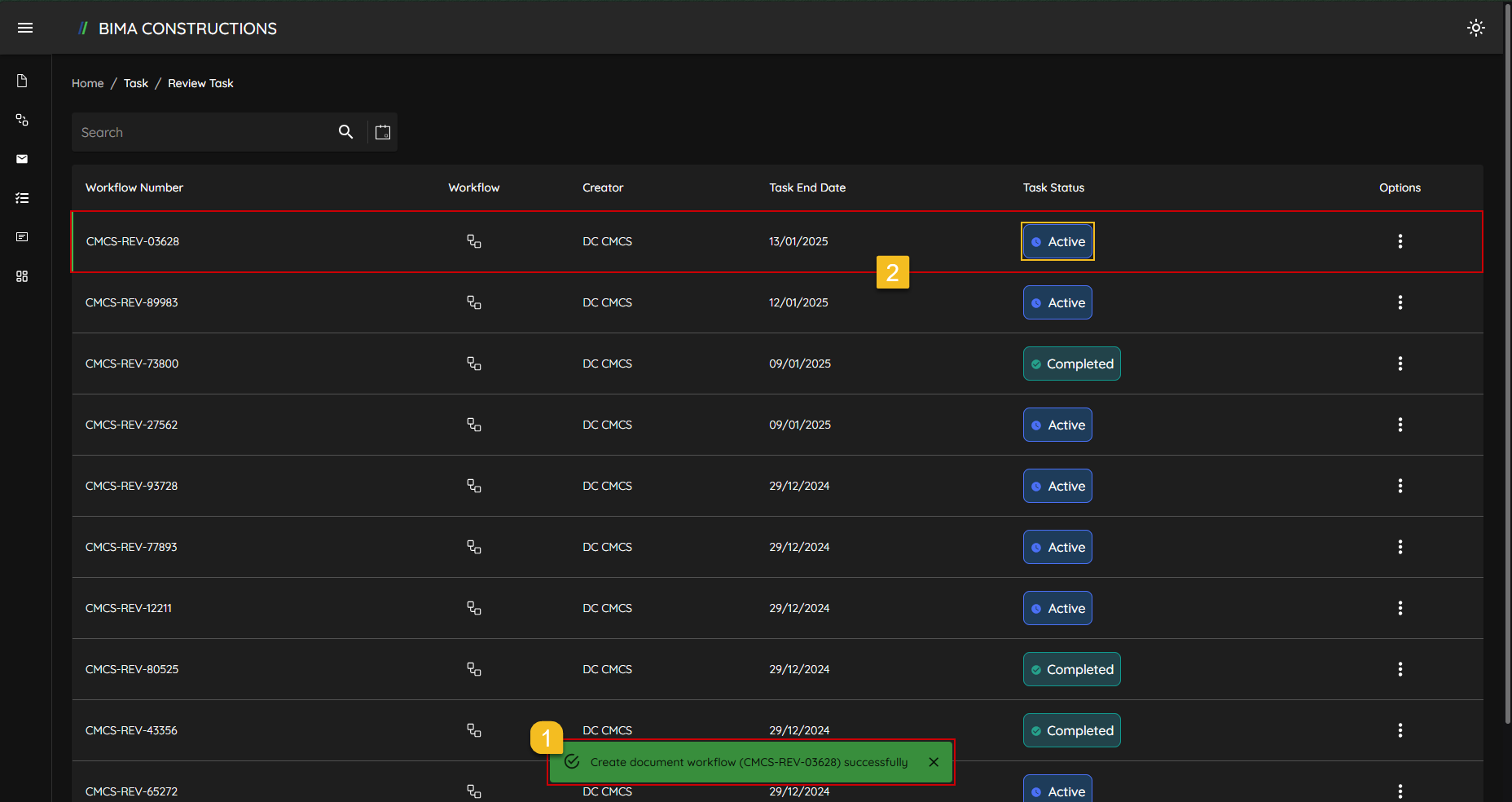
- After DC Consultant click on the
CREATEbutton, a notification will appear sayingCreate document workflow [(Workflow Number)] successfully. - The created workflow also marked by the status of the workflow that appear as
Active.