Edit Profile
Notice
Read Below First
Before starting the profile editing process, PLEASE REMEMBER, if the USER wants to change the profile other than the profile photo of the account, the USER can contacting the admin regarding the changes to be made.
Changing Profile Picture
1. Open the Profile Panel
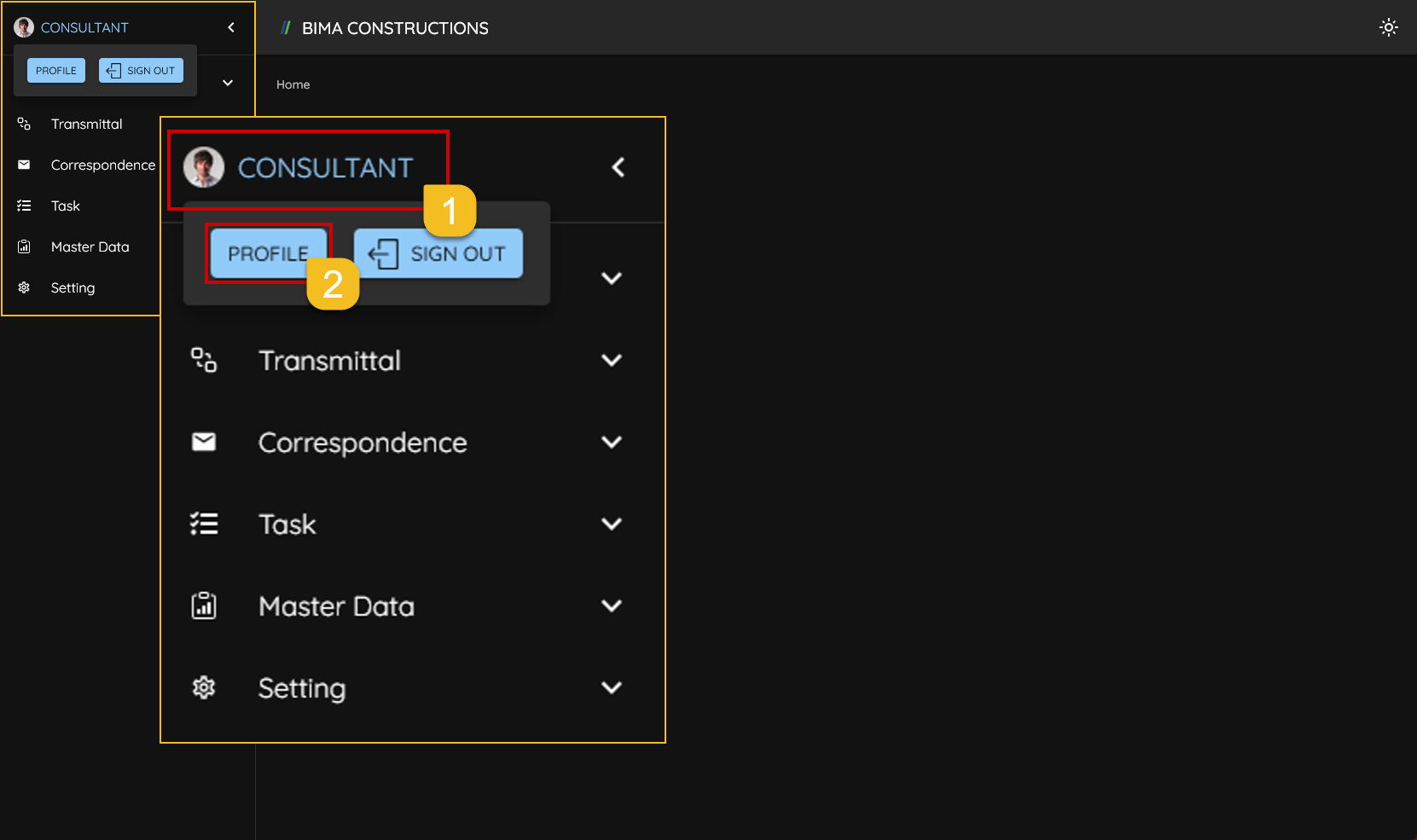
- The USER can click
Profilebutton first to open the action menu on the profile. - The USER then opens the Profile panel by clicking the
Profilebutton.
2. Edit the USER Profile
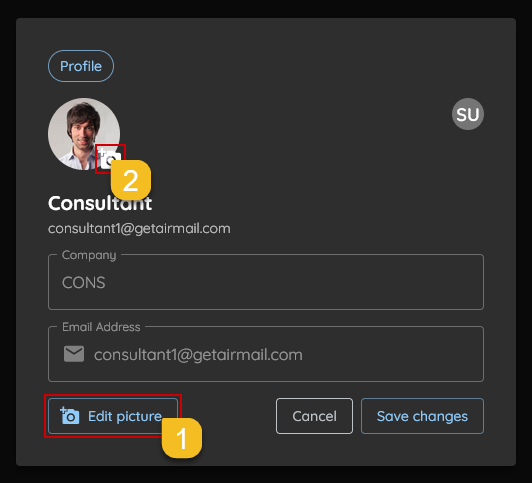
- Before being able to edit the USER Profile, the USER is required to first click the
Edit userbutton. - After that, the USER clicks on the profile photo to change the current photo.
3. Choosing the File
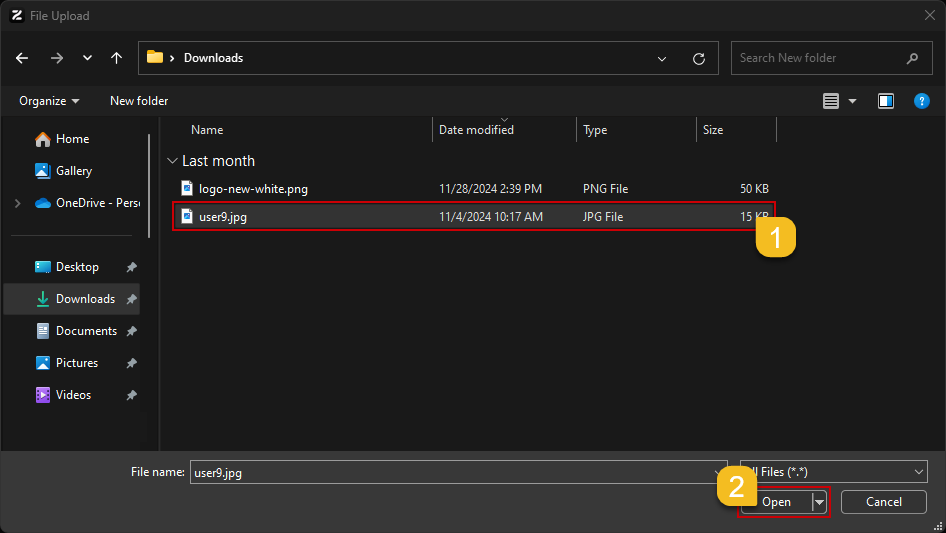
- The USER can choose the desired photo.
- If the selected file is correct and appropriate, USER can click the
Openbutton to complete the profile photo selection.
4. Save the Changes
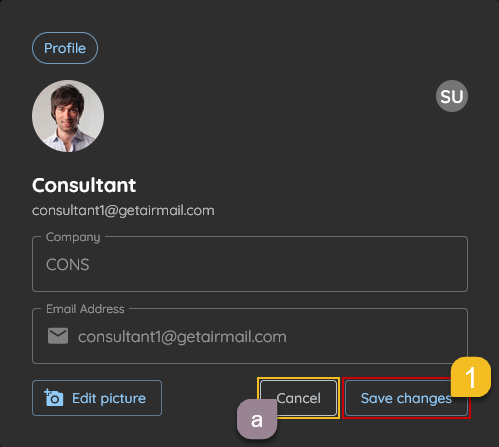
- The user can save the changes by clicking the
Save changesbutton.
a. Extra:
If the USER want to cancel the profile editing process, USER are welcome to just click on the
Cancelbutton, to terminate the editing process.
5. Check The Updated Profile
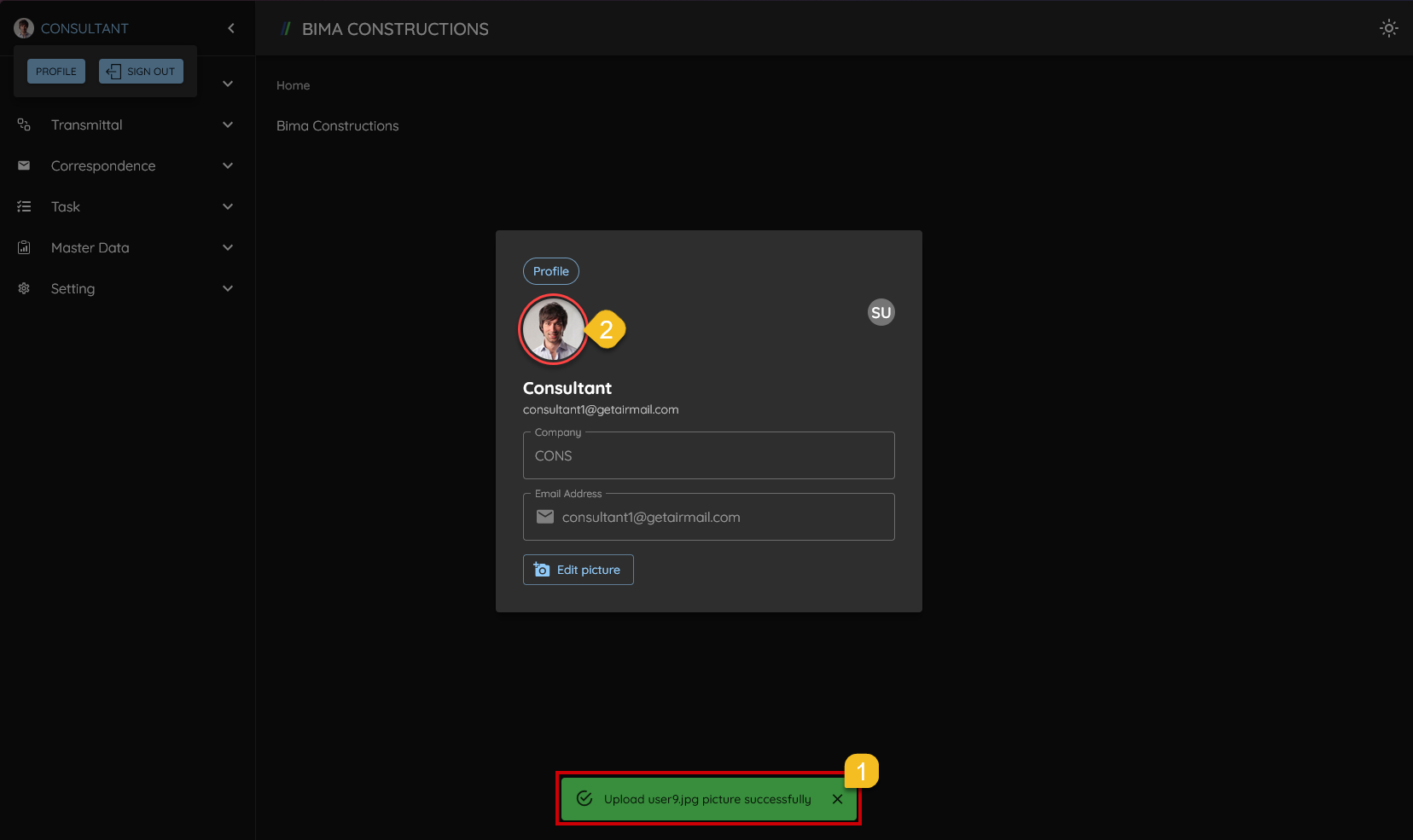
- After USER click on the
Save Changesbutton, a notification will popup sayingUpload [File_Name] picture successfully. - To make sure even more, the USER can check on the profile photo; if the profile photo are updated or not.