Tool
Add New Tool
1. Go To Tool Page
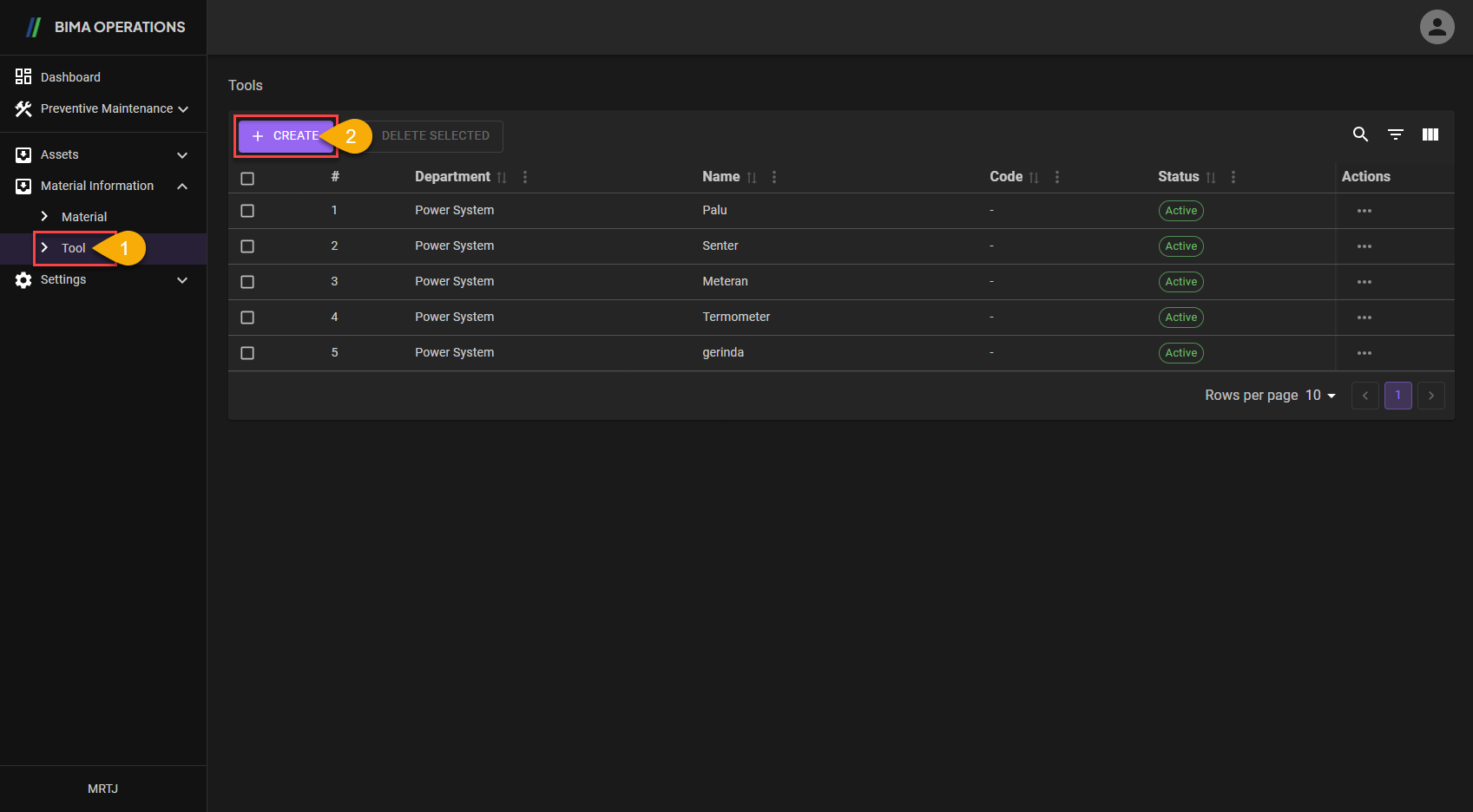
- Super Admin can click on the
Toolmenu button to go to theToolpage. - Super Admin can click on the
+ CREATEbutton to display theCreatepanel.
2. Add/Create Tool
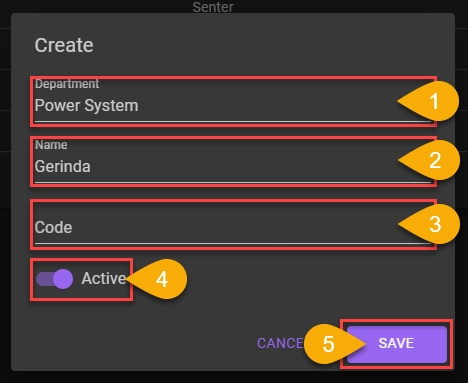
- Super Admin choose any departement available on the dropdown list. The departement choosen are a department of which the item will be located at.
- Super Admin input a name of the
Toolthat are gonna be put on the department. - Super Admin input a code which represent the
Tool. - Don't forget to turn the switch on, so the new
Toolwill be Active when Super Admin/Planner/Section Head want to use it for creating newWork Order. - After checking all the data inputed, Super Admin can click on the
SAVEbutton to save the newToolthat was added.
3. Tool Created
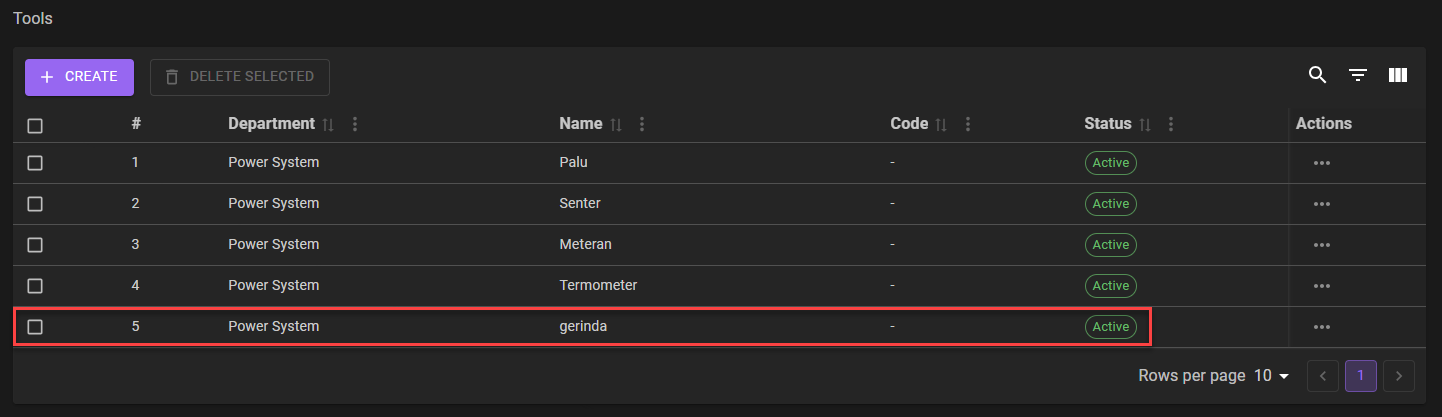 The
The Add/Create Tool process finish.
- After adding a new tool, the finish process are marked by the presence of the new tool and
Activestatuss on the list. - After adding an existing tool, the finish process are marked by the
Activestatus on theStatuscolumn.
Edit Tool
1. Choose Tool That Need to Edit
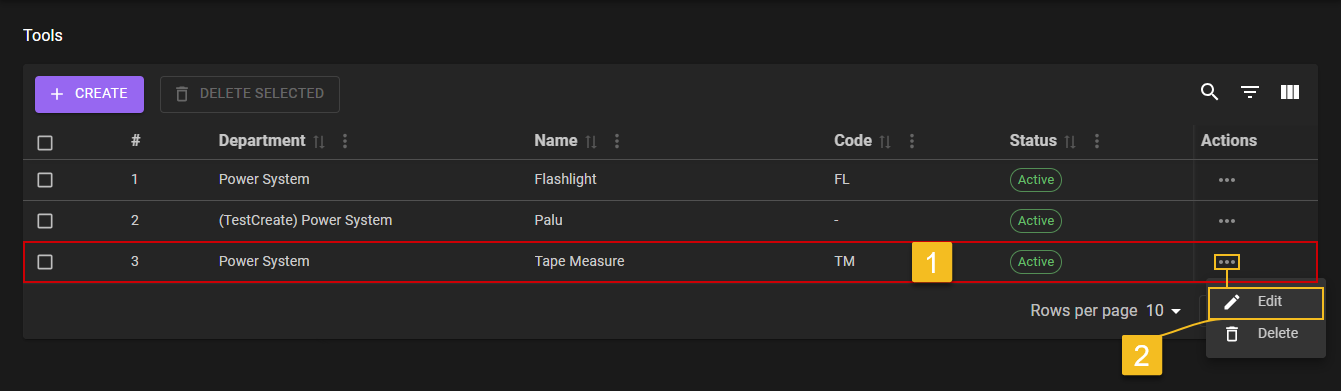
- Super Admin choose on what
Toolsneeds to be edited. - After clicking on the
Three-Dotaction menu Super Admin then can click on theEditaction menu.
2. Choose What Field Need to Edit
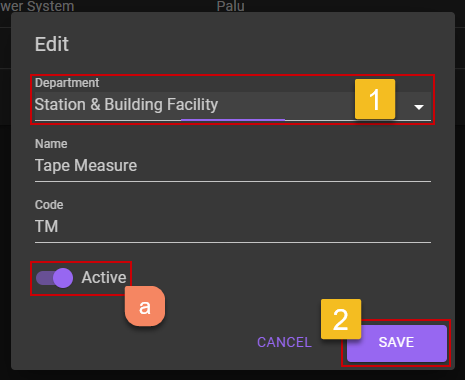
- Super Admin edit the
Tools. - If Super Admin already make sure that the data inputed correctly, Super Admin can click on the
Savebutton.
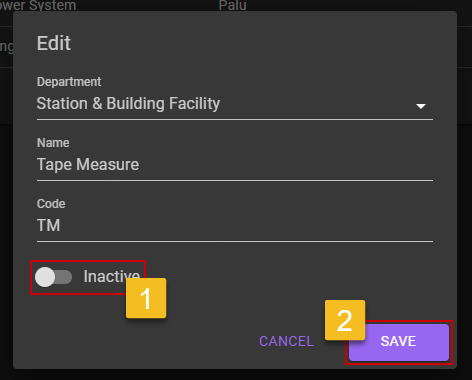
a. Deactivate Tools
- Super Admin can flick the
Statusswitch to off, if Super Admin want to deactivate theTools.- Super Admin then can click on the
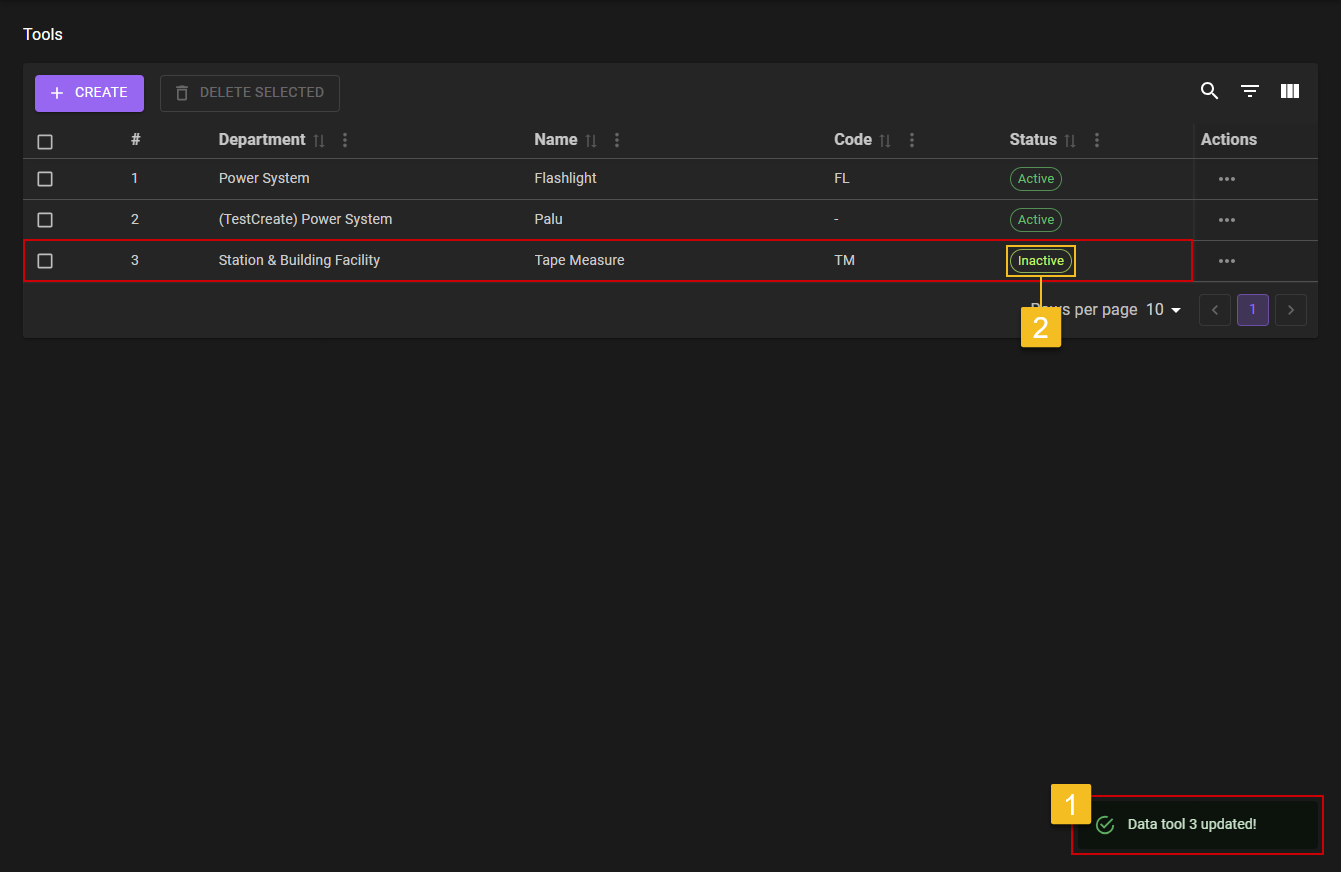
SAVEbutton to saving theToolson anInactivestatus.b. Tools Deactivated
- After Super Admin deactivate the
Tools, a notification will come out which isData tools [number] updated!, it means theEditprocess are sucessfuly save.- To make sure even more, Super Admin can check on the
Statuscolumn of the whichToolsto see if it is on anInactivestate.
3. Confirm Edit
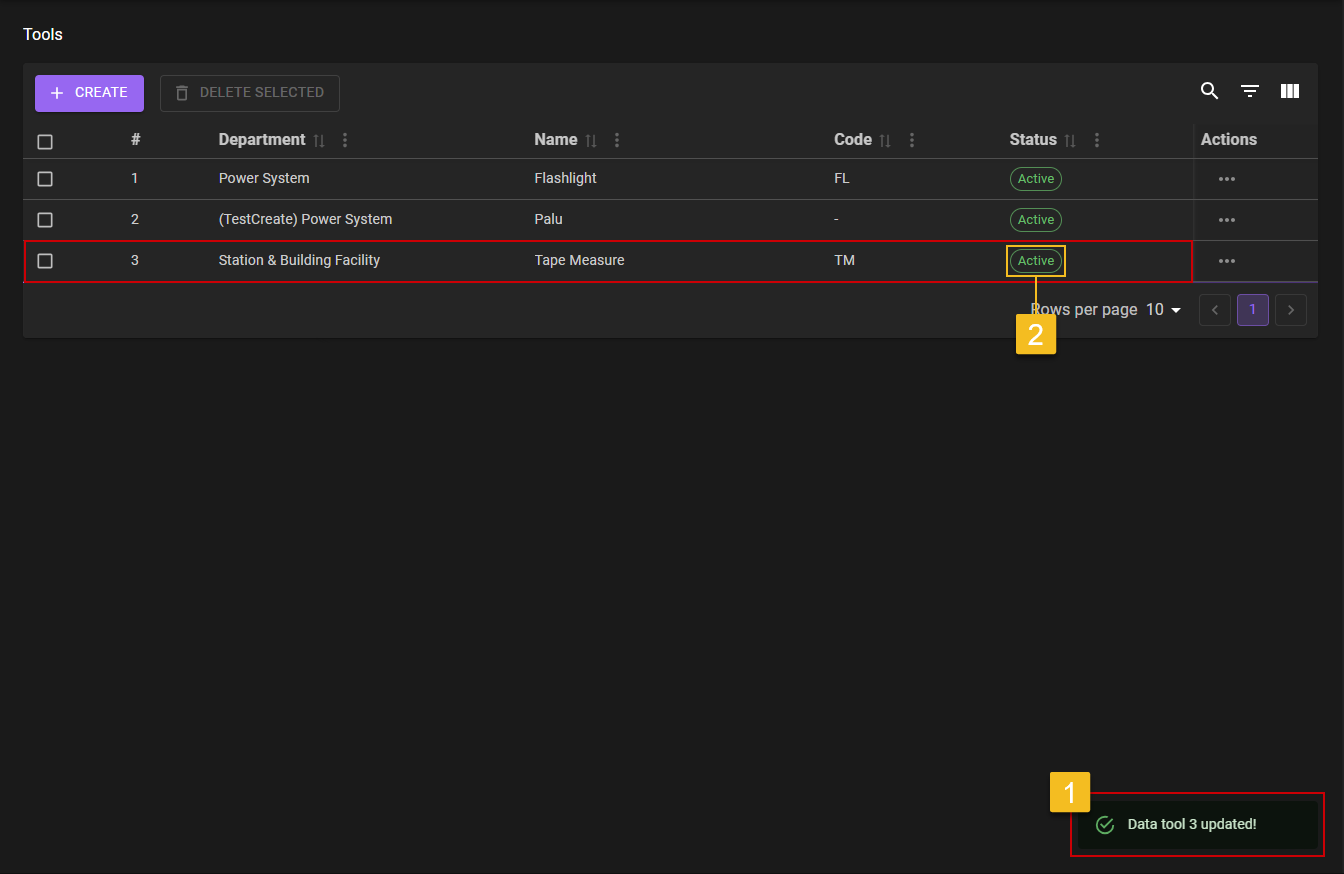
- After Super Admin click the
SAVEbutton, a notification will came out which isData tool [number] updated!. - To make sure even more, Super Admin can check on the list of the
Toolsif the edited part are updated on the list or not.
Delete Tool
1. Choose Tool That Need to be Delete
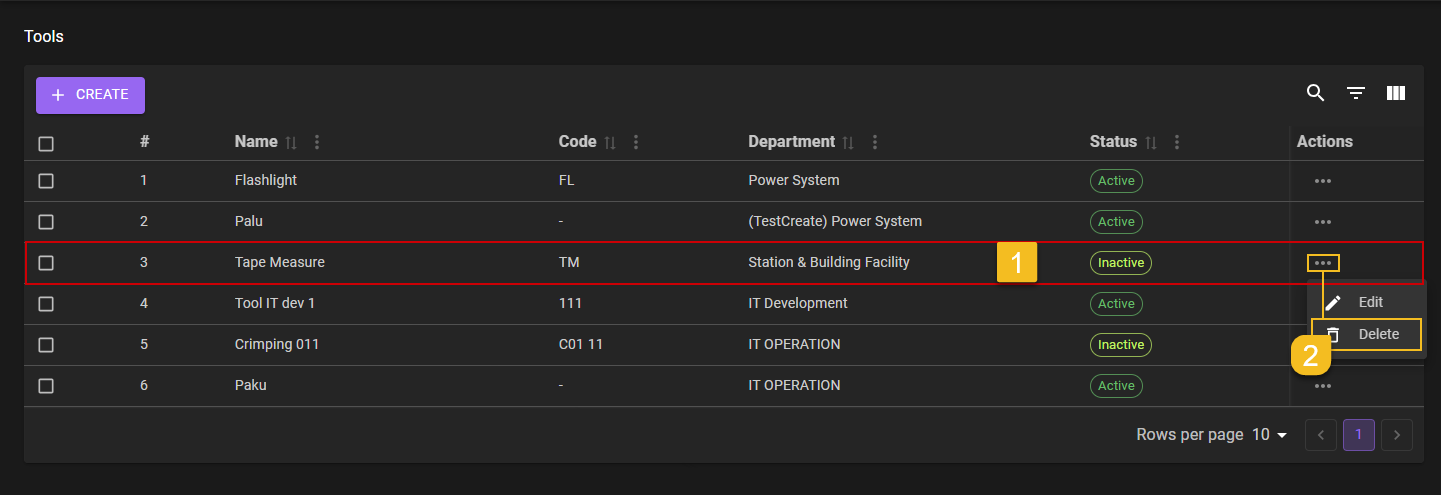
- Super Admin choose on what
Toolsneeds to be deleted. - After clicking on the
Three-Dotaction button Super Admin then can click on theDeleteaction menu.
2. Delete Tool
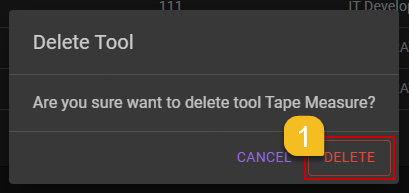
- After clicking on the
Deletebutton, confirmation popup will be shown. Super Admin can chooseDELETEbutton to confirming it.
3. Confirm the Deletion of Tool
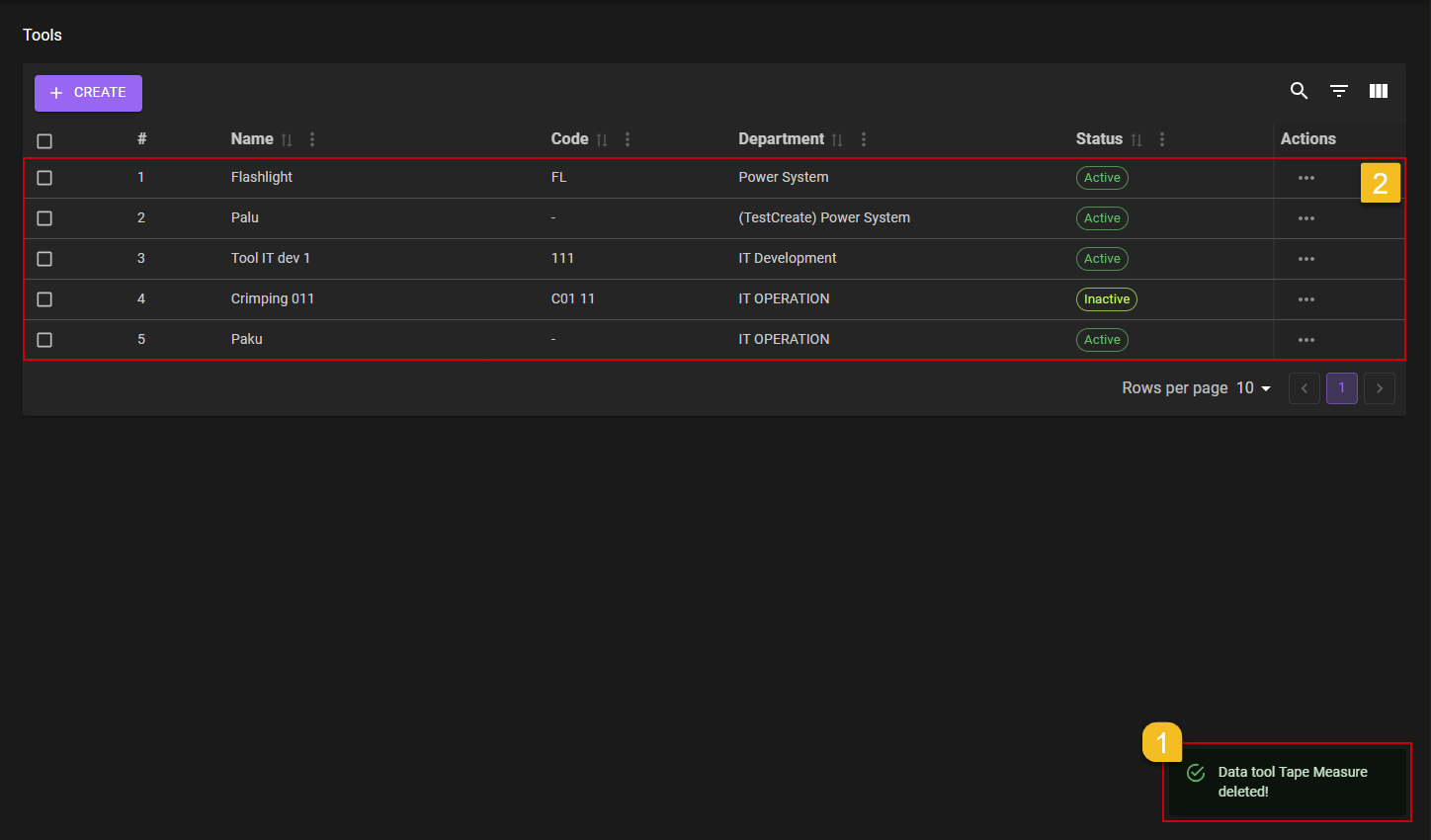
- Super Admin will got a notification
Data Tools [Name] deleted!. - Super Admin can check on the list, if the deleted part still on the lists or not.