Users
Add New User
1. Go To Users Page
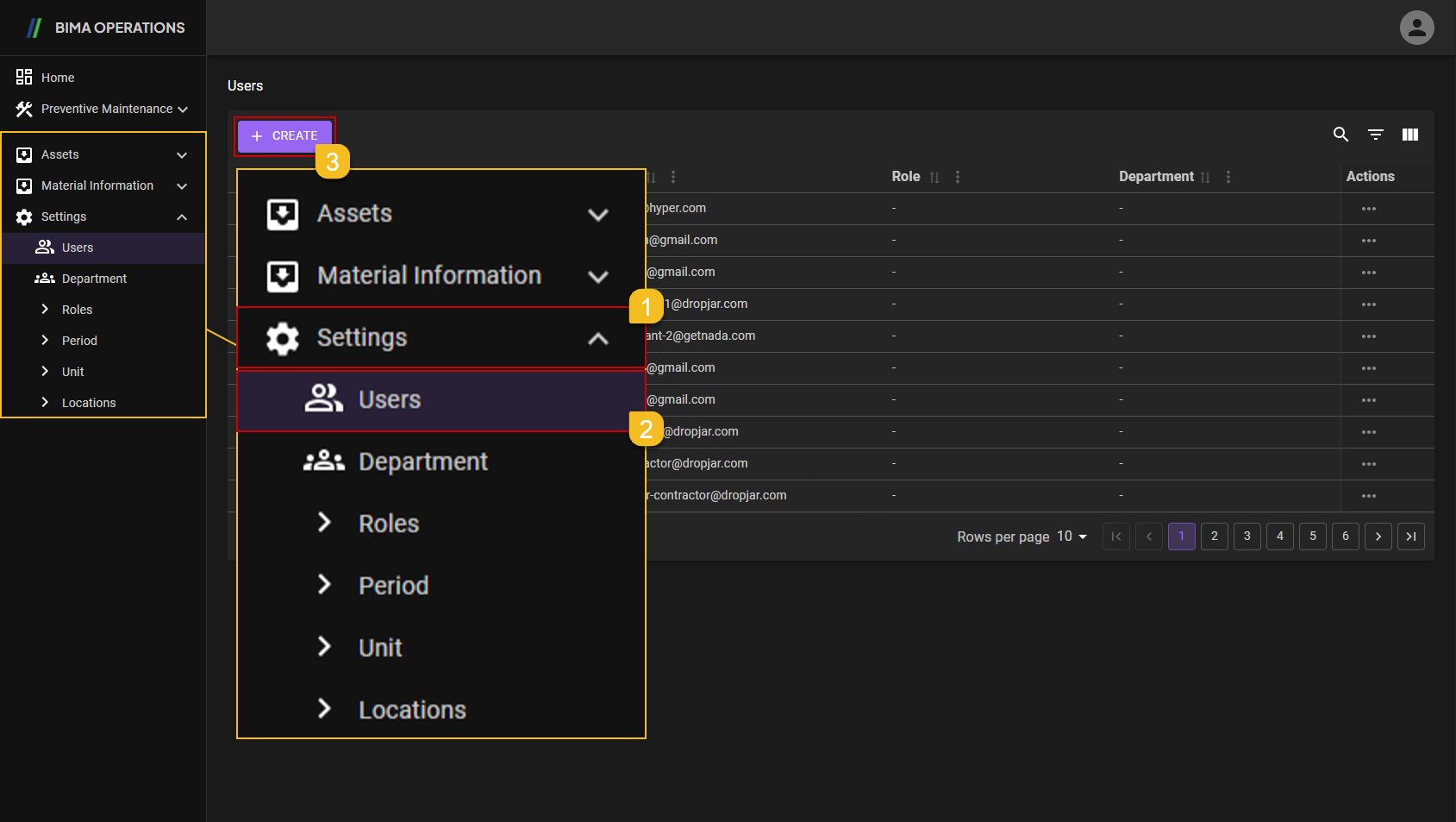
- Before accessing the
Userspage, Super Admin can find the menu button inside theSettingsmenu. - After finding the
Usersmenu button Super Admin can click on theUsersmenu button to go to theUserspage. - Super Admin can then click on the
+ CREATEbutton to create the newUsers.
2. Add/Create User
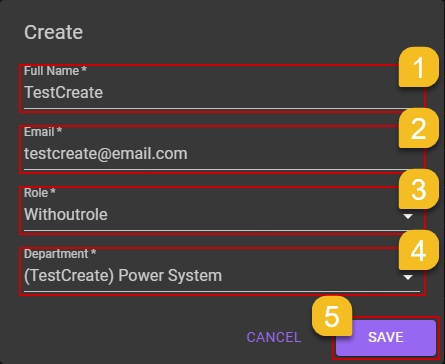
- Super Admin can fill in the
Name Fieldwith the name desired or required. - Super Admin can fill in the
Email Fieldwith email of the person who needed thisUsercreated. - Super Admin assign the role for the person, based on what the role are required at that time.
- Super Admin assign the department for the person, based on what the department are proper at that time.
- If Super Admin already sure about the data inputed, then Super Admin can click on the
SAVEbutton.
3. User Created
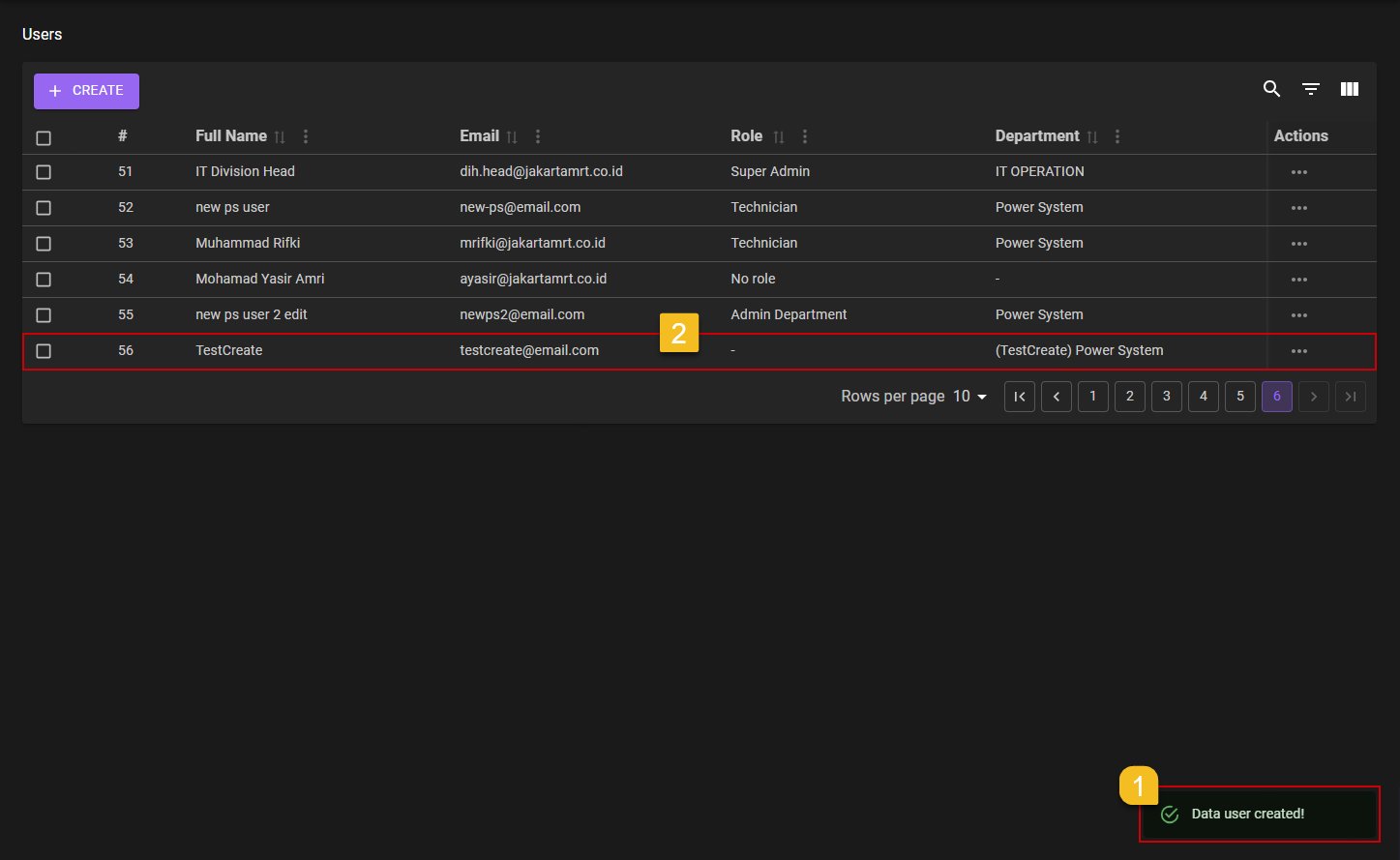
- After saving the new
UserSuper Admin will got a notification that saysData user created!. - Make sure the new
Userare created successfully by looking on the list to see if the newUserare on the list or not.
Edit Existing User
1. Choose User That Needs to be Edit
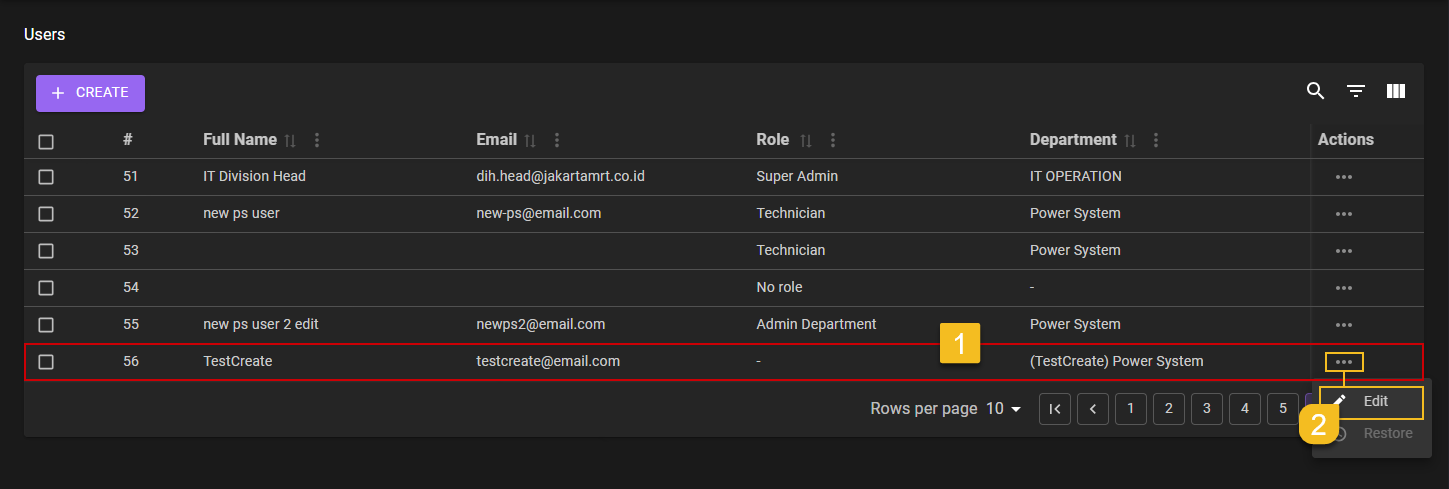
- Super Admin choose on which
Userneeds to be edited. - Click on the
Three-Dotaction button, to reveal theEditaction menu and click it to start the editing process.
2. Choose What Field Thats Need to be Edit
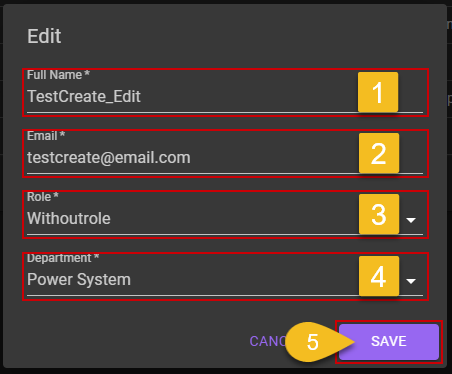
- Super Admin can choose on which field are needed to be edit.
- Super Admin can choose on which field are needed to be edit.
- Super Admin can choose on which field are needed to be edit.
- Super Admin can choose on which field are needed to be edit.
- Super Admin already sure about the data, then Super Admin can click on the
SAVEbutton.
3. Confirm Edited User
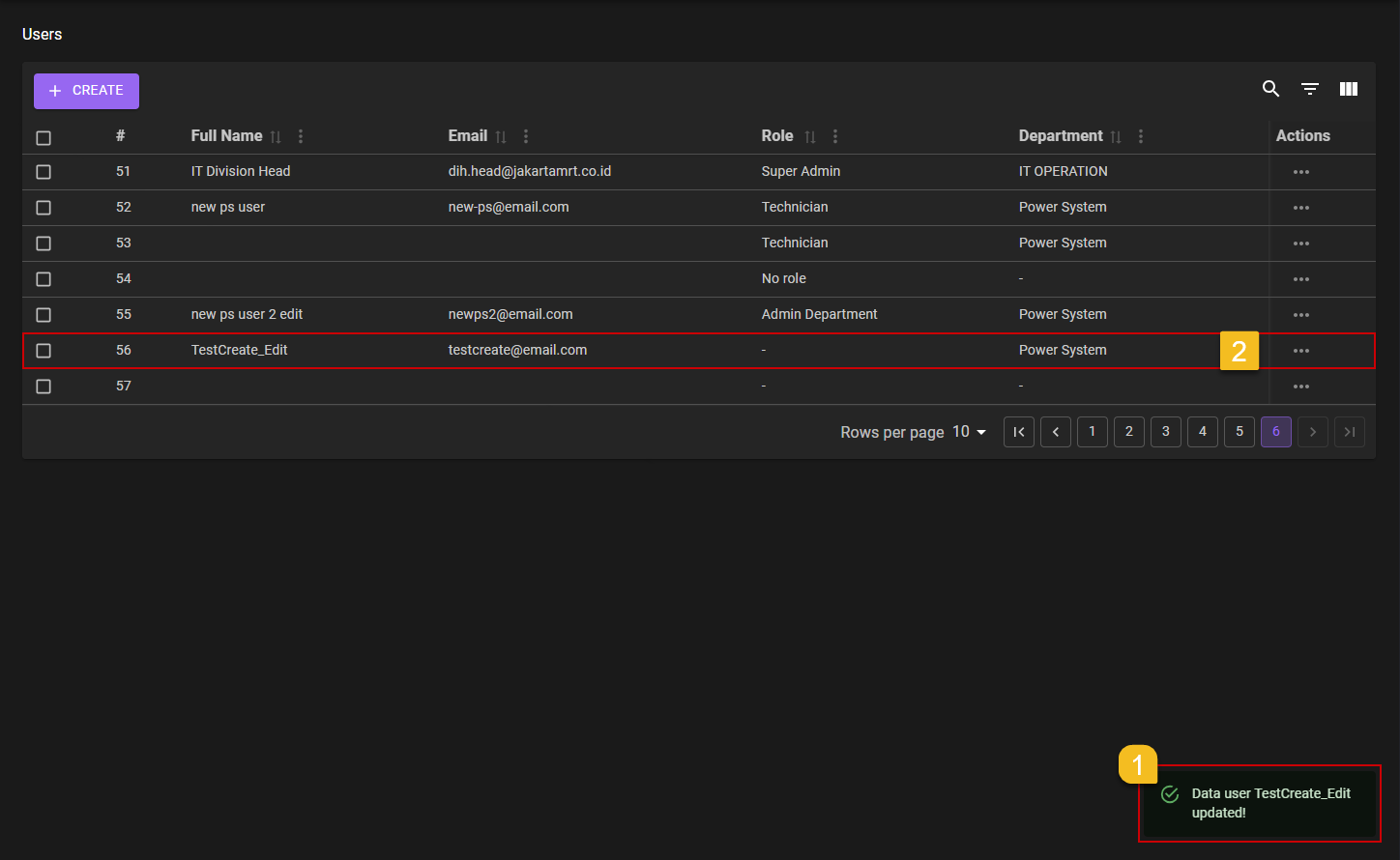
- After Super Admin click the
SAVEbutton, a notification will came out sayingData user [name] edited!. - Make sure the edited
Userare updated accordingly into the list by looking to the list it self.