Roles
Add/Create
1. Go To Role Page
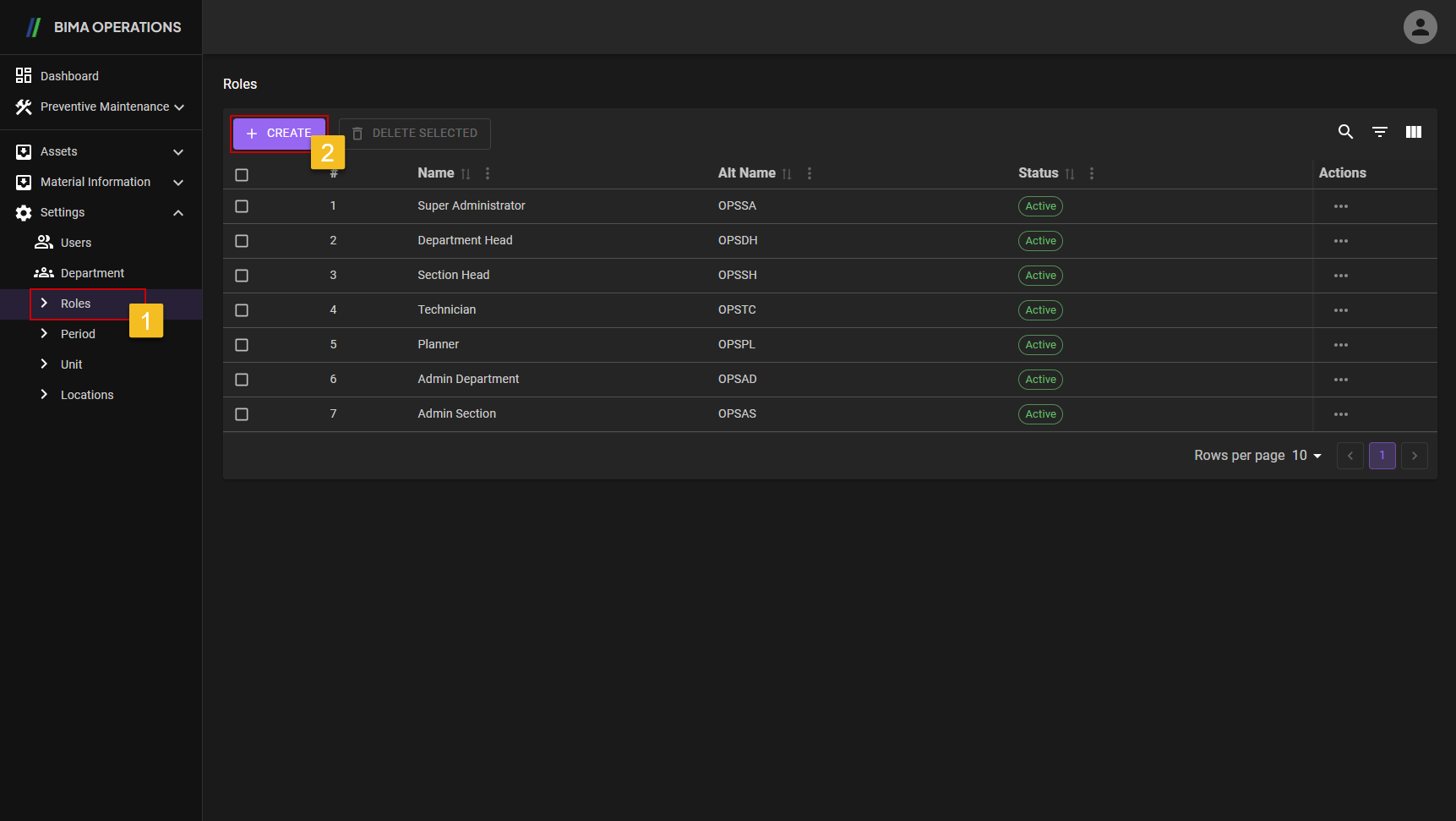
- Super Admin can click on the
Rolesmenu button located inside theSettingsmenu to go to theRolespage. - Super Admin can click on the
CREATEbutton to display theCREATEpanel.
2. Create the Role
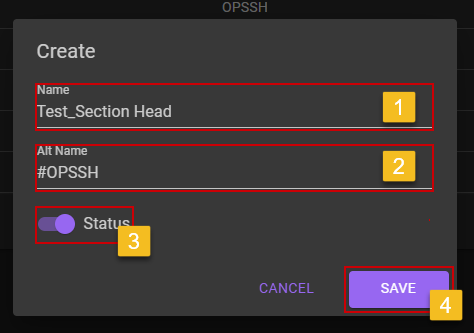
- Super Admin insert a new name for the role that need to be created.
- Super Admin needs to give alternative name or the initial name for the new name of the role that gonna be created.
- Make sure to switch the
statusto right so the role are active when the Super Admin need to assign a USER with the new role. - After making sure everything is filled properly, Super Admin can finish the role creation process by clicking the
SAVEbutton.
3. Checking the New Role
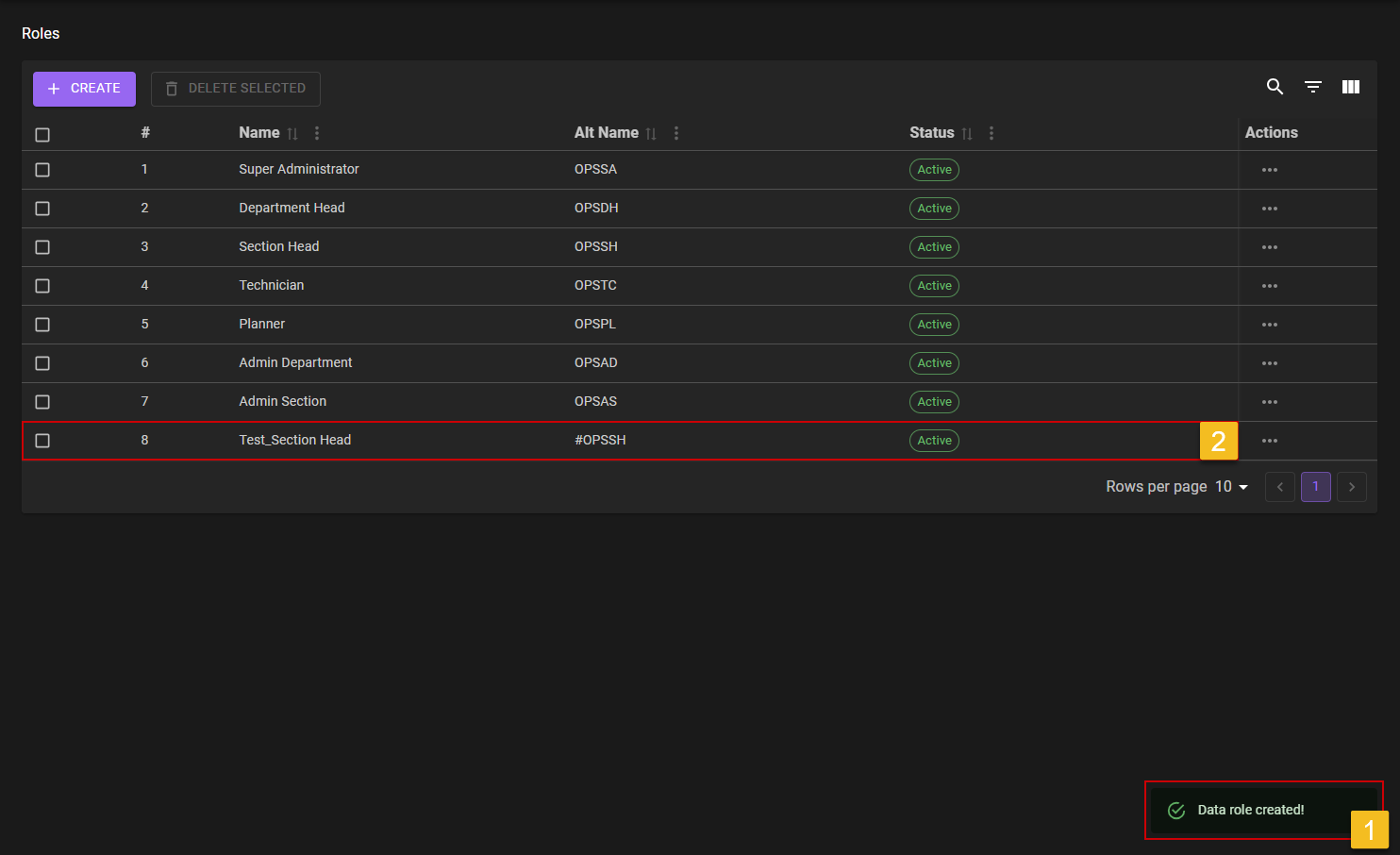
- After saving the new
Role, USER will go a notificationdata role created. - Make sure the new Role are created successfully by looking on the list with the
Activestate on theStatuscolumn.
Edit
1. Choose Role That Need to Edit
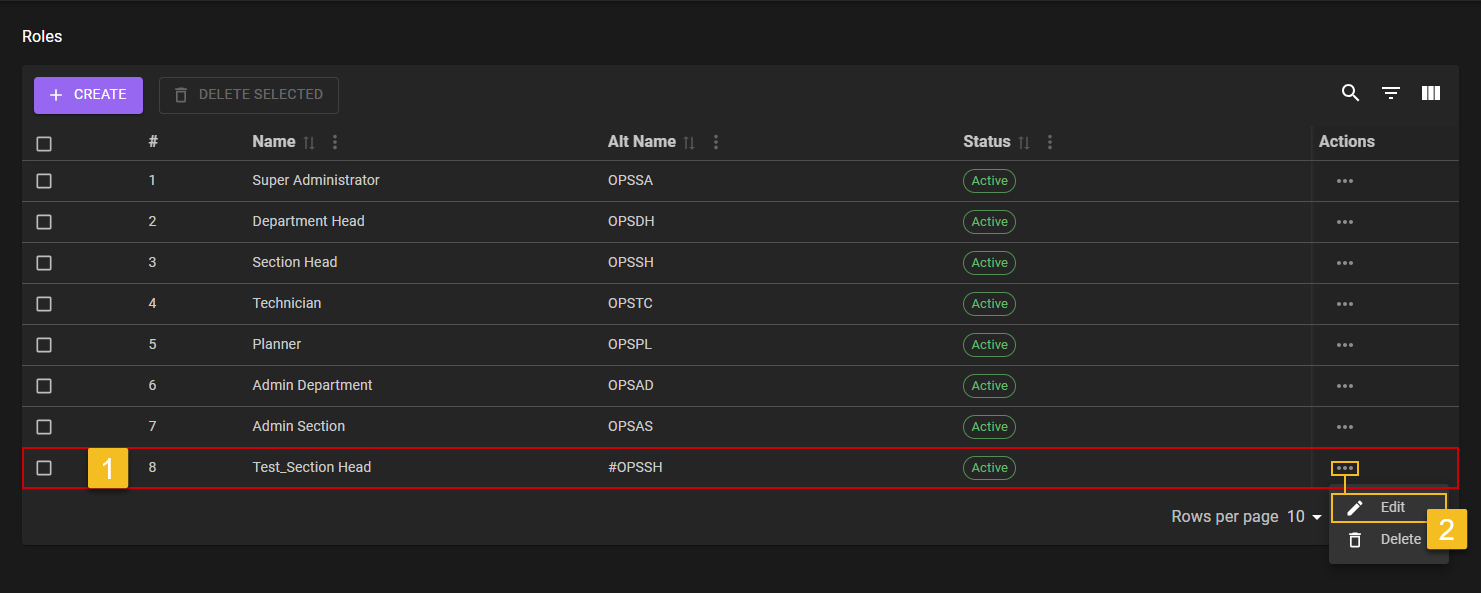
- Super Admin choose on which roles need to be edited.
- Click on the
Three-Dotaction button, to reveal theEditaction menu and click it to start the editing process.
2. Choose What Field Need to Edit
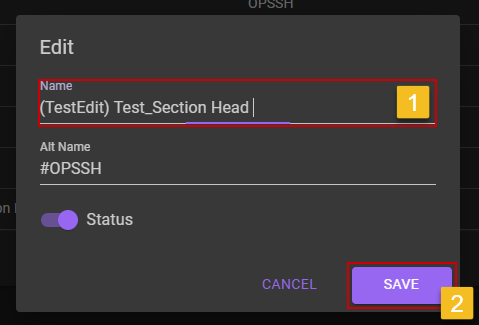
a. Deactivate Role
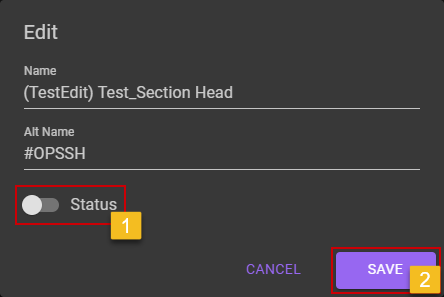
- Super Admin can flick the
Statusswitch to off, if Super Admin wants to deactivated theRoles.- Super Admin then click on the
SAVEbutton to saving theRoleson anInactivestatus.b. Role Deactivate
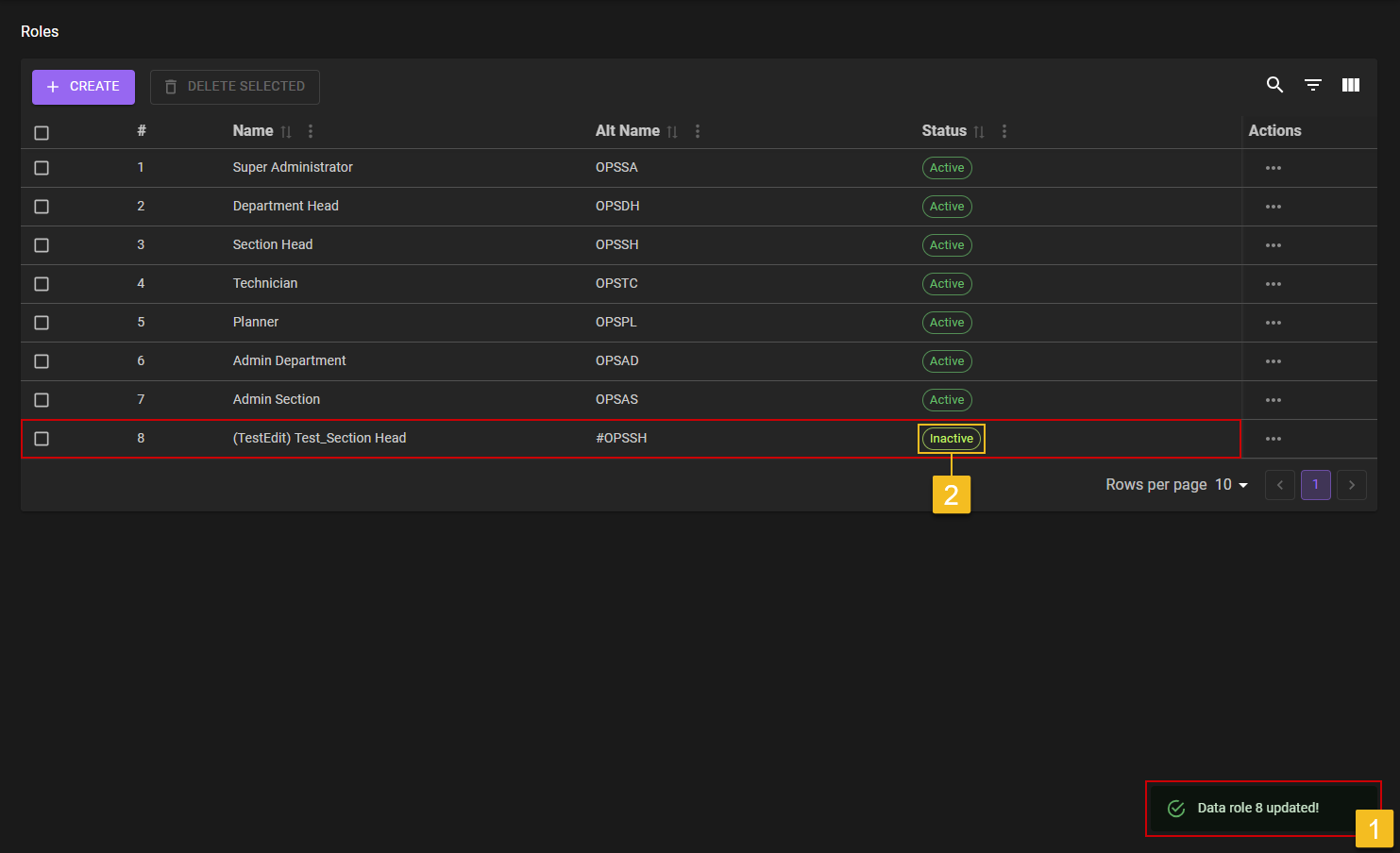
- After Super Admin deactivated the
Roles, a notification will come out which isData unit [number] update!, it means theEditprocess are successfully save.- To make sure even more, Super Admin can check on the
Statuscolumn of the whichRolesto see if it is on anInactivecondition.
3. Confirm Edit
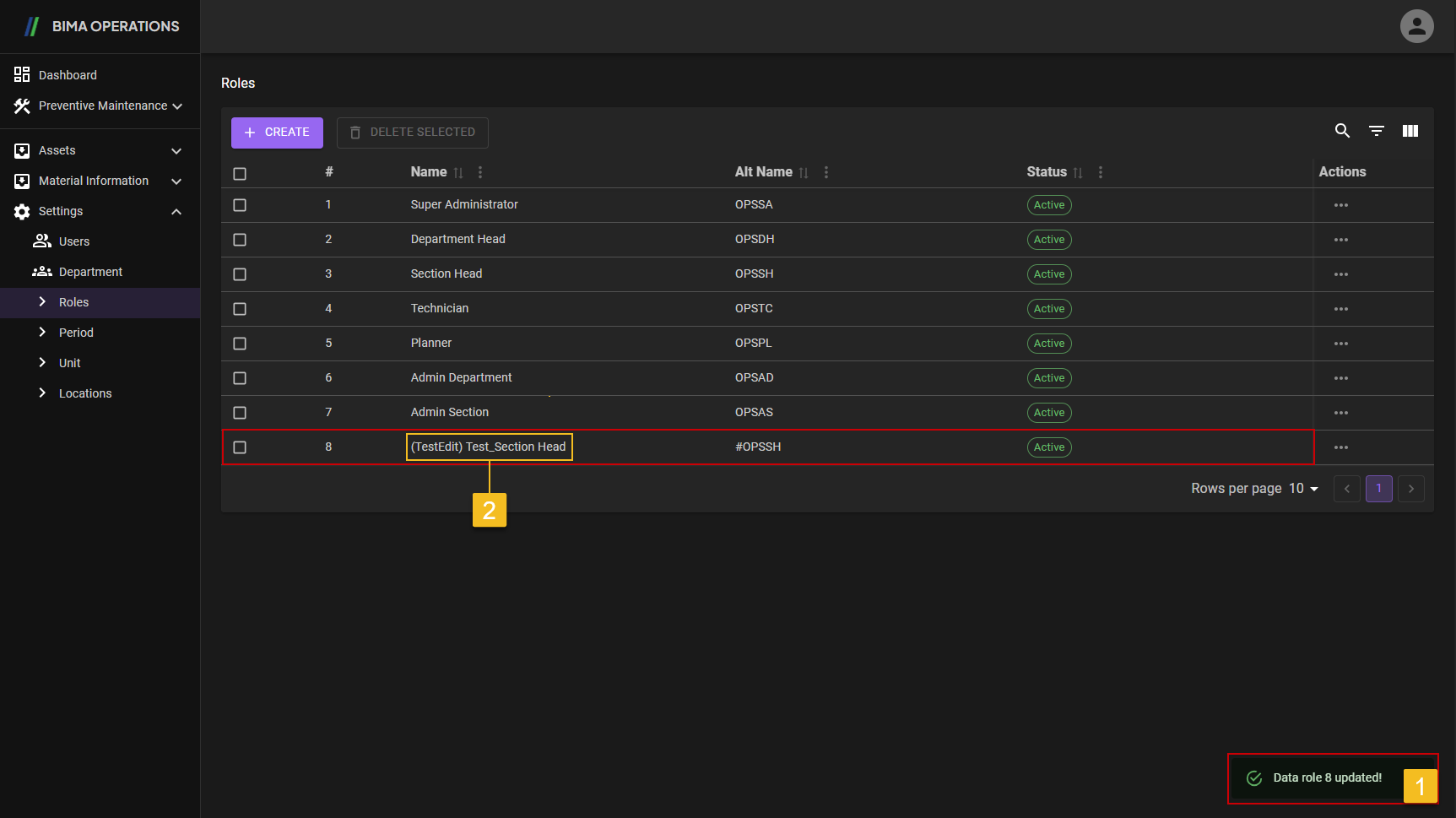
- After Super Admin click the
SAVEbutton, a notification will came out which isData unit [number] update. - To make sure even more, Super Admin can check on the list of the
Rolesif the editedRolesdata are updated on the list.
Delete
1. Choose Roles That Need to Delete
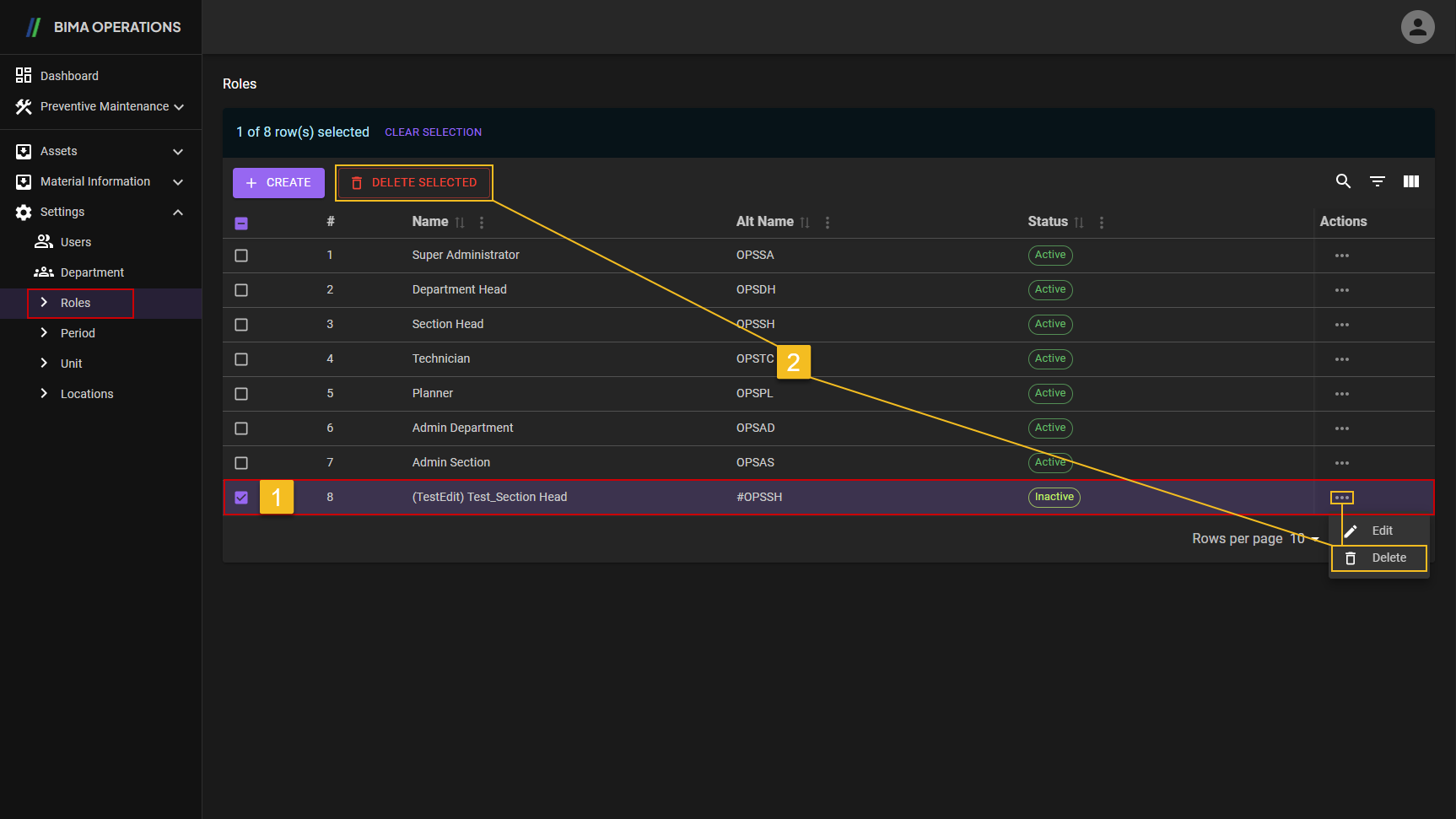
- Super Admin choose on what
Rolesneeds to be deleted - There are multiple way to delete list of date.
Super Admincan choose what the best/esiest to do. Super Admin then can click on eiher two of theDeletebutton.
2. Delete Role
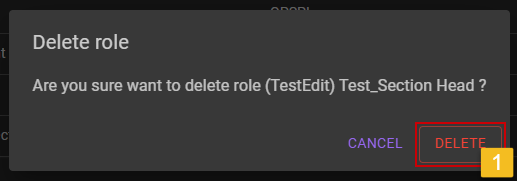
After clicking either of the two Delete button, confiration popup will be shown.
- Super Admin can choose
DELETEbutton to confirming it.
3. Confirming the Deletion of the Role
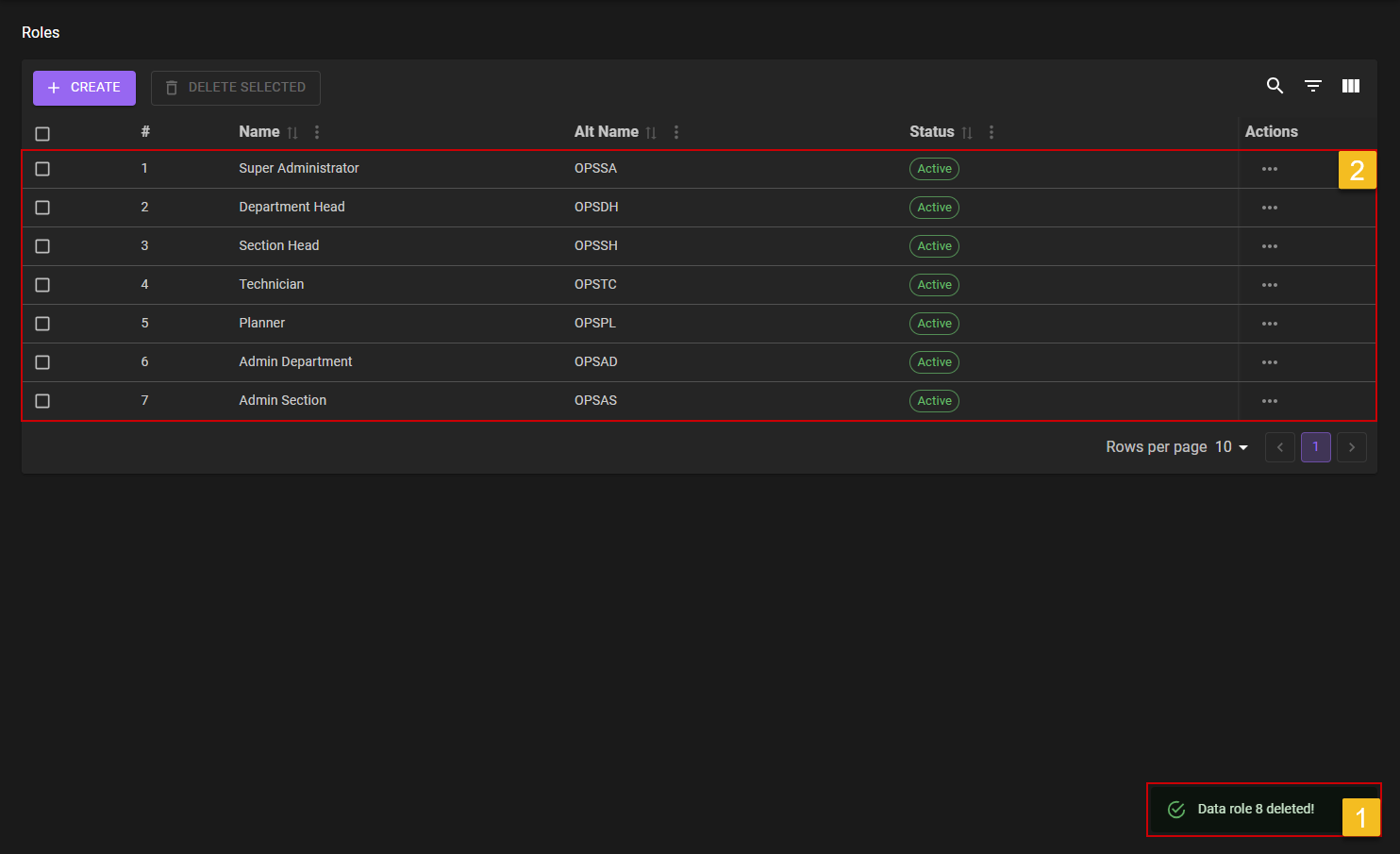
- After confirming the deletion process, a notification will shown which is
Data unit [number] deleted!. - To confirming and making sure again about the deleteion process, Super Admin can look at the list if the deleted item are stil shown.