Checksheets
Intro
Before begining the Create Checksheet process, Planner need to know that there are 2 methods of inserting a new checksheets, which are:
- First, inserting them manually by clicking ono the
**+ CREATE**button. - Secon, insert it using the Import Excel function by clicking the
IMPORT EXCELbutton.
To do the manual process (first procedss), Planner can see the instruction bellow.
If by any chance Planner want to enter it by using the IMPORT EXCEL function, Planner need to follow the instruction that are available using this link --> Import Pre-Made Data.
Create New Checksheets
1. Go To Check Sheets Page
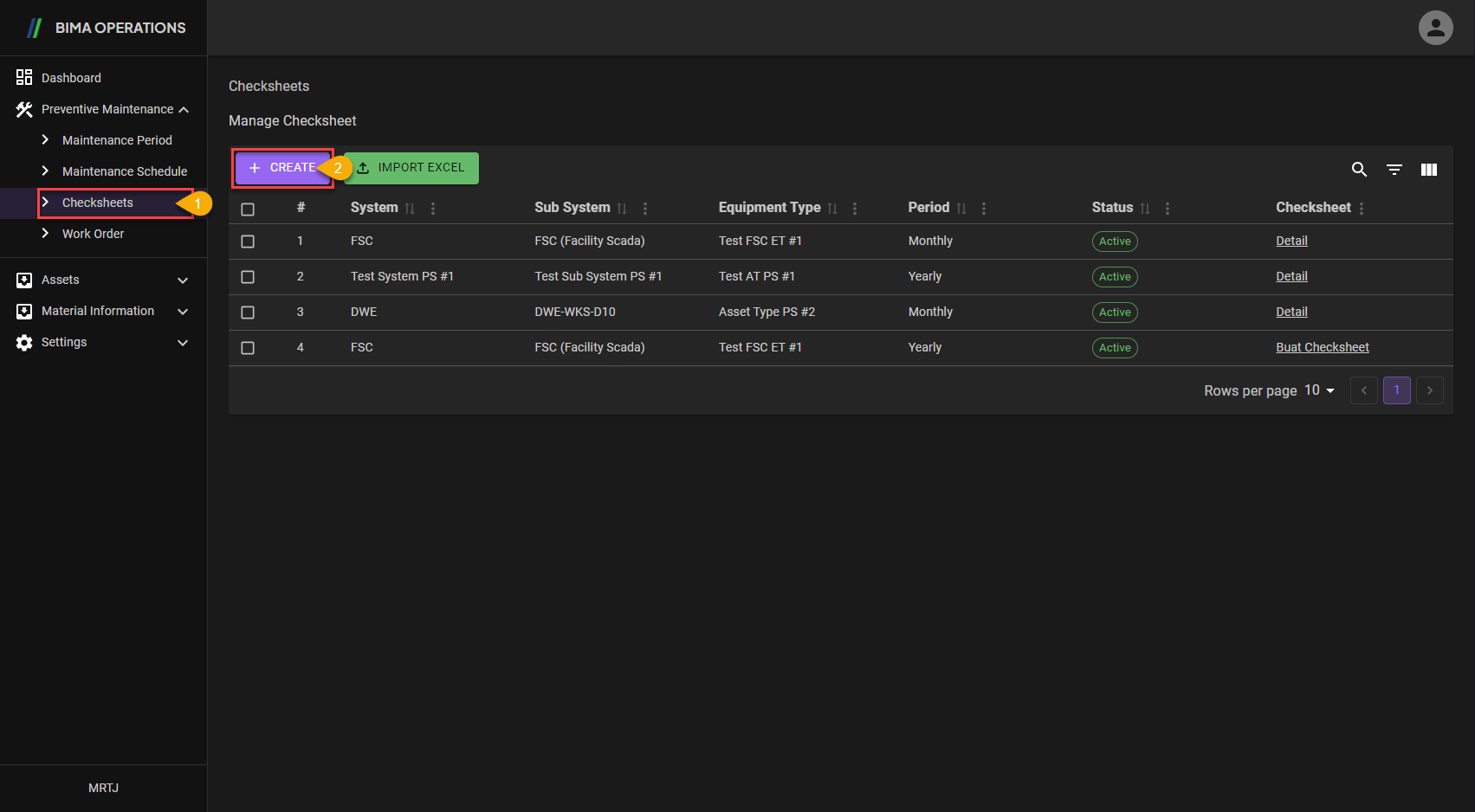
- Planner clicks on the
Checksheetsmenu button located under theMaintenance Schedulemenu. - After opening the
Checksheetspage, Planner can click the+ Createbutton to add a new checksheets for certain Assets on the company.
2. Choose Equipment and Period
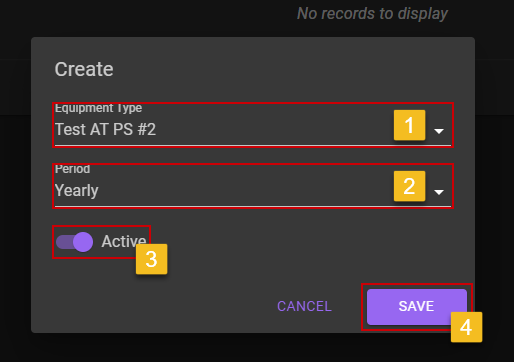
- Planner input the
Equipment Typeby choosing it on the dropdown list. - Planner then can choose on how many period did the equipment needed base on the equipment it self.
- Don't forget to turn the switch on, so the schedule are active when either Super Admin, Planner or Section Head need to make a new
Work Order. - After making sure on all the data, Planner can click on the
SAVEbutton to completing and also finishing the new schedule creation process.
3. Checking on the Newly Created Checksheet
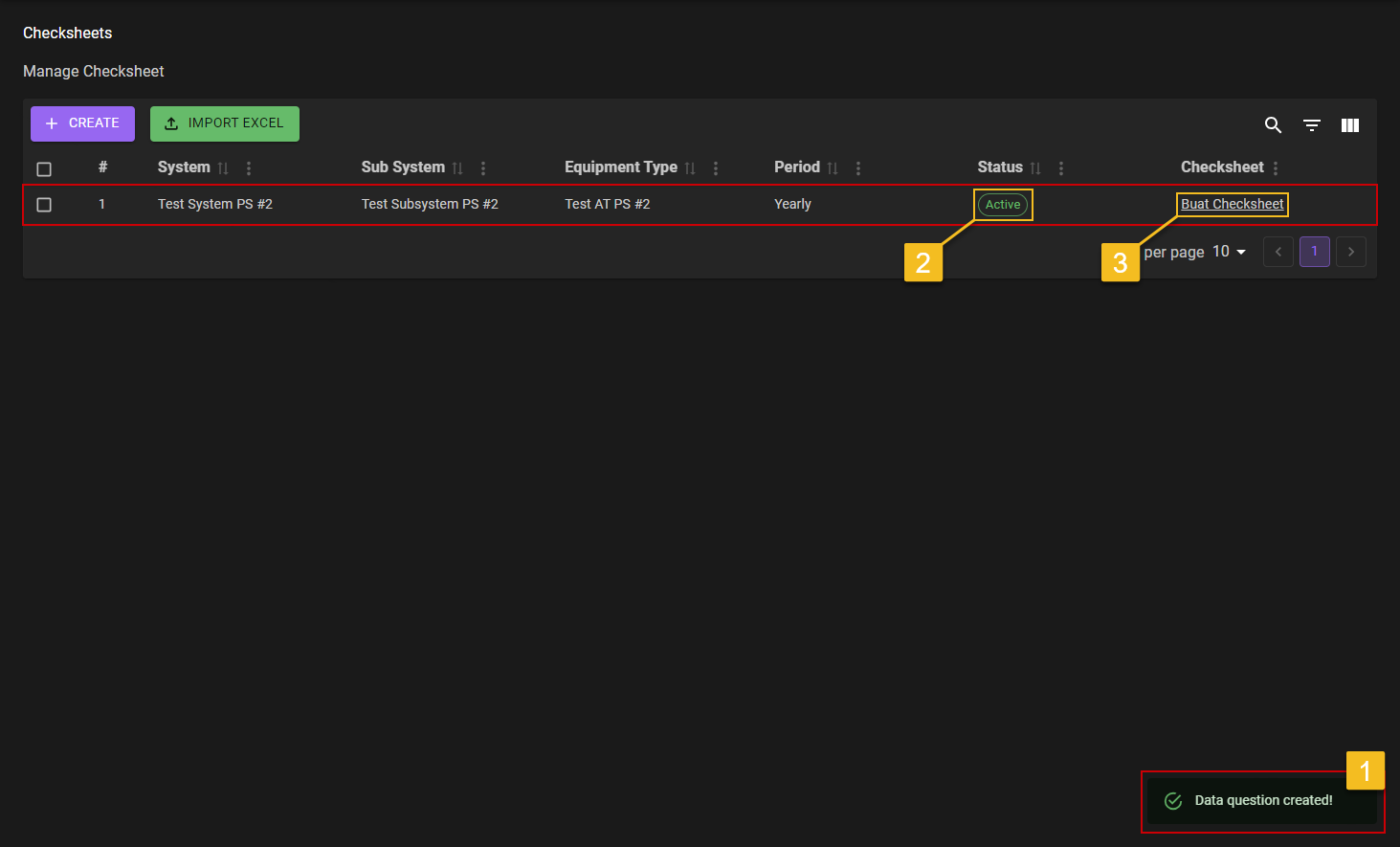
- Planner will got a notification which
Data question created!, it mean the data are saved successfully. - To confirming it even more, Planner can take a look on the list if there is a new schedule that have the same data input before, also make sure to check if the
Statuson the schedule are onActive, so it can use later on. - To make the
ChecksheetPlanner can click on theBuat Checksheetbutton located on theChecksheetcolumn.
4. Create Checksheet for Equipment
- After making it to the
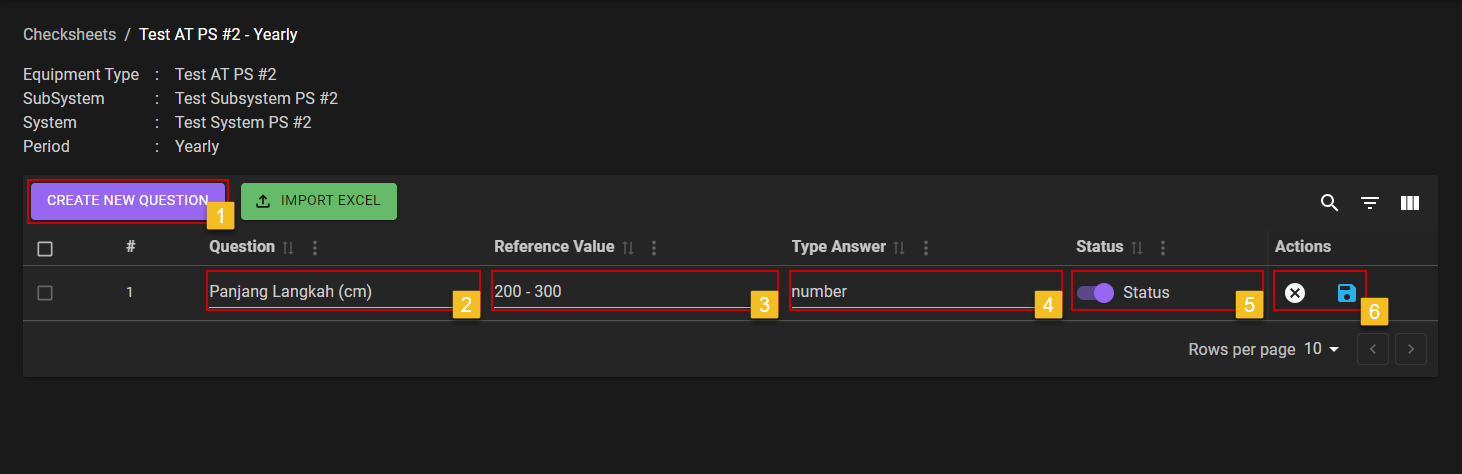
[Equipment] Checksheetspanel, Planner can click on theCREATE NEW QUESTIONto start making a new question field. - On the
Questionfield Planner need to input a question for checking purposes so the Technicians in field know on what/how to assess the equipment. - The
Reference Valueare need to be made so the Technicians on the field know what type of answer are expected from the question given by either Planner or Section Head. - The
Type Answerare just what the type of answer, it can be "Number", "Letter", or else(need more explanation). - Don't forget to turn the
Statusswitch to on, so its status is Active when either Super Admin, Planner or Section Head want to make a new schedule for the same type of equipment, as the question can be use immediately. - After checking on all the data needed for the question, Planner can save it with clicking on the 💾 icon.
5. Finish (or Create New Question?)
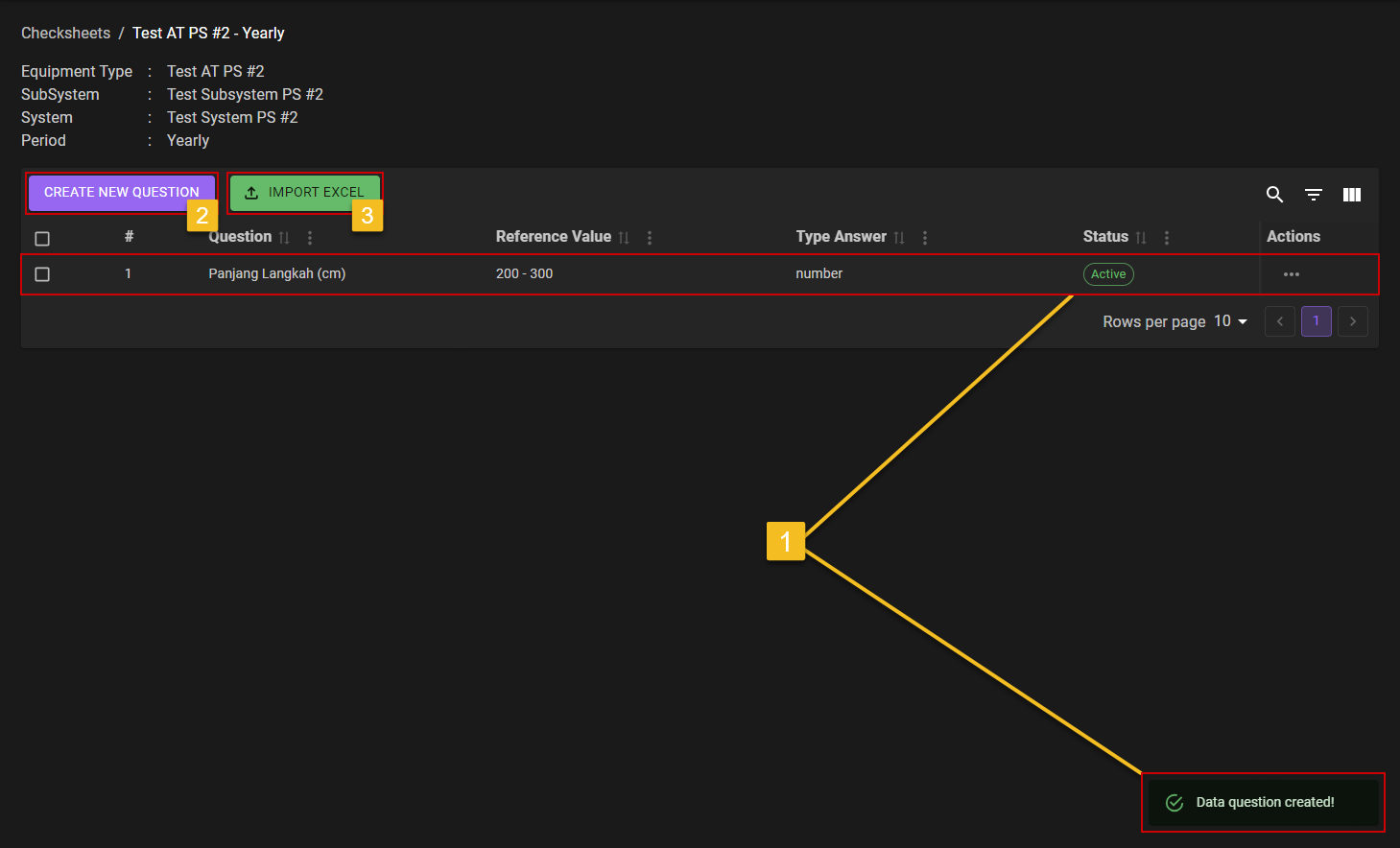
- Creating new question for the
Equipmentfinish, now if Planner done on making the question, Planner can close the[Equipment] Checksheetpage and go back to theChecksheet Listpage.
OR
- If Planner want to add another question to the check sheets, Planner can click again on the
CREATE NEW QUESTIONbutton.
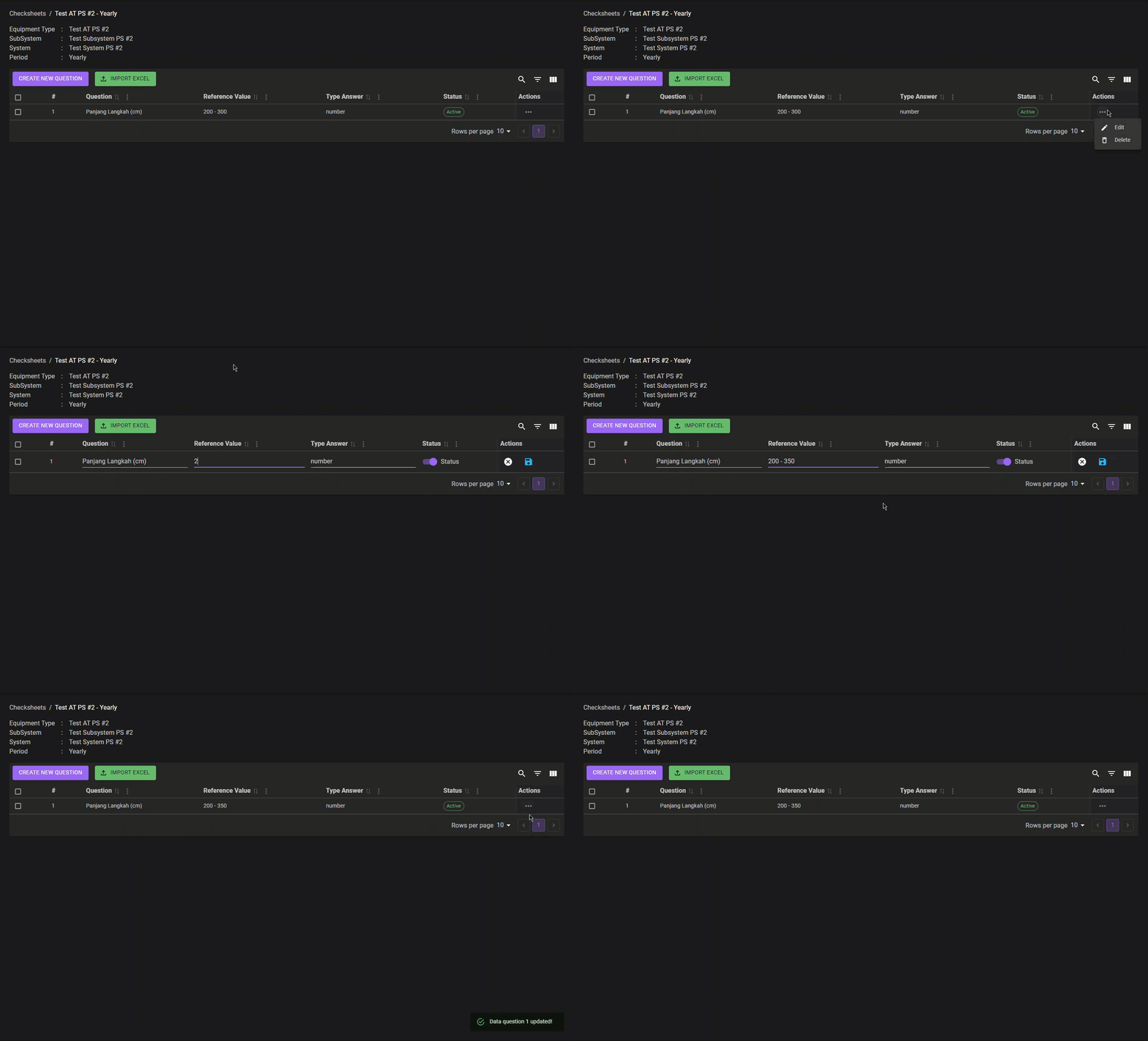
Edit Question?