Work Order
Manage Work Order
1. Go To Work Order Page
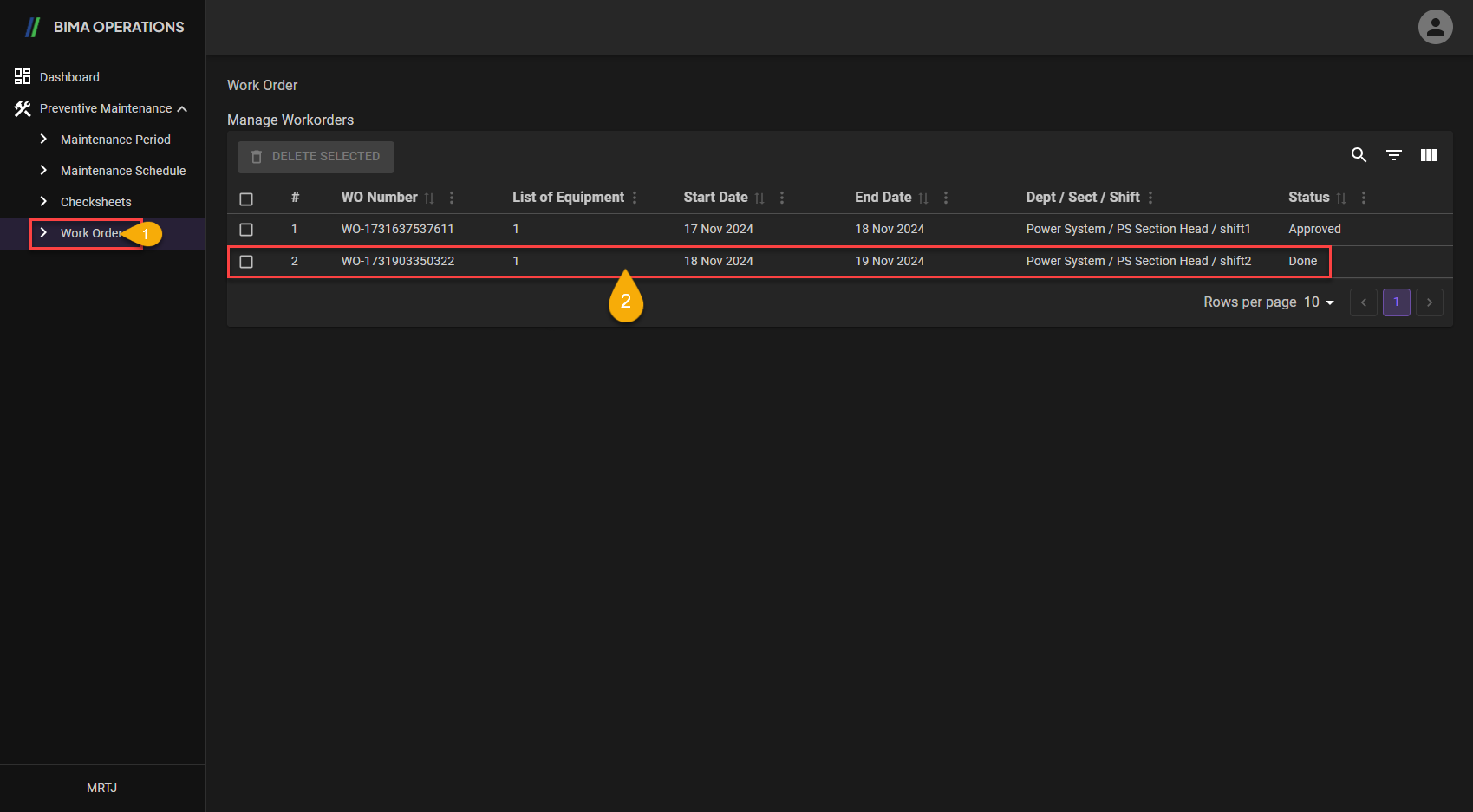
- Planner can click on the
Work Ordermenu to go to theManage Work Orderpage. - Planner can click in the inner area of the red box to be directed to the
Work Orderpage.
2. Reviewing the Work Order
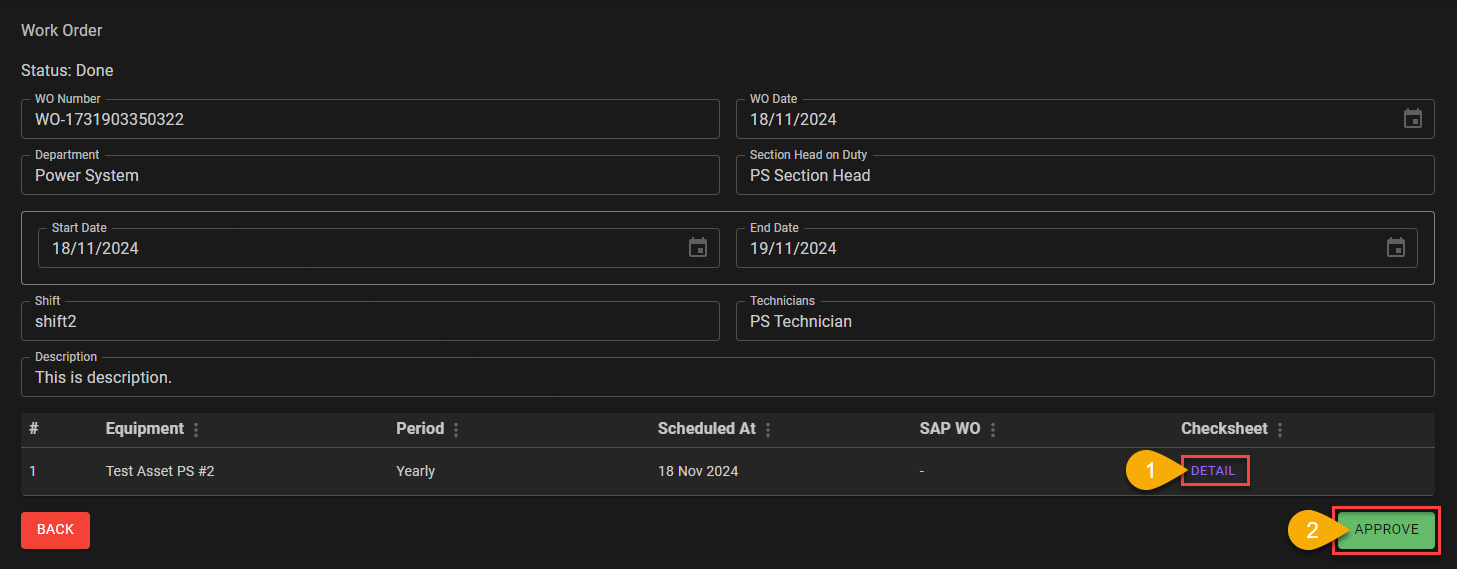
- Planner can click on
DETAILbutton to see the result of the task given to the Technicians . - After checking on the result, Planner can approve the
Work Orderby clicking on theAPPROVEbutton.
Extra
a. Looking the
DETAIL
After clicking the
DETAILbutton on theWork Orderpage, Planner can see the answers/results given by Technician when working on theWork Order.
- Planner can see photos of the work results or during the work process by clicking the
SEE PHOTObutton as in number1.- After finish checking the details of the work, Planner can close the
DETAILpanel by clicking theCLOSEbutton.
3. Approve Work Order
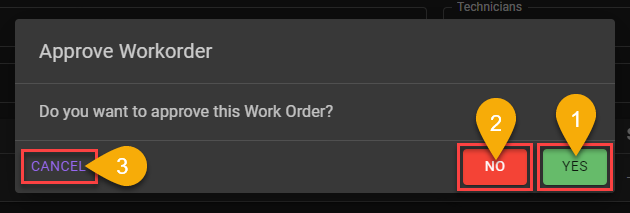
- If after checking the work given and it has been declared appropriate Planner can click the
YESbutton to approve theWork Orderthat has been completed. - If after checking there is data/results that are not appropriate or not expected Planner can click the
NObutton to disapprove theWork Orderthat was given.
4. Closing the Work Order
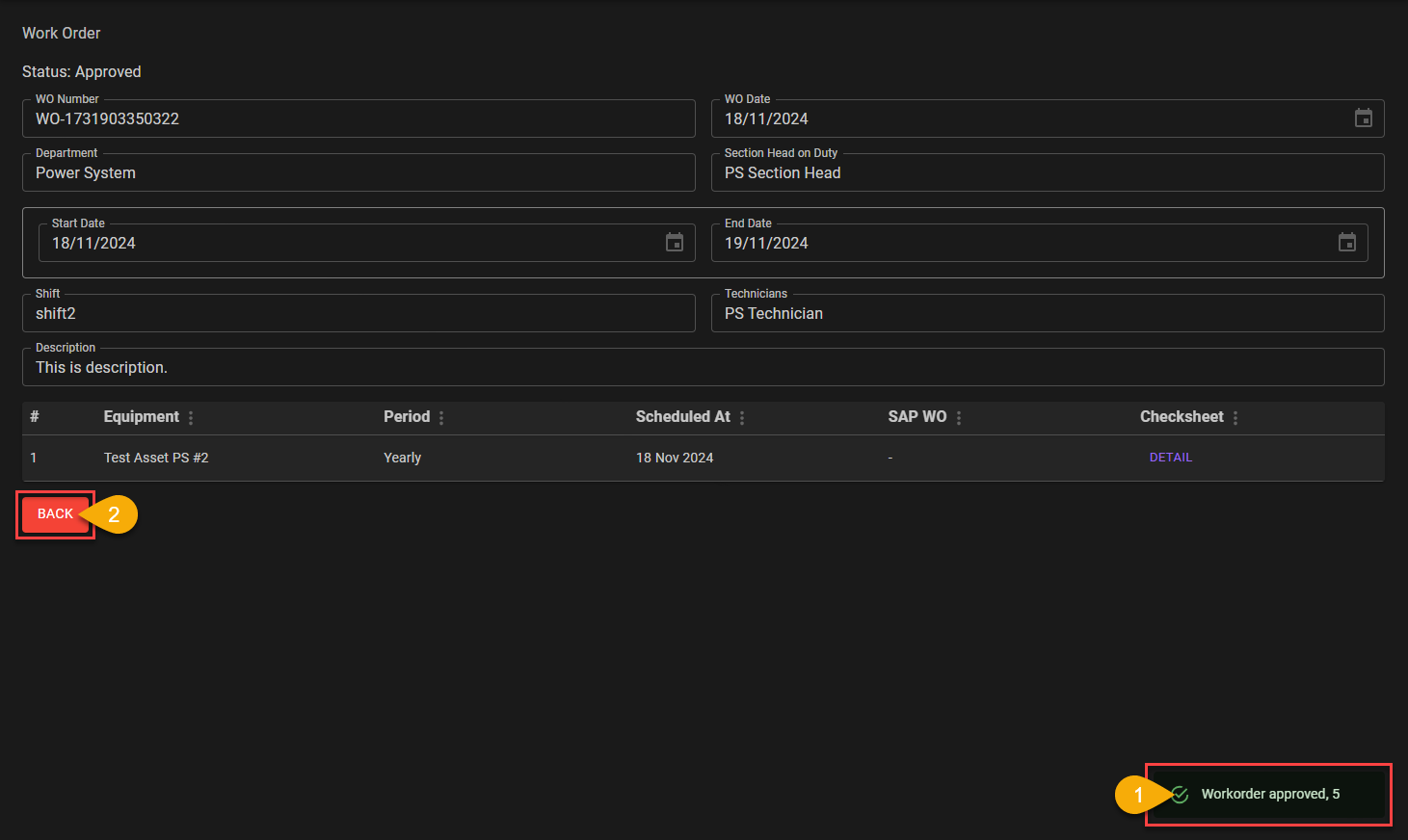
- After approving the work from Technician, Planner will get a notification
Workorder approved, [number]. - Planner can then close the
Work Orderpage by clicking the redBACKbutton.
5. Make Sure The Status Are Changed To Approved
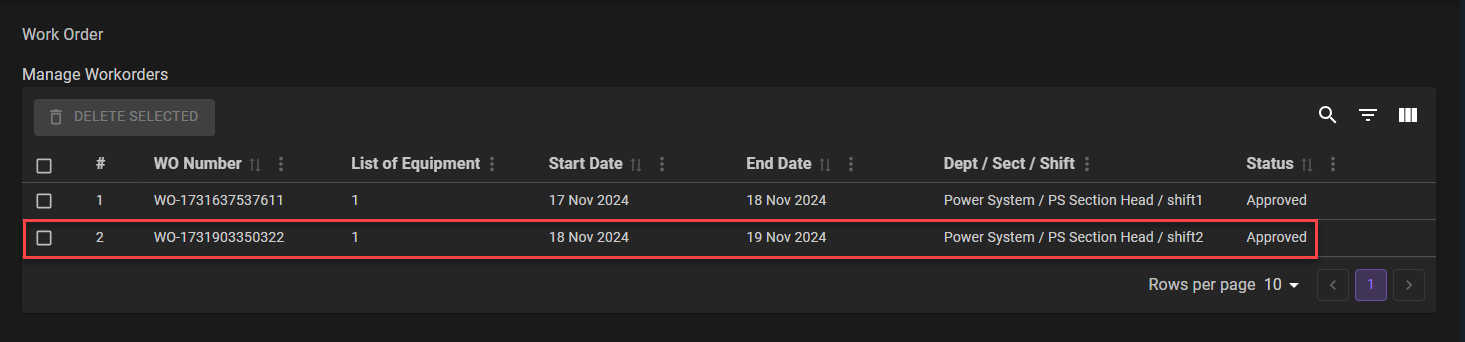 After closing the
 WorkOrder page, Planner also need to make sure the Status on the Work Order has changed from Done to Approved.